Pro Tools Reference Guide202
2 Do one of the following:
• Choose Track > Group.
– or –
• Choose New Group from the Group List
menu.
3 Type a name for the group.
4 Select the type of group to create: Edit, Mix, or
Mix/Edit.
5 Choose a Group ID from the ID pop-up menu.
Four banks of 26 are available: a–z, 2a–z, 3a–z,
4a–z. (If you do not choose a Group ID,
Pro Tools automatically assigns the next avail-
able ID to a new group.)
6 Click Tracks in the Group dialog, and do any
of the following:
• To add the tracks that are currently selected
in the session to the group, click the Add
button at the bottom of the Group dialog.
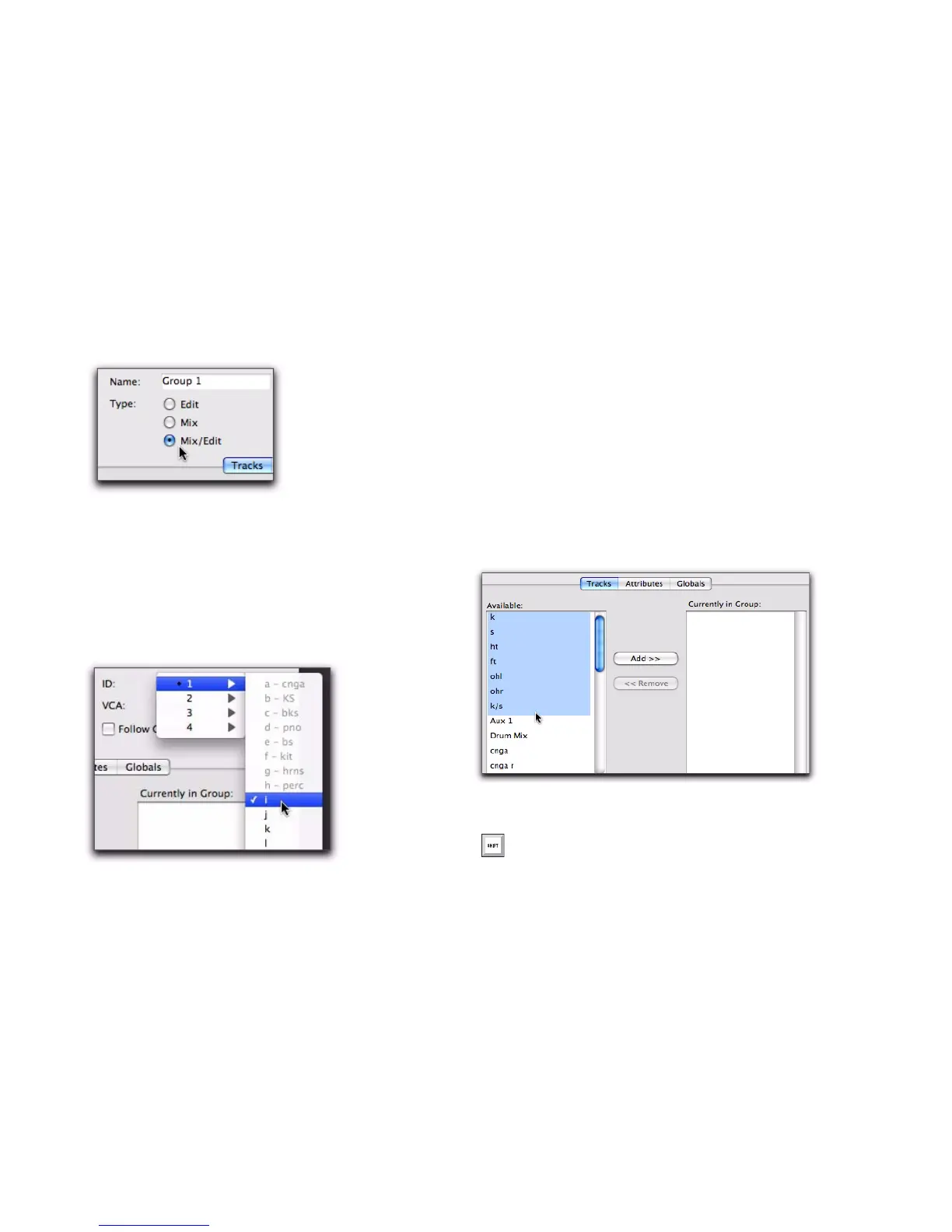
• To add tracks to the group, select the track
names in the Available track list, and click
Add or press A on the computer keyboard.
• To remove tracks from the group, select the
track names in the Currently In Group list,
and click Remove or press R on the com-
puter keyboard.
• Double-click track names in either list to
move them to the opposite column.
• To replace all tracks in the group with the
tracks that are currently selected in the ses-
sion, click the Replace button at the bot-
tom of the Group dialog.
Selecting a Group Type
Choosing a Group ID
Selecting track names to add to a group
In either list, Shift-click to select a range of
track names. Control-click (Windows) or
Command-click (Mac) to select discontigu-
ous track names.


 To Next Page
 Loading...