Chapter 13: The Region List 219
Rules for Stereo and Multichannel
Regions
For stereo and multichannel audio regions to be
shown as collective regions, the component re-
gions must be the same length. If an existing ste-
reo or multichannel region has been dragged
onto multiple mono tracks and edited such a
way that one or more components are no longer
the same length, the stereo display is removed
and the regions are displayed as individual re-
gions in the Region List.
Naming and Displaying
Regions in the Region List
A typical session can become cluttered with doz-
ens of tracks and hundreds of regions. There are
a number of things you can do to keep track of
and manage a session’s regions, including:
• Renaming existing regions
• Specifying how auto-created regions are
named
• Hiding auto-created regions
• Removing unused regions
Renaming Regions
In the course of a session you can rename re-
gions to give them more descriptive names, or
to shorten or simplify existing names. When re-
naming a region that was auto-created during
editing, the region becomes a user-defined re-
gion and is displayed in the Region List even
when auto-created regions are hidden.
If a region resides in a track, you can easily re-
name it by double-clicking it with one of the
Grabber tools. However, if the region does not
reside in a track, or if you want to rename sev-
eral regions, use the Rename command in the
Region List.
You can also rename a region in a track using
the Rename command in the Region List menu
or the Right-click menu.
To rename one or more regions from the Region
List:
1 If you will be renaming an auto-created re-
gion, select Show > Auto-Created from the Region
List menu.
2 Select one or more regions to be renamed in
the Region List.
3 Do one of the following:
• From the Region List menu, choose Re-
name.
– or –
• Right-click on any selected region and se-
lect Rename from the pop-up menu.
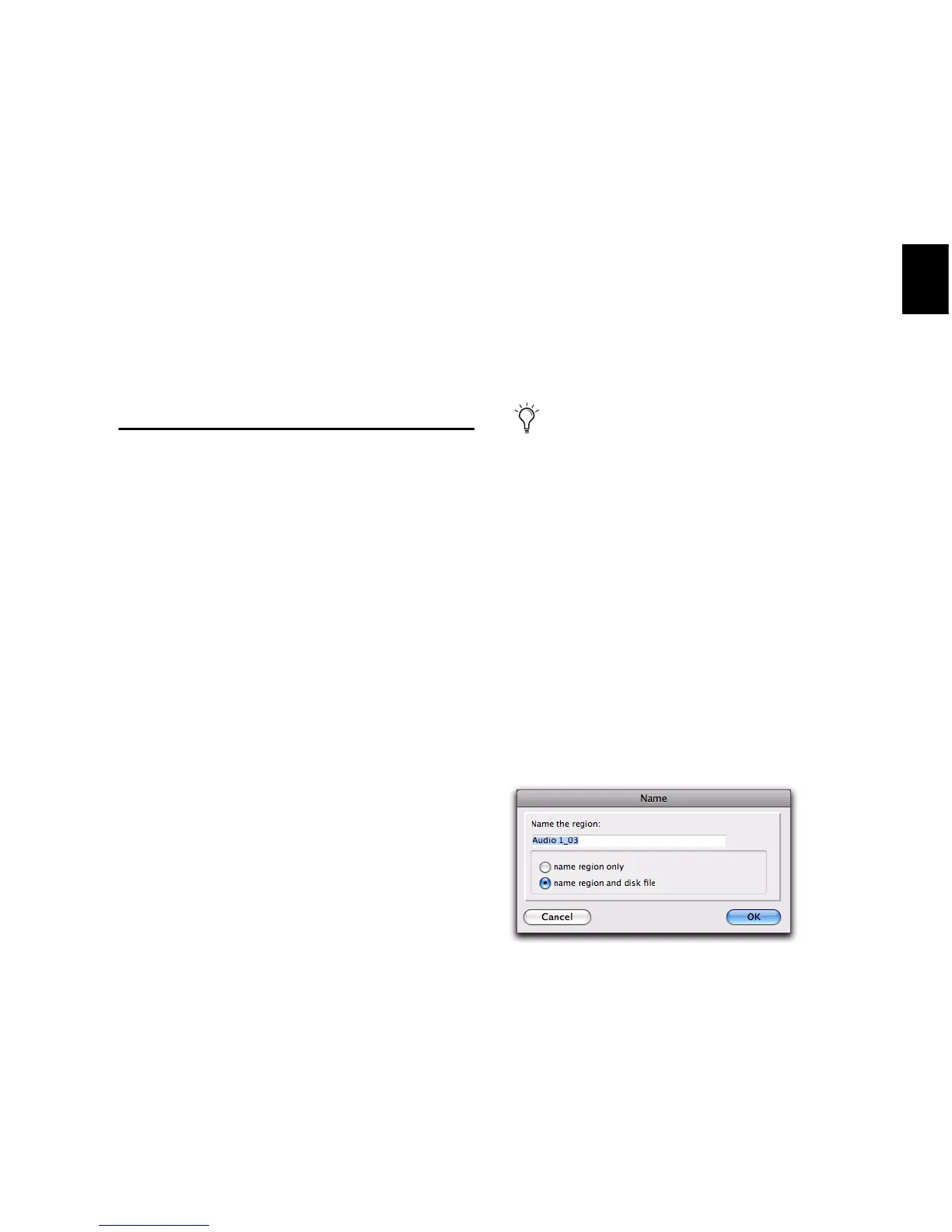
4 In the Name dialog, type a new name for the
region. If a whole-file audio region was selected,
specify whether to rename just the region, or
both the region and the disk file.
5 Click OK to rename the region. If renaming
multiple regions, you are prompted, succes-
sively, to rename each region.
If the Region List Selection Follows Edit Se-
lection option in the Editing Preferences
page is enabled, you can highlight a region
in the Region List by selecting it in a track.
Name dialog


 To Next Page
 Loading...