Chapter 14: DigiBase 257
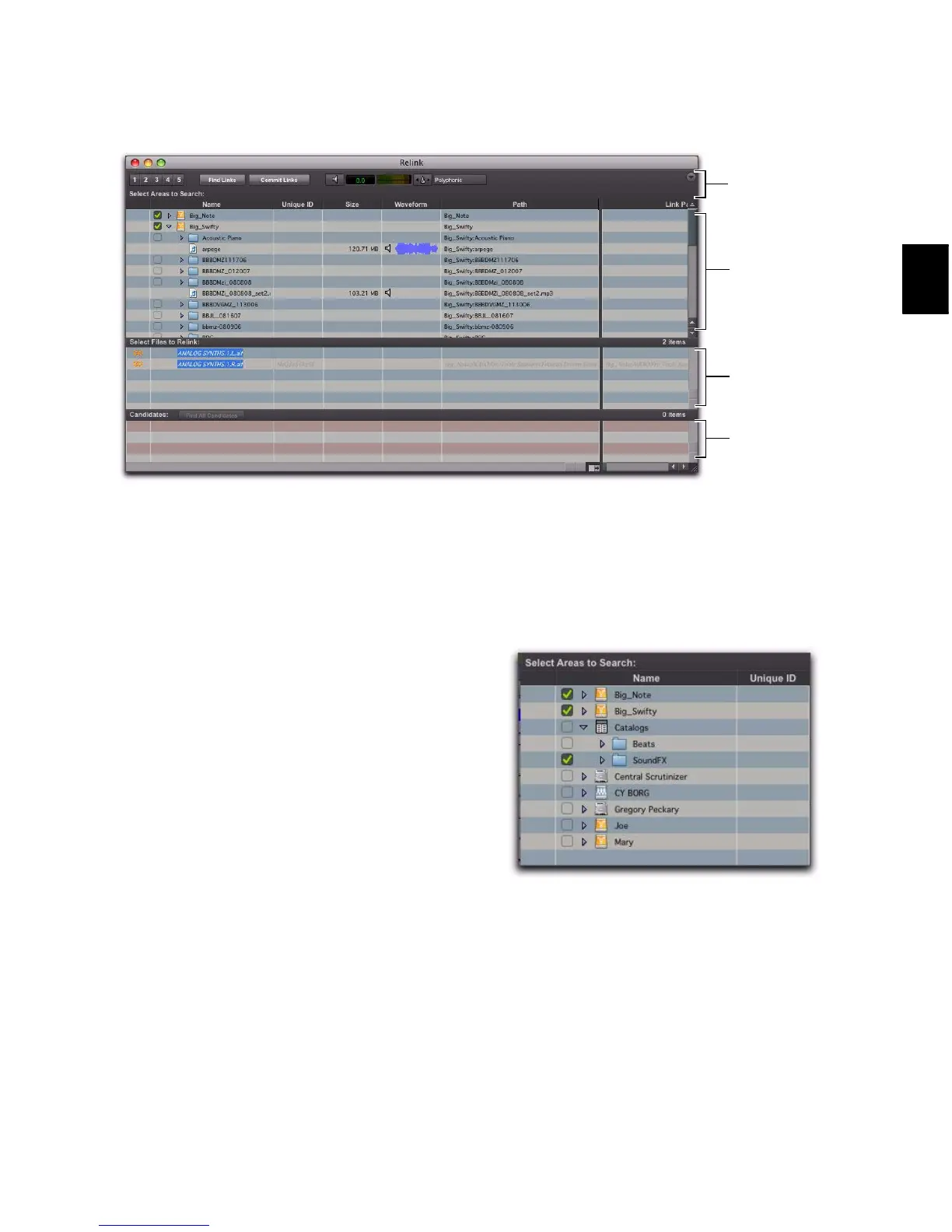
Opening the Relink Window
When opening a session with missing files, use
the Manually Find and Relink option to open the
Relink window.
The Relink window can also be accessed after a
session is open.
To access the Relink window from an open
session:
1 Choose Window > Project.
2 Choose Relink Offline from the Browser menu.
Selecting Areas to Search
Selecting volumes and folders in the Areas to
Search pane lets you focus the search for missing
files. This can speed the relinking process by
limiting the number of volumes or folders to
search. In addition, excluding folders from a
search for missing files also lets you redirect a
session or Catalog to a more appropriate copy of
an item.
To select volumes or folders to include or exclude
in a search:
1 Configure the Areas to Search pane to display
the appropriate volume, Catalog, or folder.
Figure 12. Main elements in the Relink window



 To Next Page