Pro Tools Reference Guide258
2 Click each item’s Search column to toggle it to
be included or excluded in the search. A check
next to an item indicates it will be included in
the search. All folders within items are also
checked.
Single and Multi-File Relinking
The Relink window can be used to relink one
missing file at a time, or to relink missing files in
batches.
Relinking Individual Missing Files
In some situations, individual files must be
relinked one at a time in order to relink the ses-
sion to the correct file. This is necessary if mul-
tiple copies of a media file are online, or when-
ever you want the most control and flexibility
over the relinking process.
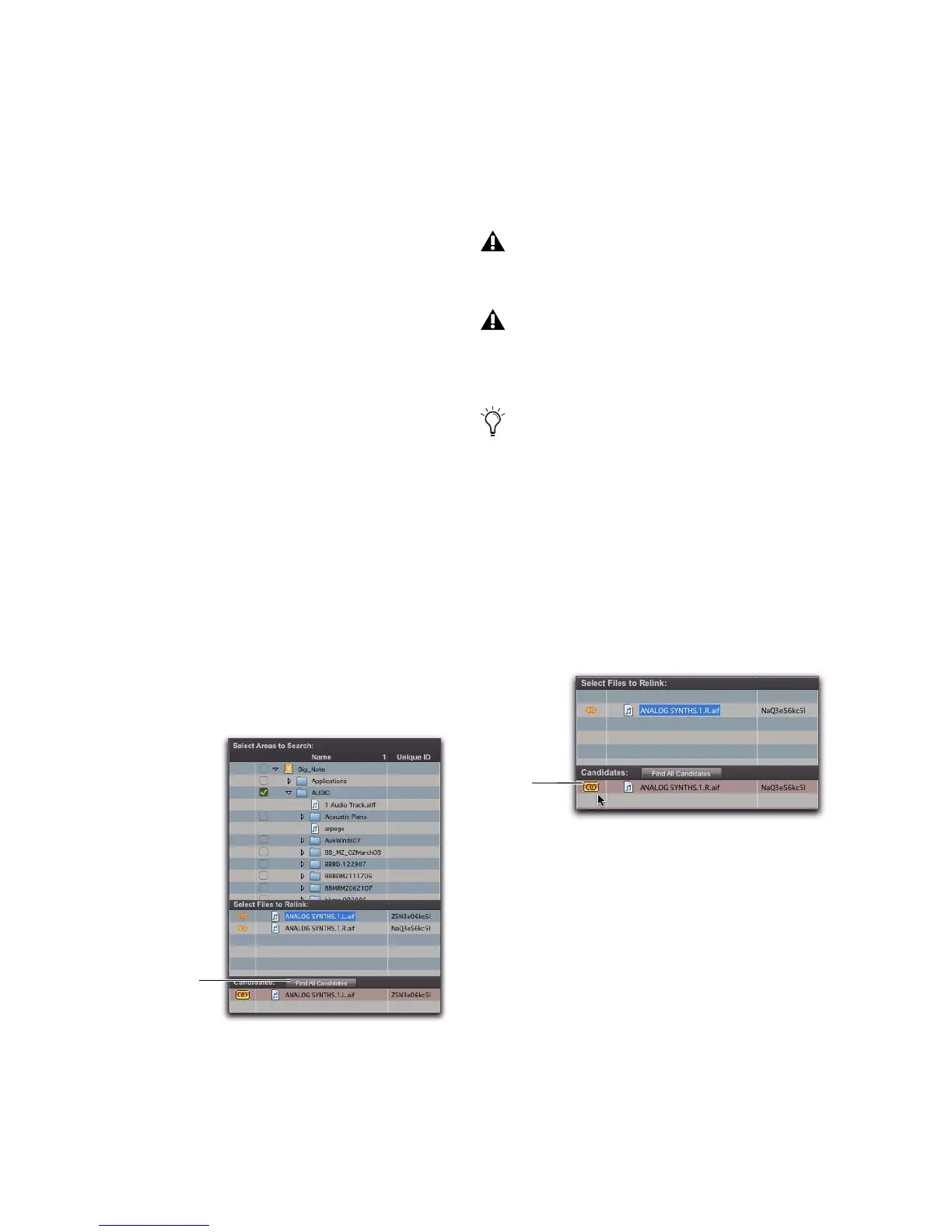
To relink a missing file:
1 Configure the Areas to Search pane.
2 Select one item in the Files to Relink list.
3 Click Find All Candidates.
Pro Tools searches the selected volumes and dis-
plays all files that match File Name and/or
Unique ID in the Candidates list. Link icons in-
dicate if a Candidate is already linked.
4 Click the Link icon next to the appropriate
Candidate to which you want to relink. A Link
icon next to an item indicates it will be relinked
to the item currently selected in the Files to
Relink list.
5 Click the Link icon next to other Candidates,
if you want to relink to additional missing files.
6 Click the Commit Links button.
Relinking Multiple Missing Files
Using the Find Links button, multiple files can
be matched and linked in one procedure.
Relinking a selected missing file
OMF video clips can only be relinked to a
session if they have matching Unique IDs.
QuickTime video clips can only be relinked
to a session by file name and file format
(QuickTime).
To control matching and linking criteria
when relinking an individual missing file,
use the Find Links button. Find Links is ex-
plained in “Relinking Multiple Missing
Files” on page 258.
Indication of Linked status


 To Next Page
 Loading...