Chapter 19: Audio Recording 375
Memory Locations
You can store Edit selections as Memory Loca-
tions, which can also include current pre- and
post-roll values.
To save an Edit selection with a Memory Location:
1 Ensure that Options > Link Timeline and Edit
Selection is selected.
2 Set the record range by making an Edit or
Timeline selection, or by entering start and end
times in the Transport window.
3 To save the pre- and post-roll values, enable
and set the pre- and post-roll amounts by enter-
ing them in the Transport window, or by drag-
ging the Pre- and Post-Roll Flags in the ruler that
represents the Main Time Scale (see “Setting Pre-
and Post-Roll” on page 376).
4 Press Enter on the numeric keypad or click the
Add Marker/Memory Location button in the
Edit window.
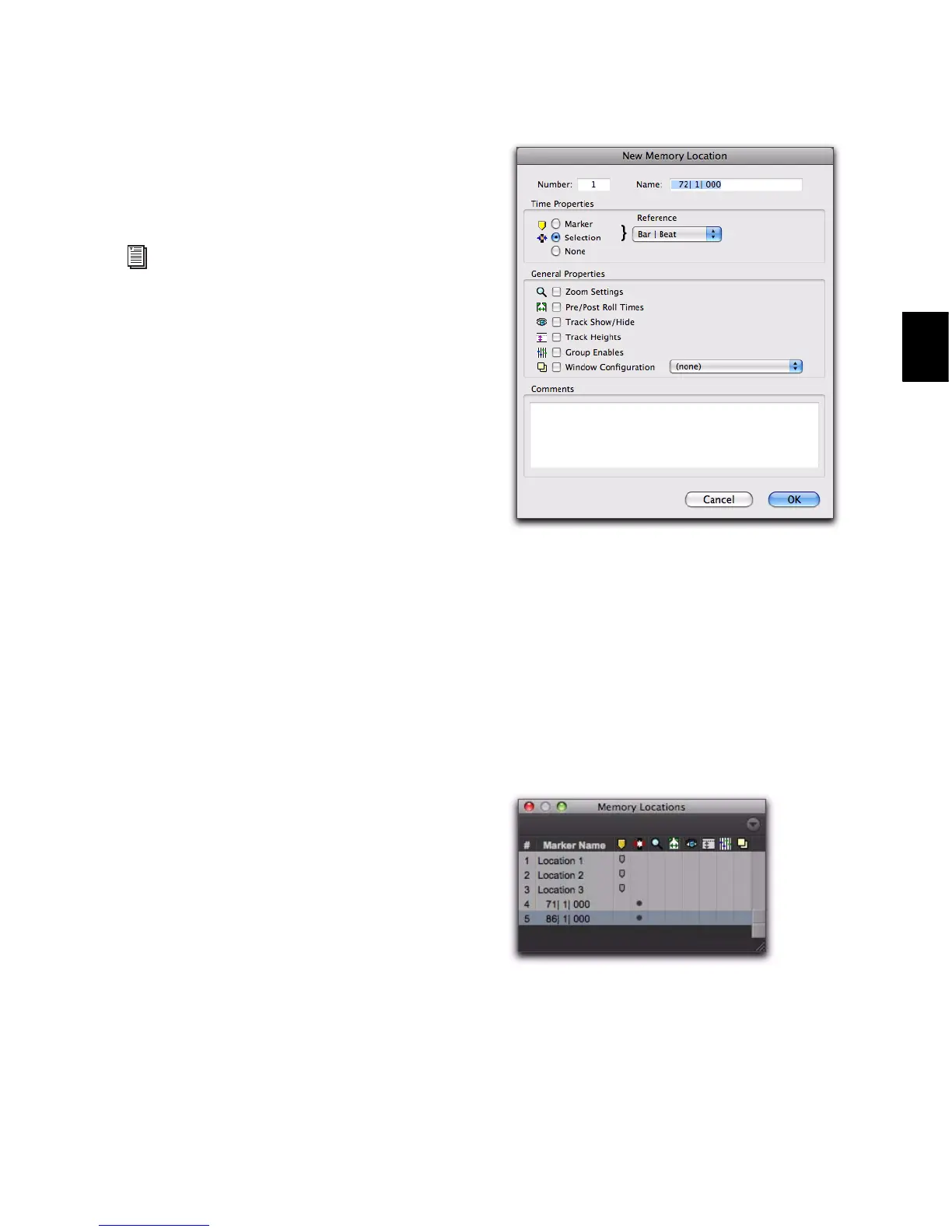
5 In the New Memory Location dialog, set Time
Properties to Selection, and if saving pre- and
post-roll values, select the Pre/Post Roll Times
option in the General Properties section.
6 Type a name for the new Memory Location.
7 Click OK.
To recall an Edit selection with a Memory
Location:
1 Make sure to select Options > Link Timeline and
Edit Selection.
2 Choose Windows > Memory Locations.
For more information on Memory Locations,
see “Memory Locations and Markers” on
page 705.
New Memory Location dialog
Memory Locations window


 To Next Page
 Loading...