Pro Tools Reference Guide376
3 Do one of the following:
• In the Memory Locations window, click the
name or number of the Memory Location.
– or –
• Recall the Memory Location by typing Pe-
riod (.), the Memory Location number, and
Period (.) again on the numeric keypad.
(See “Numeric Keypad Modes” on page 25).
The start and end times and pre- and post-roll
settings stored with the Memory Location are re-
called.
Setting Pre- and Post-Roll
Pre- and post-roll times appear as flags in the
ruler that represents the Main Time Scale. When
pre- and post-roll are enabled, the flags are
green, otherwise they are gray.
Pre- and post-roll amounts can be entered in the
Transport window, set from a track’s playlist or
Timebase ruler, or by recalling a Memory Loca-
tion.
Setting Pre- and Post-Roll in the
Transport Window
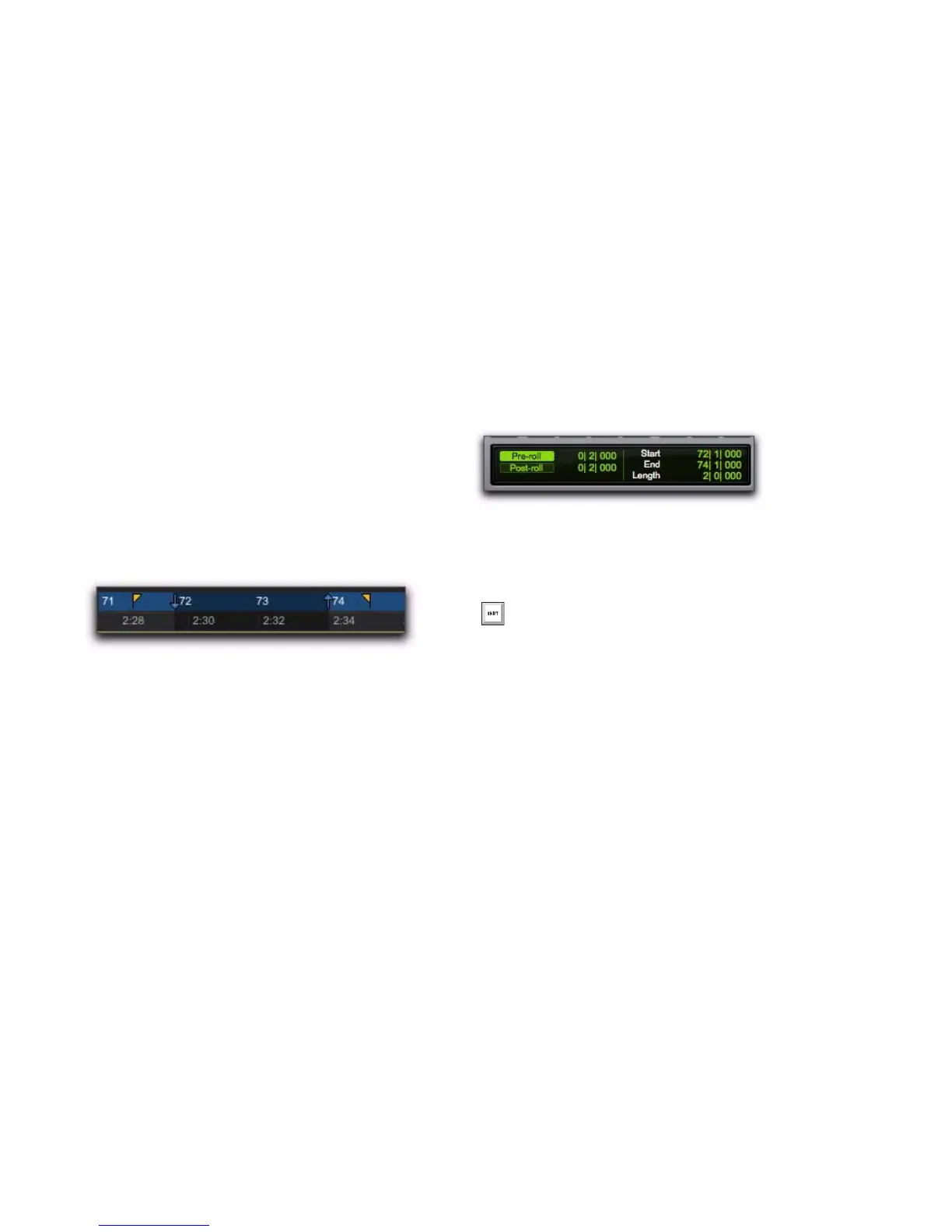
Pre- and post-roll can be enabled and set in the
Transport window.
To set and enable the pre- and post-roll times in the
Transport window:
1 Select View > Transport > Expanded.
2 In the Transport window, click in the pre-roll
field.
3 Type in the pre-roll amount and press Forward
Slash (/) on the numeric keypad to enter the
value and automatically move to the post-roll
field.
4 Type in the post-roll amount and press Enter
to accept the new value.
5 To enable either pre- or post-roll, click the ap-
propriate button so it is highlighted.
Setting Pre- and Post-Roll in a Playlist
You can use the Selector tool to enable and dis-
able pre- and post-roll by clicking in a track’s
playlist.
To set and enable the pre- and post-roll by clicking
in a playlist:
1 Select Options > Link Timeline and Edit Selection.
2 With the Selector tool, select the record range
in the track’s playlist.
3 With the Selector tool, Alt-click (Windows) or
Option-click (Mac) in the track’s playlist before
the selection to enable the pre-roll at that loca-
tion.
Green Pre- and Post-Roll Flags (enabled) in the Main
Timebase ruler
Pre-roll enabled for 2 beats; Post-roll disabled
Use the Period (.) or Left/Right Arrow keys
to move through the different time fields for
pre and post-roll. Use the Up/Down Arrow
keys to increase or decrease the numerical
values.


 To Next Page
 Loading...