Chapter 6: I/O Setup 65
Pro Tools outputs pairs can also be routed to
multiple audio interface outputs in the Hard-
ware Setup dialog. For information, see “Rout-
ing a Pro Tools Output Pair to Multiple Destina-
tions” on page 55.
To route a Pro Tools output channel pair to
multiple audio interface output ports:
1 Choose Setup > I/O.
2 Click the Output tab.
3 Click the Output selector for an interface
channel pair, just below an audio interface icon.
4 From the pop-up menu, select a physical port
pair (such as Analog 1–2) to route to the corre-
sponding Pro Tools channel pair (such as A 1–2)
in the Path Name column on the left.
5 Start-click (Windows) or Control-click (Mac)
the same Output selector and select an addi-
tional output pair from the same pop-up menu.
The output name updates with a plus sign (“+”)
before it to indicate that multiple output ports
are selected. In the pop-up menu, each physical
port pair assigned to that Pro Tools output pair
is indicated by a check mark.
6 Repeat the above steps to select additional
output destinations.
7 Click OK to save changes and close the I/O
Setup dialog.
Creating New Paths
The I/O Setup dialog lets you create new main
path and sub-paths with custom names, format,
and mapping. Custom path names appear in a
session’s track Input, Output, Insert, and Bus se-
lectors.
To create a new path:
1 Choose Setup > I/O.
2 Click the Input, Output, Insert, or Bus tab to
display the corresponding path type.
3 Do one of the following:
• Click New Path, or press Control+N (Win-
dows) or Command+N (Mac).
– or –
• Select a main path and click New Sub-Path.
4 Double-click in the Name field and type a
name for the path.
5 Press Tab to set the new path name and move
to the next path’s Name Field, or press Enter
(Windows) or Return (Mac) to set the new path
name.
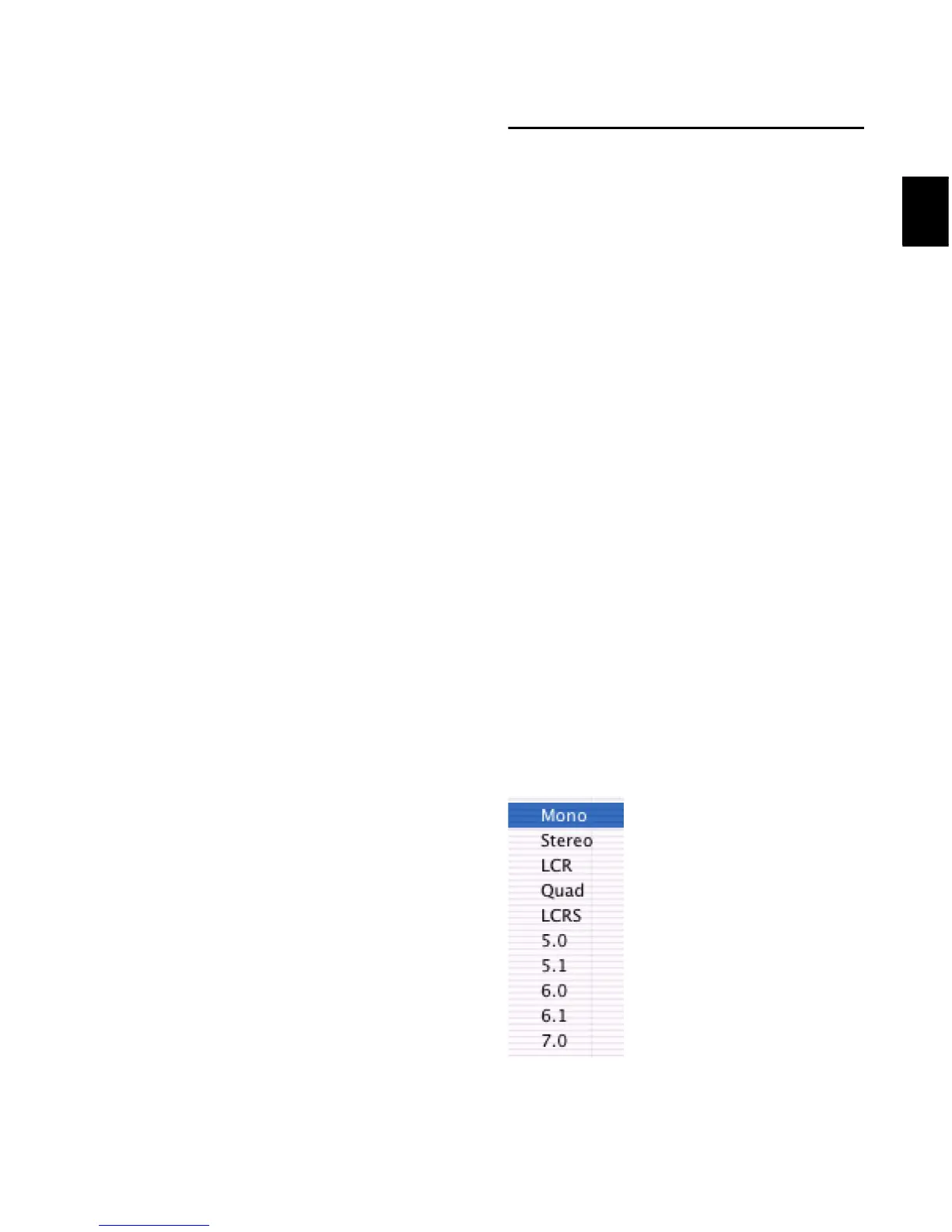
6 Choose a format from the Path Format selec-
tor (mono, stereo, or multichannel).
Path Format selector (Pro Tools HD shown)


 To Next Page
 Loading...