- 17 -
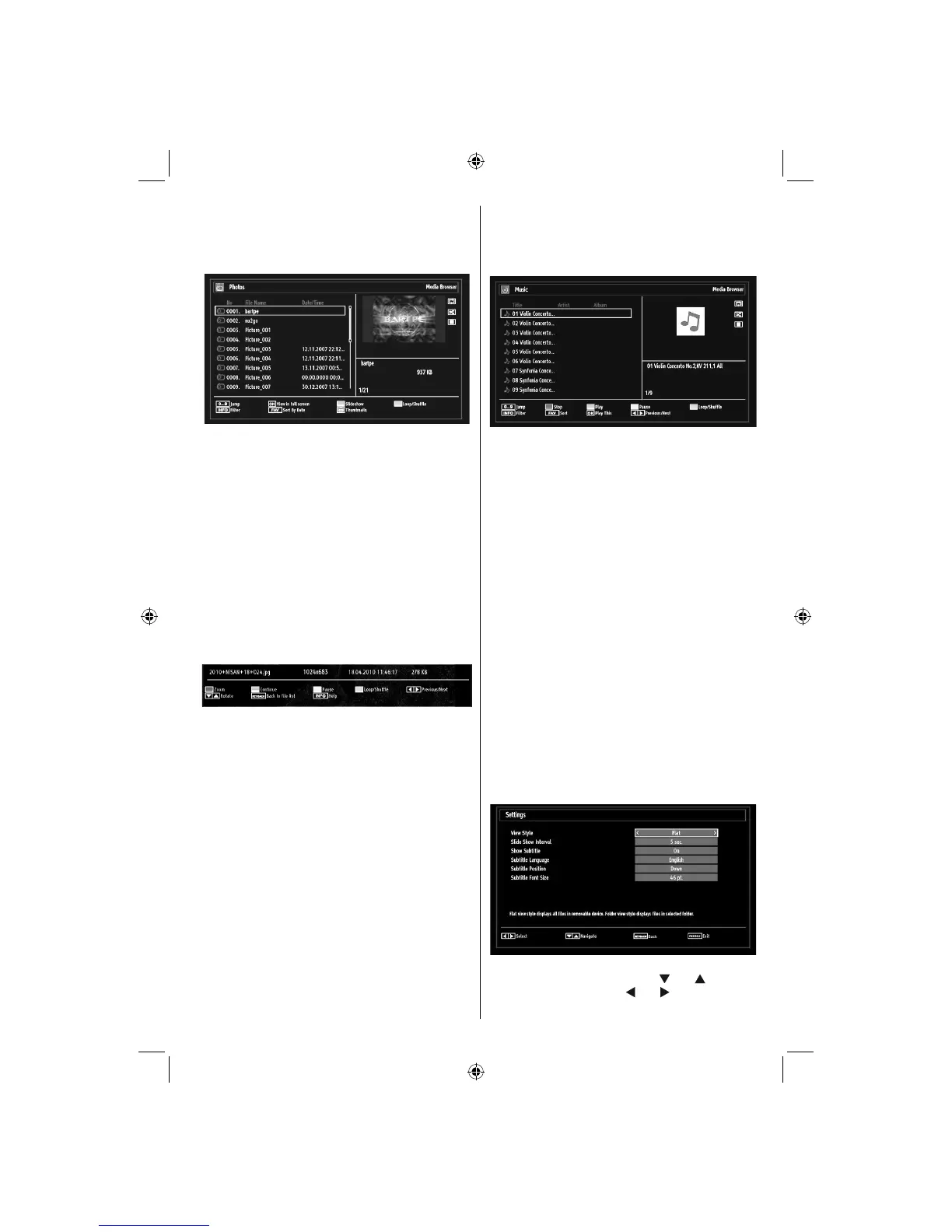
Viewing Photos via USB
When you select Photos from the main options,
available image fi les will be fi ltered and listed on this
screen.
Jump (Numeric buttons):Jump to selected fi le using
the numeric buttons.
OK: Views the selected picture in full screen.
Slideshow (GREEN button): Starts the slideshow
using all images.
Loop/Shuffl e (BLUE button): Press once to enable
Loop. Press again to enable both Loop and Shuffl e.
Press once more to enable only Shuffl e. Press again
to disable all. You can follow the disabled functions
with the change of the icons.
FAV: Sorts fi les by date.
TEXT: Views images in thumbnails.
INFO: Changes fi lter options.
Slideshow Options
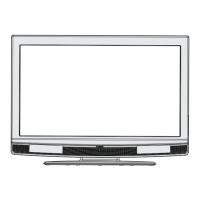
Pause (YELLOW button) : Pauses the slideshow.
Continue (GREEN button) : Continues the
slideshow.
Zoom (RED button) : Zooms picture.
Note:If a picture is zoomed out/displayed in full
screen, you cannot navigate the picture by using Up/
Down/Left/Right buttons.
Previous/Next (Left/Right buttons): Jumps to
previous or next fi le on slideshow.
Rotate (Up/Down buttons): Rotates the image using
up/down buttons.
Loop/Shuffl e (BLUE button): Press once to disable
Loop. Press again to disable both Loop and Shuffl e.
Press once more to enable only Shuffl e. Press again
to enable all. You can follow the disabled functions
with the change of the icons.
RETURN (Exit): Back to fi le list.
INFO: Displays help screen.
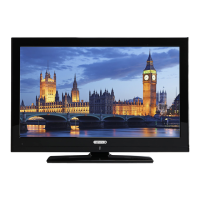
Playing Music via USB
When you select Music from the main options,
available audio fi les will be fi ltered and listed on this
screen.
0..9 (Numeric buttons): The TV will jump to the
fi le starting with the letter you input via the numeric
buttons on your remote control.
Play This (OK button) : Plays the selected fi le.
Play (GREEN button) : Plays all media fi les starting
with the selected one.
Stop (RED button) : Stops playback.
Pause (YELLOW button) : Pauses the selected
playback.
Previous/Next (Left/Right buttons) : Jumps to
previous or next fi le to play.
FAV: Sorts fi les by Title,Artist or Album.
Note: If the Viewing Style is set to Folder in Media
Browser Settings, Music folder will be displayed as
sorted and there is no need to sort fi les again by
pressing FAV button.
INFO: Changes fi lter options.
Loop/Shuffl e (Blue button): Press once to disable
Loop. Press again to disable both Loop and Shuffl e.
Press once more to enable only Shuffl e. Press again
to enable all. You can follow the disabled functions
with the change of the icons.
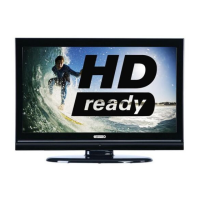
Media Browser Settings
You can set your Media Browser preferences by
using the Settings dialog. Press “ ” or “ ” button to
highlight an item and use “ ” or “ ” button to set.
View Style: Sets default browsing mode.
01_MB62_[GB]_[VESTEL_UK]_woypbpr_IDTV_NICKEL17_3902UK_32884W_10076269_50202676.indd 1701_MB62_[GB]_[VESTEL_UK]_woypbpr_IDTV_NICKEL17_3902UK_32884W_10076269_50202676.indd 17 26.10.2011 13:18:3526.10.2011 13:18:35


 To Next Page