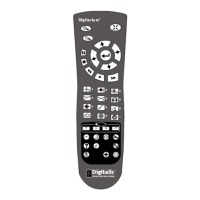
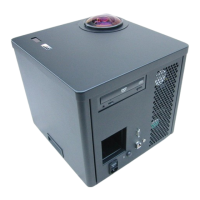
The Sky Tonight Outline
I. Introduction
Start your lesson with the Digitarium
®
system set for the current time with atmospheric effects
and landscape on. If the lesson is starting after sunset, set the sky time for some time before
sunset that day.
You may need to adjust your latitude, longitude, and time zone; see the “Menu Mode” section of the
Digitarium
®
software manual to learn how to adjust these settings.
II. Tonight's sky
You will need to speed up time to get to the night sky. Press to fast forward time. Note that
pressing this button multiple times will make time pass faster and faster. If you have sped up time too
much, press to slow it down one step. can also be pressed multiple times.
Let the sun set, then slow time down to real time by pressing . Turn off the atmospheric effects
and landscape .
To help yourself navigate through the night sky, you may wish to label bright stars and/or display
the compass points .
III. Constellations
Show your first constellation. To show just one constellation at a time (recommended), you will first
need to select a star in the line drawing for that constellation. You will select a star by positioning the
cursor directly over the star, then pressing the enter button.
To move the cursor around the sky, use the arrow buttons:
: Move the cursor toward the zenith (the high point of the sky).
: Move the cursor counterclockwise around the zenith.
: Move the cursor toward the horizon (where the sky meets the earth). Note: When you first
start up your Digitarium
®
system, the cursor will be positioned at the zenith. Use this button first to
move the cursor away from the zenith before trying to move it to the desired star.
: Move the cursor clockwise around the zenith.
2


 To Next Page
 Loading...