IOS DEVICES
Device Compatibility:
iPhone 4 onwards
iPad 2 onwards
iPod touch 4th generation onwards
System Requirements:
iOS 7 and above
Minimum of 40MB memory required
Resolution
iPhone: 480*320~1136*640
iPad: 1024*768~2048*1536
IOS DEVICE PAIRING:
1) Navigate to your device’s Bluetooth menu &
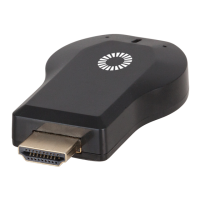
look for the dongle’s SSID (e.g. AnyCast-xx).
2) Select the SSID to pair with your device. If
you cannot see the dongle, try pressing the
button on the back of the dongle to reset.
3) If prompted for a password, enter 12345678.
4) Once your device is paired, the dongle menu
should display on the device’s screen as
follows:
- Touch icon to connect dongle to Wi-Fi AP
- Touch icon to switch between Miracast &
DLNA
- Touch icon to show media control panel
- settings


 To Next Page