
 Need help?
Do you have a question about the DIGITECH Computer WI-FI ANYCAST DONGLE and is the answer not in the manual?
Explains Miracast for screen mirroring and DLNA for media streaming.
Provides a step-by-step guide for connecting the dongle to power and display.
Details compatible iOS devices, minimum OS version, memory, and resolution.
Instructions for pairing an iOS device with the dongle via Bluetooth/Wi-Fi.
Details compatible Android devices, minimum OS version, RAM, and resolution.
Instructions for pairing an Android device with the dongle via Bluetooth/Wi-Fi.
Guide to connecting the dongle to your home Wi-Fi network for internet access.
Lists memory, Wi-Fi standards, resolution, OS support, and dimensions.
Lists all items included in the product packaging.
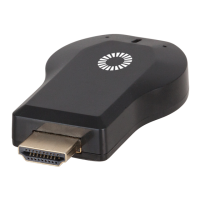
This document describes the Digitech Wi-Fi Anycast Dongle, a versatile device designed to stream content from various smart devices to a TV or projector. The dongle offers multiple functionalities, including screen mirroring via Miracast, and media streaming through DLNA and AirPlay®, providing a near-universal ability to cast media from compatible devices. This allows users to enjoy YouTube, videos, pictures, and other streaming services directly on a larger display.
The core function of the Digitech Wi-Fi Anycast Dongle is to act as a bridge between your smartphone, tablet, or PC and a larger display like a TV or projector. It achieves this through several key features. Miracast functionality enables direct screen mirroring, replicating the exact display of your device onto the connected TV or projector. This is particularly useful for presentations, sharing photos, or simply viewing your device's interface on a bigger screen. DLNA (Digital Living Network Alliance) support allows for streaming of pictures, videos, and music from your device to the TV or projector, ideal for enjoying your personal media library. Furthermore, AirPlay® compatibility caters to iOS users, enabling seamless content sharing from Apple devices.
Installation of the dongle is straightforward. First, the dongle needs to be powered. This can be done either by connecting it to a power adapter with a Micro USB plug or by using the included USB power adapter. Once powered, the dongle is plugged into an available HDMI port on your TV or projector. The next step involves switching your TV or projector's input source to the corresponding HDMI port where the dongle is connected. Upon successful connection, the dongle's main menu should appear on the screen, indicating it is ready for pairing. After pairing the dongle with your device, it is recommended to connect the dongle to your wireless router to enable internet access for streaming services and updates.
For iOS devices, the dongle is compatible with iPhone 4 onwards, iPad 2 onwards, and iPod touch 4th generation onwards. System requirements include iOS 7 and above, with a minimum of 40MB memory. Pairing an iOS device involves navigating to the device's Bluetooth menu and searching for the dongle's SSID, which typically appears as "AnyCast-xx." After selecting the SSID, the device will attempt to pair. If the dongle is not visible, pressing the button on the back of the dongle can reset it. If prompted for a password, the default is "12345678." Once paired, the dongle menu will display on the device's screen, offering options such as connecting to a Wi-Fi AP, switching between Miracast and DLNA, showing the media control panel, and accessing settings. To activate AirPlay, users simply swipe up from the bottom of their iOS device's screen to open the Control Center and tap AirPlay. Subsequently, the device's screen should appear on the TV or projector.
For Android devices, the dongle is compatible with Bluetooth-enabled smartphones and tablets running Android 4.2 or higher, with a minimum of 1GB RAM and 40MB memory. Pairing an Android device follows a similar process: navigate to the device's Bluetooth menu and look for the dongle's SSID (e.g., "AnyCast-xxxxxx"). Select the SSID to pair. If the dongle is not visible, pressing the button on the back of the dongle can reset it. The default password, if requested, is "12345678." Once paired, the dongle menu will be displayed on the device's screen, providing options to connect to a Wi-Fi AP, switch between Miracast and DLNA, show the media control panel, and access settings. After pairing, the Android device's screen should appear on the TV or projector.
Connecting the dongle to a Wi-Fi router is a crucial step for accessing internet-based streaming services. This process involves opening your device's internet browser and visiting "http://192.168.49.1" or scanning the provided QR code. Once on the page, click on the signal icon, which will link the dongle to your Wi-Fi router. This setup process typically only needs to be performed once.
The Digitech Wi-Fi Anycast Dongle is designed for ease of use and broad compatibility, making it a convenient solution for extending your digital content to larger screens. Its multi-protocol support ensures that a wide range of devices can utilize its casting capabilities, enhancing the viewing experience for various media types. The simple installation and pairing procedures aim to provide a user-friendly experience, allowing quick setup and enjoyment of streamed content.
 General
| Frequency Band | 2.4 GHz |
|---|---|
| Maximum Speed | Up to 150 Mbps |
| Compatibility | Windows, Mac |
| Wireless Standard | IEEE 802.11b/g/n |
| Security | WPA, WPA2 |

 To Next Page