Setup and Connections
9
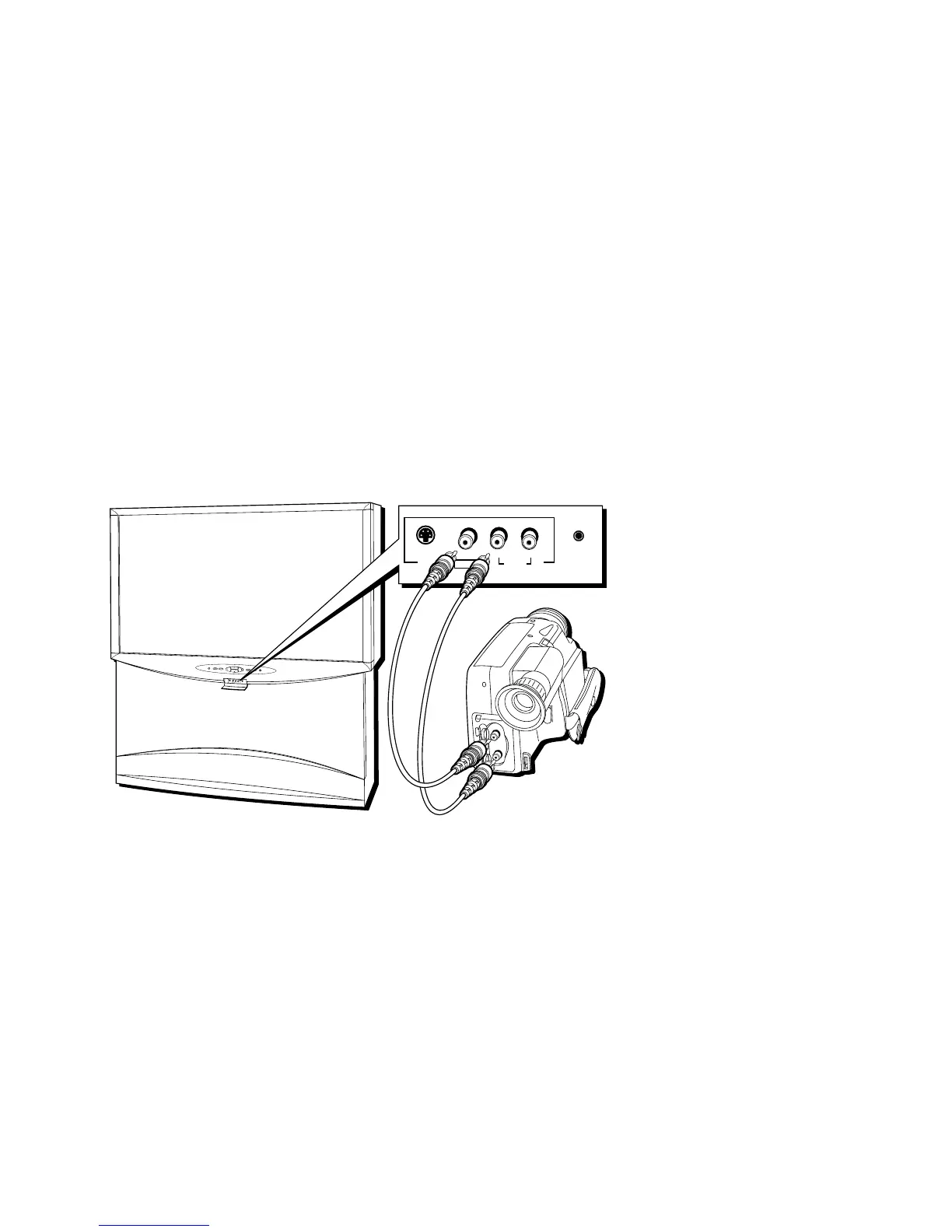
Making Connections to the Front Panel
You can connect one of many types of devices to the TV’s front panel, such as a video
game or camcorder for playback.
To connect a device to the front panel:
1. Open the small front panel door protecting the INPUT 4 jacks.
2. Connect the device’s audio/video outputs to the INPUT 4 audio and video jacks on
the TV.
3. If the device has S-Video capability, connect an S-Video cable (instead of the video
cable) from the device to the S-VIDEO jack on the TV. If not, skip this step.
4. Press the INPUT button on the remote control until FRNT (or SFRNT if you have
connected an S-Video cable) appears in the channel banner.
Below is an example of how you might connect a camcorder for playback.
S
-
V
I
D
E
O
V
I
D
E
O
L
/
M
O
N
O
R
A
U
D
I
O
I
N
P
U
T
4
H
E
A
D
P
H
O
N
E
P
O
W
E
R
M
E
N
U
/
O
K
T
V
/
D
I
R
E
C
T
V
I
N
F
O
V
O
L
C
H
C
H
V
O
L
V
I
D
E
O
A
U
D
I
O
S-VIDEO VIDEO L/MONO R
AUDIO
INPUT 4
HEADPHONE



 To Next Page