EasyManua.ls Logo

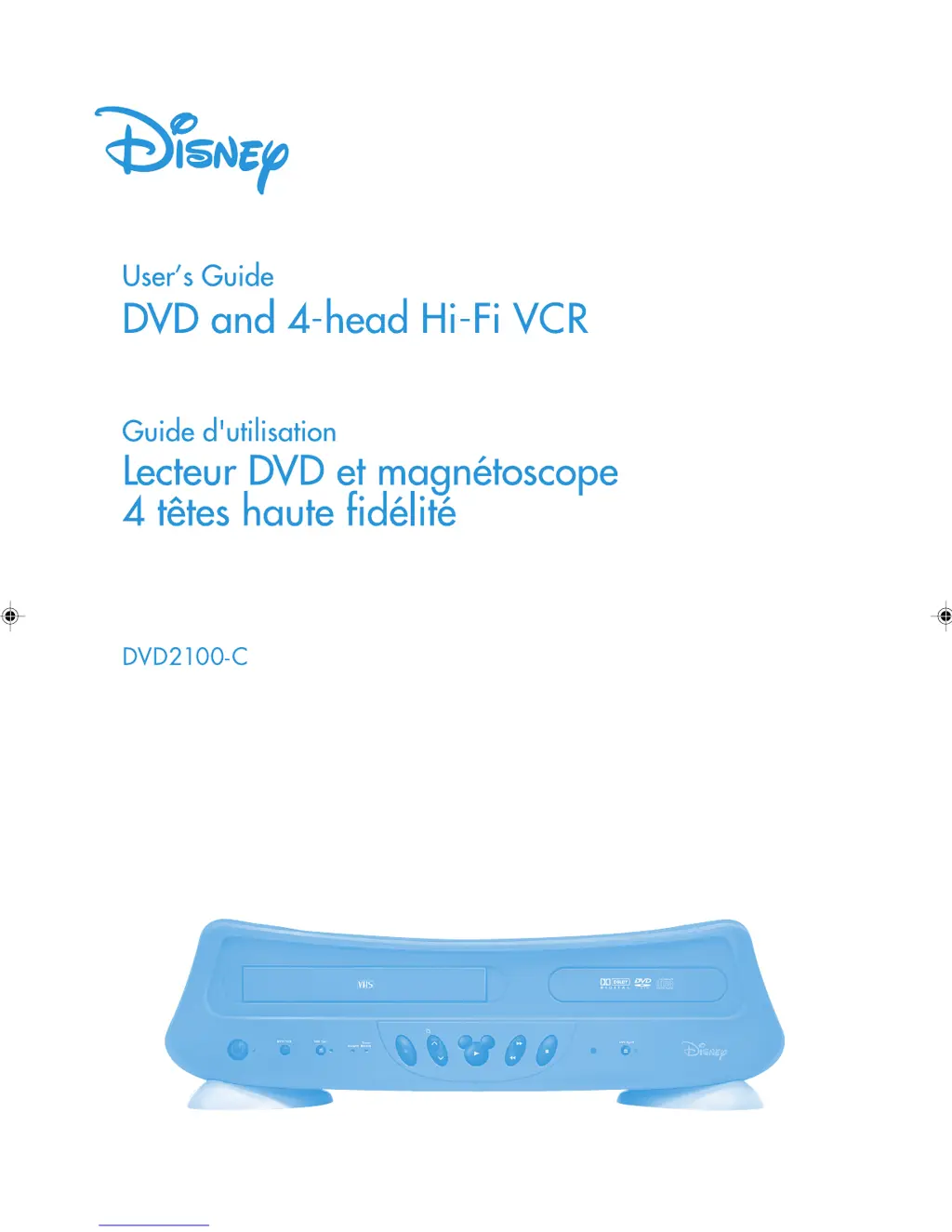
Disney DVD2100-C - User Manual

Disney DVD2100-C
68 pages
Print Icon
To Next Page IconTo Next Page
Loading...
ENGLISH
FRANÇAIS
2D81221A[E] Cover 16/7/04, 22:421

Table of Contents

Questions and Answers

  • K
    Kristin MartinezAug 13, 2025
    What to do if my Disney DVD2100-C DVD Player does not operate?
    • A
      alexanderkatieAug 13, 2025
      If your Disney DVD/VCR player isn't working, make sure the power cord is properly plugged in and try a different AC outlet. Check your fuse or circuit breaker to ensure power is available. You can also try unplugging the unit and plugging it back in. Finally, ensure you've selected the correct DVD or VCR mode before attempting to use it.
  • H
    Holly MorrisAug 17, 2025
    Why is my Disney DVD2100-C remote control not working?
    • J
      Joseph HendersonAug 17, 2025
      If the remote control for your Disney DVD player isn't working, try these steps: * Aim the remote directly at the remote sensor on the DVD player. * Make sure you are within approximately 5 meters of the unit and reduce the amount of light in the room. * Ensure there are no obstructions blocking the path of the remote's beam. * Replace the batteries, as they may be weak. * Verify that the batteries are inserted correctly.
  • K
    kentjenniferAug 20, 2025
    How to fix no picture on Disney DVD Player?
    • S
      Samuel WillisAug 20, 2025
      If you're not getting a picture on your Disney DVD player, check that the unit is connected correctly and that the antenna cable is properly connected. Also, make sure the video input selector on your TV is set to VIDEO (or the equivalent) and that the channel is set to the external mode.
  • A
    ageorgeAug 25, 2025
    What to do if there is no sound on Disney DVD2100-C?
    • B
      Bradley LaneAug 25, 2025
      If you're experiencing a lack of sound with your Disney DVD player, first verify that the unit is connected correctly. Next, check that the input selector on your amplifier is set properly. Also, ensure the unit is not in a special playback mode.
  • M
    Mary HarrisAug 28, 2025
    How to troubleshoot no cable reception on Disney DVD2100-C?
    • T
      Tracy GayAug 28, 2025
      To troubleshoot cable reception issues on your Disney DVD player, first check all cable connections to ensure they are secure. If the connections are good, the problem may be with the station or cable system itself. Try tuning to another station to see if the issue persists.
  • T
    Thomas RodriguezAug 31, 2025
    Why are there noise bars on my Disney DVD2100-C DVD Player screen?
    • J
      jacobdunnSep 1, 2025
      If you are seeing noise bars on the screen of your Disney DVD Player, it may be due to the tracking adjustment being beyond the range of the automatic tracking circuit. Try manual tracking adjustment. Also, the video heads may be dirty or the tape may be worn or damaged.
  • T
    Tracie RobertsonSep 5, 2025
    What to do if playback doesn't start on Disney DVD Player?
    • N
      nelsonvincentSep 5, 2025
      If playback isn't starting on your Disney DVD player, make sure a disc is inserted. If a disc is already inserted, it may be dirty; clean the disc and try again. Note that the unit cannot play DVD-ROMs, etc.
  • L
    Linda HughesSep 8, 2025
    How to change the language on my Disney DVD2100-C DVD Player display?
    • P
      Pamela BowmanSep 8, 2025
      To change the language displayed on your Disney DVD player, select the appropriate language in the menu options.

Summary

Safety Warnings

Cautionary Symbols and Warnings

Explanation of safety symbols like CAUTION and WARNING for user protection.

IMPORTANT SAFEGUARDS

General Safety Precautions

Key safety instructions for operating and maintaining the DVD/VCR unit.

Features

Product Features Overview

Detailed description of the DVD/VCR's capabilities and functions.

Parts and Functions

Front and Rear Panel Layout

Identification and description of buttons, ports, and indicators on the unit.

Remote Control

Remote Control Layout and Operation

Diagram and explanation of remote control buttons and their functions.

Power Source

AC Power Connection Guidelines

Instructions for connecting the unit to an AC power outlet and safety notes.

Basic Connections

Antenna and TV Connectivity

Diagrams for connecting antennas and televisions to the DVD/VCR.

CABLE TV Connections

Connecting to Cable TV Services

Methods for connecting the DVD/VCR to cable TV, including descrambler use.

Playback Connections

Connecting to TV and Audio Systems

Instructions for connecting the DVD/VCR to TVs and audio outputs.

Setting Up the VCR Section

Setting the Video Channel

Configuring the VCR to output to the correct TV channel for playback.

Setting the On-Screen Display Language

Selecting the language for the DVD/VCR's on-screen menus and prompts.

Auto Clock Setting

Automatic and Manual Clock Adjustment

Procedures for setting the unit's clock automatically or manually.

Manual Clock and Tuner Settings

Manual Time, Channel Tuning, and Cable Setup

Manual clock setting, channel memory, and TV/CABLE mode selection.

Tape Playback Operation

Loading, Playing, and Stopping Tapes

Basic procedures for inserting, playing, and ejecting VHS tapes.

Tape Speed and Picture Search

Information on tape speeds, fast forward/rewind search, and still picture playback.

Advanced Tape Playback

Slow Motion, Frame Advance, and Tracking

Advanced playback modes like slow motion, frame advance, and tracking adjustments.

Repeat Playback and Index Search

Setting up repeat playback and using the video index search system.

Recording

Recording TV Programs and Pausing

Instructions for recording TV shows, including one-touch and temporary pause.

Recording Status and Auto Rewind

Displaying recording status and understanding the auto rewind feature.

Timer Recording Functions

One-touch Timer Recording (OTR)

Simple method for timed recording using the OTR button.

Timer Recording Programming

Detailed steps for programming unattended recordings using the timer.

Timer Recording Scheduling

Scheduling and Confirming Timer Recordings

Setting weekly/daily timers, confirming, and cancelling programmed recordings.

Advanced VCR Functions

Stereo and Hi-Fi Sound Playback

Using stereo, Hi-Fi sound, and selecting audio output options.

Second Audio Program (SAP)

How to access and listen to Second Audio Program broadcasts.

Disc Playback Operation

Disc Information and Handling

Details about compatible discs, removing, storing, and cleaning discs.

Setting Disc Playback Language

Selecting the preferred language for DVD menu messages and audio.

Disc Playback Features

Playback Procedures and Screen Saver

Steps for disc playback, stopping, and the screen saver function.

Special Playback Modes

Using fast forward, review, still playback, frame advance, and slow-motion.

Disc Playback Navigation

Locating Scenes, Marking, and Language;Angle

Finding scenes, marking playback points, changing audio language, and angles.

Karaoke Playback and Subtitle Control

Using karaoke features and managing subtitle display and language.

Disc Playback Control

Title, Repeat, and Program Playback

Selecting titles, setting repeat playback, and arranging CD track order.

A-B Repeat and Random CD Playback

Repeating specific sections of a disc and random playback for CDs.

Advanced DVD Functions

Parental Control Setup and Management

Setting and unlocking parental control levels for disc playback.

Temporary Rating Level Override

Temporarily disabling disc rating levels with or without a password.

DVD Settings and Display Options

Setting Disc Menu Language

Selecting the language for DVD disc menus and messages.

Adjusting TV Screen Aspect Ratio

Configuring the display aspect ratio (4:3, 16:9) for optimal viewing.

DVD Display and Audio Settings

On-Screen Display and Status Display

Controlling the visibility of on-screen displays and viewing disc status.

Dynamic Range Control (DRC)

Adjusting audio dynamic range for suitable sound output.

Language Code List

Codes for Menu, Subtitle, and Audio Languages

Reference list of language codes used for disc settings.

Problems and Troubleshooting

DVD;VCR and VCR Troubleshooting

Solutions for common issues with DVD/VCR operation and recording.

Troubleshooting and Maintenance

DVD Troubleshooting and Video Head Cleaning

Resolving DVD playback issues and instructions for video head cleaning.

Specifications

Technical Specifications Overview

Detailed technical data for the DVD/VCR, including power, dimensions, and performance.

Disney DVD2100-C Specifications

General IconGeneral
Progressive ScanYes
Remote ControlYes
Parental ControlsYes
Playable Media FormatCD-R, CD-RW
Supported MediaDVD, CD
Video OutputComposite, S-Video, Component