EasyManua.ls Logo

Displays2go DGSNKTCH43BK - User Manual

Displays2go DGSNKTCH43BK
23 pages
Print Icon
To Next Page IconTo Next Page
Loading...
1
DISPLAYS2GO
User Manual V20.08
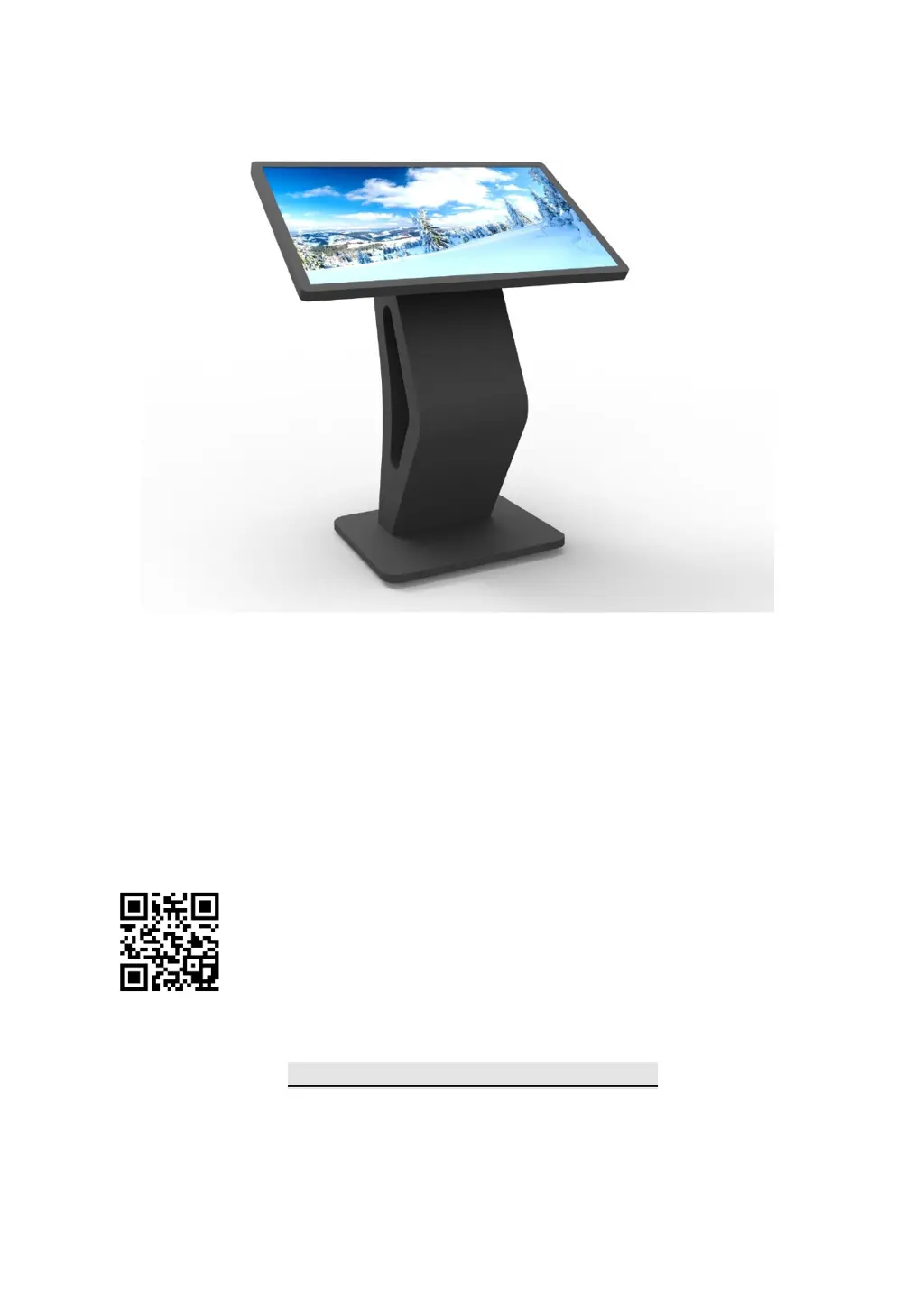
Model: DGSNKTCH43BK
Description: 43” Indoor Touch Screen Digital Kiosk
Scan QR code to visit
the product page:
Operating Instructions for Digital Signage
Note: Before using the product, please read the instructions carefully!
Do not attempt to disassemble this product. If the product does not work properly, please call our
Customer Service Department at 1-844-221-3393.

Questions and Answers

  • L
    Lori AyalaAug 4, 2025
    What to do if my Displays2go DGSNKTCH43BK has no picture or sound?
    • B
      Brett LiuAug 5, 2025
      If your Displays2go Touch Panel isn't showing any picture or producing sound, start by ensuring the unit is properly plugged into a working wall outlet and that the power cord is securely connected to the terminal on the back. Next, check that the on/off toggle switch, located on the lower center back of the unit, is in the “on” position. If the issue persists, try unplugging the unit, waiting 20 seconds, and then plugging it back in. As a final check, verify the outlet is functional by plugging in another electrical device. If none of these steps resolve the issue, it may be necessary to contact a customer service representative.
  • A
    Andrea SaundersAug 9, 2025
    Why is my Displays2go Touch Panel remote control not working?
    • D
      David TranAug 9, 2025
      If the remote control for your Displays2go Touch Panel isn't working, first, ensure that the battery is correctly inserted, paying attention to the positive and negative orientation. If the issue persists, try inserting new batteries. As a next step, make sure you are standing within 1 foot of the front of the unit, pointing the remote directly at the sensor, which is indicated by a green dot. If these steps do not resolve the issue, it may be necessary to contact a customer service representative.
  • D
    Devon JonesAug 14, 2025
    What to do if my Displays2go DGSNKTCH43BK has no sound but picture is working?
    • M
      mgrantAug 14, 2025
      If your Displays2go Touch Panel has no sound but the picture is working, first, try adjusting the volume using the remote control. Confirm that your content is in a compatible format such as AVI, MPEG4, WMV, MKV, flv, MP3, MP4, or MOV. If connected to Wi-Fi, test the sound by playing a YouTube video. Try unplugging the unit, waiting 20 seconds, and plugging it back in. You might also want to try playing the content on a different device like a smartphone, computer, or tablet. If the issue persists, it may be necessary to contact a customer service representative.
  • B
    brianwestAug 19, 2025
    What to do if my Displays2go DGSNKTCH43BK has no picture but sound is working?
    • Z
      zrobinsonAug 19, 2025
      If your Displays2go Touch Panel is not showing a picture but the sound is working, first, confirm that the content you are trying to play is in a compatible format, such as AVI, MPEG4, WMV, MKV, flv, MP3, MP4, or MOV. Try playing the content on a different device, such as a smartphone, computer, or tablet, to rule out file issues. Also, try unplugging the unit, wait 20 seconds, and then plug it back in. If the problem continues, it may be necessary to contact a customer service representative.
  • K
    Kristina LoveAug 25, 2025
    How to fix no Wi-Fi signal on Displays2go Touch Panel?
    • J
      Joann HarperAug 25, 2025
      If your Displays2go Touch Panel is not connecting to Wi-Fi, ensure that Wi-Fi is turned on in the settings. Check that the antenna is properly in place and pointed upward. Confirm that other devices are receiving the Wi-Fi signal to ensure the network is working. Try unplugging or resetting your router, wait 20 seconds, and then restart it. If the issue persists, it may be necessary to contact a customer service representative.
  • R
    ryangAug 29, 2025
    What to do if Displays2go DGSNKTCH43BK Touch Panel parts are missing or damaged?
    • S
      Samuel MccannAug 29, 2025
      If you are missing parts or have received damaged parts for your Displays2go Touch Panel, contact a customer service representative. If the parts were missed during manufacturing, replacements are provided at no charge. If the parts were lost or damaged by the customer, there may be a charge for replacements.

Summary

Operating Instructions

Product Features

Safety Warnings and Precautions

General Safety Guidelines

Essential safety advice to prevent injury, electric shock, fire, and product damage during use.

Assembly and Connection

Packing List

Details the items included in the product package for initial setup and operation.

Steps for Unpacking

Instructions on how to safely remove the digital signage from its packaging.

Interfaces Overview

Overview of the physical ports and connectors available on the device for connectivity.

Remote Control Operation

Battery Installation and Precautions

Guide on inserting batteries and essential precautions for using the remote control effectively.

Remote Control Buttons

Explanation of each button's function on the remote control interface for device interaction.

Basic Operation and Desktop Navigation

Powering On;Off and Desktop Icons

Instructions for powering the device, understanding desktop icons, and basic navigation.

Changing the Wallpaper

Steps to change the background wallpaper using the digital panel and a connected mouse.

File Management and Local Settings

Using the File Manager

How to access and manage files on the device using the file explorer application.

Configuring Local Settings

Instructions for setting up local configurations, including Wi-Fi network connection.

System Settings and Menu Bar

Navigating the Settings Interface

Details the various system settings available, such as display, sound, and network options.

Menu Bar Operations

Information on managing the menu bar, specifically hiding the Home Button for a cleaner display.

DiViEx Application Setup

System Requirements and Media Upload

Details on system needs, preparing media files, and supported formats for the DiViEx app.

DiViEx Application Configuration

Playback Settings and Transitions

How to set up playback options, transition effects, and display modes within the DiViEx app.

DiViEx Media Editing

Image Editing Tools

Using crop, filters, and reset functions to modify images in the DiViEx app.

Image Deletion

Procedure for removing unwanted images from the DiViEx application's library.

Music Playback and System Reset

Managing Music Playback

Adding and removing music tracks for background playback in the DiViEx app.

Factory Reset Procedure

Steps to reset the device to its default factory settings for troubleshooting or reconfiguration.

Display and Language Settings

Screen Rotation

How to adjust the display orientation to portrait or landscape mode.

System Language Selection

Steps to change the device's operating language and manage available languages.

Technical Specifications

Panel and Display Specifications

Details on LCD size, resolution, brightness, contrast, refresh rate, and viewing angles.

Power, Environment, and Functions

Specs covering power consumption, operating conditions, processor, memory, and OS.

I;O, Structure, and Language

Details on interfaces, weight, dimensions, materials, supported files, and OSD language.

Troubleshooting Common Issues

No Picture or Sound Problems

Resolving common problems related to the absence of display or audio output.

Audio or Display Malfunctions

Addressing issues where either sound or picture is missing or not working correctly.

Remote Control Issues

Troubleshooting steps for resolving problems with the remote control's functionality.

Connectivity and Content Issues

Troubleshooting Wi-Fi signals, software installation, and content upload problems.

Component and Software Problems

Solutions for missing parts, damaged components, and content playback errors.

Product Maintenance and App Support

App and Storage Troubleshooting

Resolving issues with pre-installed apps and content storage on the device.

Product Care and Cleaning

Instructions on how to properly clean and maintain the digital signage unit.

Product Compliance and Disposal

Hazardous Substances Information

Details on toxic and hazardous substances found in product components and their compliance.

Recycling and Disposal Guidelines

Information on environmentally responsible disposal and recycling of electronic waste.

FCC Compliance Information

FCC ID and Compliance Statement

Details the FCC ID, operating conditions, and compliance with FCC rules.

Radiation Exposure Information

Statement on the FCC radiation exposure limits and recommended installation distance.

Displays2go DGSNKTCH43BK Specifications

General IconGeneral
Aspect Ratio16:9
Brightness350 cd/m²
Contrast Ratio1200:1
ConnectivityHDMI, VGA, USB
ColorBlack
Response Time8 ms
Input Voltage100-240V AC
Screen Size43 inches
Resolution1920 x 1080 pixels
Touch TechnologyInfrared
OrientationLandscape
Viewing Angle178°
Operating Temperature0°C to 40°C
Storage Temperature-20°C to 60°C
Mount TypeVESA 200x200mm