14
Normal Goggle Firmware Update Process
1. Disconnect all cables from the goggle. Keep the power cable only;
2. Copy HDZGOGGLE_xx.yy.zzz.bin to root directory of a SD card that is formatted as FAT32, and
make sure there is no previous firmware in the root directory;
3. Power on the goggle;
4. Go to Main menu | About | Flash Goggle, the display will show the status;
5. Wait for the completion (about 3 minutes);
6. Power the goggle off and then on again
Goggle Emergency Firmware Update Process
You need to download PhoenixCard.zip from the HDZero Download site, and extract it to a location on a
Windows machine, for example, C:\PhoenixCard. This is a one-time process. There is no Mac or Linux
version for now.
You need to download GoggleEmergency_Revddmmyyyy.zip zip from the HDZero Download site, and
extract to your local drive, i.e. C:\Tmp.
1. Launch C:\PhoenixCard\PhoenixCard.exe;
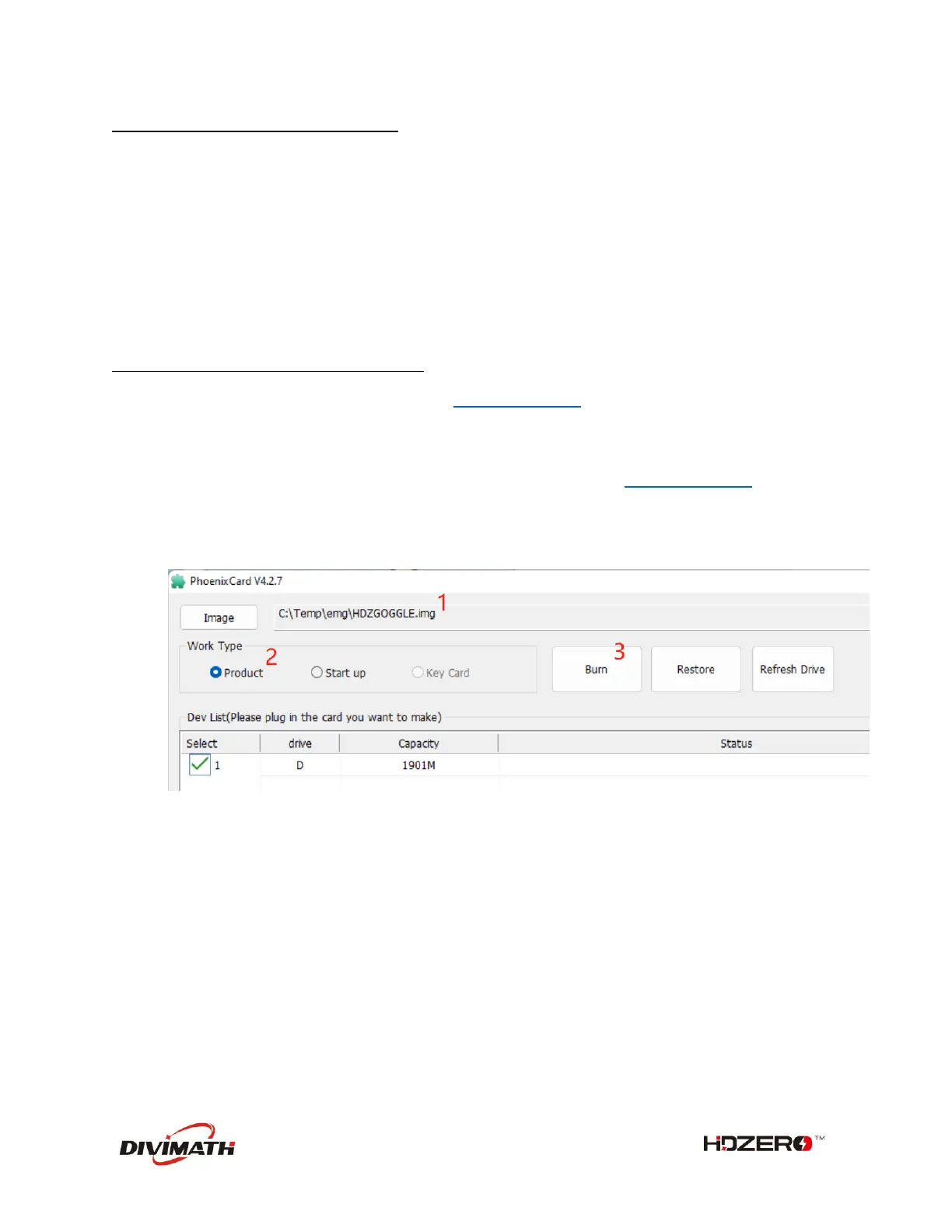
2. Follow the steps on FIG.5 to make a bootable SD card;
FIG 5. Make a bootable SD Card
3. Eject the SD card from Windows, and insert the SD card into the SD card slot of the goggle;
4. Unplug all of the cables, i.e., HDMI in/out, Line in/out, AV in. Keep the power cable only. Power
on the goggle, you will hear a long beep immediately. Wait for 3 minutes and you will hear
another long beep;
5. Power off the goggle, and pull out the SD card from the goggle. (Do not power on goggle now);
6. Follow the FIG.6 to restore the SD Card from BOOT mode, and format it as FAT32 on Windows;


 To Next Page