2
1. Change the IP address of the connected computer to 192.168.0.1, so it will be on the same
subnet as the NAS enclosure. (For instructions, please contact your network administrator)
2.
Open the web browser on the connected computer and type the following address into the
address bar: http://192.254.0.1
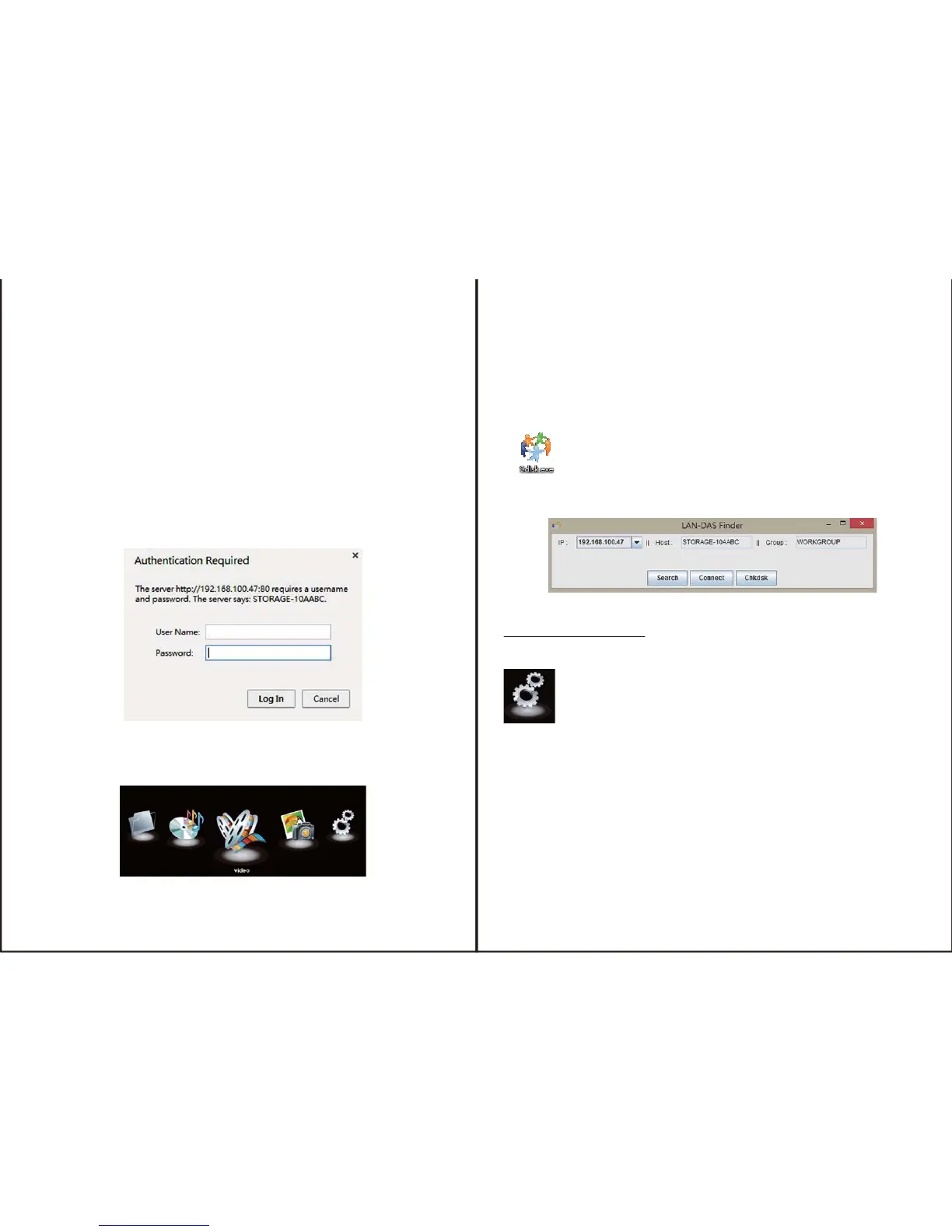
3.You may be prompted to enter a user name and password, by default the username and
password are both ‘‘admin’’ as listed below.
Usermane: admin
Password: admin
4. Enter the username and password and click the OK button.
Web GUI Operation
3
5. When the web GUI opens a 5 option menu is displayed.
Connect the SSI unveil the Professional Hub/Charger series to your existing DHCP router
and
DLA012NAS
will get IP address from the router automatically.
A. Firstly, double click & run the “Sdisk.exe” and you may need to download and install the JAVA
runƟme.
B. Click the “Connect” to enter the seƫng page. (Default user name: admin, password: admin)
Enables you to configure advanced operations of the enclosure. All operating settings
are listed below. Please use the main menu on the left to navigate pages.
To initially access the web GUI Connections and setting by windows
Conriguration


 To Next Page