Finding a Place by Spelling the Name
• From the Main Navigation Menu, touch Where to?, then touch Points of Interest
and then touch Spell Name.
• Enter the name of your destination.
• Touch Done.
• Select your destination and touch Go.
Entering a Destination Address
• From the main Navigation menu, touch Where To?, then touch Address.
• Follow the on-screen prompts to enter the address and touch Go.
Searching Near Another Location
• From the main Navigation menu, touch Where To?, then touch a destination and
then touch Near.
• Select an option from the available choices.
Following Your Route
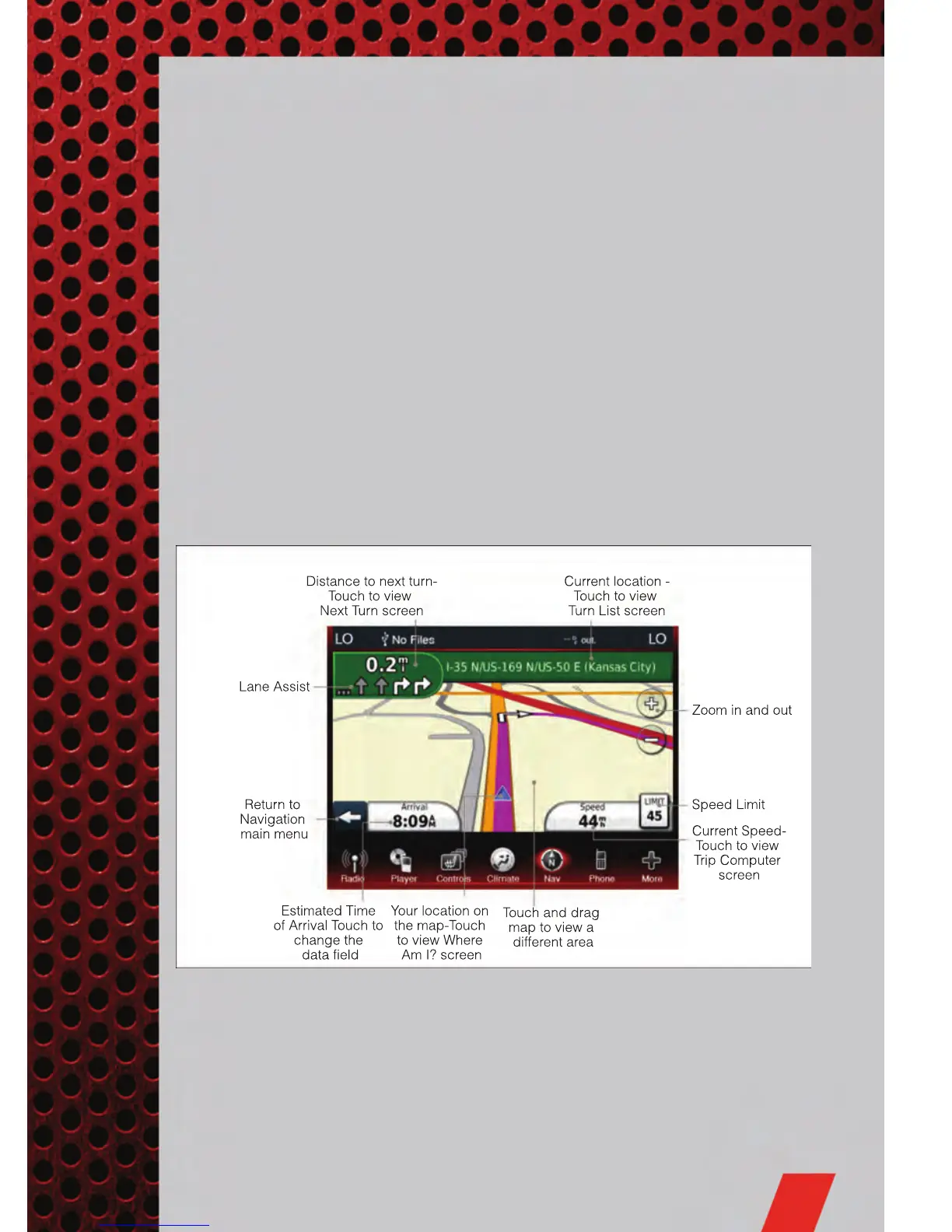
• Your route is marked with a magenta line on the map. If you depart from the
original route, your route is recalculated. A speed limit icon could appear as you
travel on major roadways.
• Lane Assist helps you decide which lane to be in at upcoming junctions.
• Junction View gives you an expanded view as junctions approach.
ELECTRONICS
45













 To Next Page