This document is a Quick Reference Guide for the 2019 Dodge Charger, covering various features and functionalities of the vehicle.
Vehicle User Guide
The vehicle includes an integrated User Guide accessible via the Uconnect Touchscreen. To access it, tap the "Uconnect Apps" button, then select the "Vehicle User Guide" icon. No registration is required. The guide is updated in real-time, available on demand, offers touchscreen convenience, a customizable interface, maintenance schedules, and information, is multilingual, and includes a comprehensive icon and symbol glossary. Note that Vehicle User Guide features are not available while the vehicle is moving.
Passive Entry
The Keyless Enter-N-Go system enhances the key fob's functionality, allowing users to lock and unlock doors and the trunk without pressing buttons on the fob.
- To Unlock: With a valid key fob within 5 ft (1.5 m) of the driver or passenger side door handle, simply lift either front door handle to unlock the door automatically. If "Unlock All Doors 1st Press" is programmed, all doors will unlock when the front driver's door handle is grabbed.
- To Lock: With a valid key fob within 5 ft (1.5 m) of the driver or passenger front door handle, push the button on the outside of the door handle. Do NOT grab the handle when pushing the lock button, as this may unlock the door(s). If a key fob is detected inside the vehicle when locking with the power door lock switch, the doors will unlock, and the horn will chirp three times. On the third attempt, the key fob can be locked inside. After pushing the lock button, wait two seconds before attempting to lock or unlock the vehicle via the door handle to allow for verification. If a Keyless Enter-N-Go Passive Entry door handle has not been used for 72 hours, the feature may time out. Pulling the deactivated handle will reactivate it.
- To Enter the Trunk: When the vehicle is unlocked, push the button on the right side of the applique. With a valid key fob within 5 ft (1.5 m) of the trunk, push the button on the right side of the applique to open the trunk.
Instrument Cluster Display
The instrument cluster features a driver-interactive display. Controls on the left side of the steering wheel allow the driver to select Vehicle Information and Personal Settings.
- Navigation:
- Up/Down Arrows: Scroll upward/downward through main menus (Speedometer, Vehicle Info, Performance Pages - SRT only, Driver Assist, Fuel Economy, Trip, Audio, Messages, Screen Setup) and sub-menus.
- Right/Left Arrows: Scroll forward/backward to the next/previous menu or sub-menu.
- OK Button: Access/select information screens, sub-menu screens, or personal settings. Push and hold for two seconds to reset displayed/selected features.
- Compass Calibration: The compass is self-calibrating. When new, it may appear erratic and display dashes ("- -") until calibrated. Calibration can also be achieved by completing one or more 360-degree turns in an area free from large metal or metallic objects.
Phone Pairing
Mobile phone pairing establishes a wireless connection between a cellular phone and the Uconnect system.
- Uconnect 4 with 7-inch Display:
- Place ignition in ACC or ON position.
- Press the "Phone" button.
- Select "Settings."
- Select "Paired Phones."
- Select "Add device." Uconnect Phone will display an "In progress" screen.
- Uconnect 4C & 4C NAV with 8.4-inch Display:
- Place ignition in ACC or ON position.
- Press the "Phone" button in the Menu Bar on the touchscreen.
- Select "Pairing."
- Select "Paired Phones And Audio Devices."
- Select "Add Device." Uconnect Phone will display an "In progress" screen.
- Pairing iPhone:
- Ensure Bluetooth is enabled on the iPhone.
- The iPhone will search for Bluetooth connections.
- When "Uconnect" appears, select it.
- Accept the connection request on the iPhone when prompted. Some phones may require entering a PIN.
- Pairing Android Device:
- Push the Menu button.
- Select Settings.
- Select Connections.
- Turn Bluetooth setting to "On." Ensure Bluetooth is enabled.
- Once "Uconnect" appears, select it. You may be prompted to download the phonebook.
- Confirm the passkey on the phone matches the Uconnect system, then accept the request. Some phones may require manual PIN entry.
- Note: Software updates may interfere with Bluetooth. If this happens, repeat the pairing process after deleting the device from both Uconnect and the phone's Bluetooth settings.
Lights
- Automatic High Beam (If Equipped): This system automatically controls high beams based on oncoming vehicles.
- Can be turned on/off via the Uconnect System.
- Push the turn signal lever away from you.
- With the headlight switch in "AUTO," high beams are controlled automatically.
- Pull the turn signal lever toward you to manually deactivate.
- For optimal recognition of crossing traffic and limited use in residential areas, the vehicle must be moving above 20 mph (32 km/h) for the Automatic High Beam Module (AHBM) to request activation.
- Maintenance: If the windshield or Automatic High Beam Headlamp Control mirror is replaced, it must be re-aimed by an authorized dealer.
Speed Control
- Adaptive Cruise Control (ACC) (If Equipped): Operates like standard cruise control but maintains a specified distance from the vehicle ahead.
- If the ACC sensor detects a vehicle ahead, ACC applies limited braking or acceleration to maintain a preset following distance and match the speed of the vehicle ahead.
- The vehicle will not exceed the set cruise speed.
- If no vehicle is detected ahead, it functions as a standard cruise control.
Safety Features
- LaneSense (If Equipped): Operational at speeds between 37 mph (60 km/h) and 112 mph (180 km/h). Uses a forward-looking camera to detect lane markings and measure vehicle position.
- Turning On/Off: Default status is "off." The LaneSense button is on the center stack.
- Warning Message: Indicates current lane drift through the instrument cluster display with a visual warning of unintentional lane departure.
- Haptic Warning: When both lane markings are detected and the driver unintentionally drifts out of the lane (no turn signal), the system applies torque to the steering wheel. This can be manually overridden.
- If only a single lane marking is detected, a visual warning is provided, but no haptic warning.
- Customization: LaneSense can be customized and turned off via the Uconnect System touchscreen.
Starting and Operating
- Forward Collision Warning With Mitigation (If Equipped): Provides active braking, audible and visual warnings, and may apply a brake jerk to warn of potential frontal collisions.
- Monitors information from a forward-looking sensor and Electronic Brake Controller (EBC) to calculate collision probability.
- When a collision is probable, an audible and visual warning message appears in the cluster display, along with a brake jerk (if enabled in Uconnect Settings).
- If the driver applies brakes to avoid a collision, additional brake force is provided.
- The warning message deactivates when a collision is no longer probable.
- Customization: The FCW feature can be customized and turned off via the Uconnect System touchscreen.
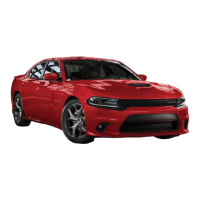
SRT Vehicles
- Chassis:
- Wheels: High-performance brake systems cause brake dust. Mopar® Wheel Cleaner is recommended, except for Dark Vapor or Black Satin Chrome wheels, which should be cleaned with mild soap, water, and a soft cloth.
- Note: Due to high-performance brakes, vehicle dust and some noise are normal.
- Tire Service Kit: Includes a tire inflator kit; no spare tire.
- Trailer Tow: Not recommended for SRT vehicles.
- ESC (Electronic Stability Control): Equipped with selectable ESC modes that alter handling characteristics.
- Adjustable Modes: Selectable driving modes: Default (Street), Sport, Track, Custom, ECO, and Valet.
- Three-Season Tires: May be equipped with three-season tires for enhanced performance. Not recommended below 40°F (4°C) or in snow/ice conditions.
- Powertrain & Drivetrain:
- Engine & Transmission (SRT Engine Break-In Recommendations): Moving parts require wear-in during the first 500 miles (805 km) and through the first oil change interval. Refer to the Owner's Manual for full break-in procedures.
- Note: Check engine oil with every refueling; consumption may be higher during the first oil change interval.
- Engine Oil: OW-40 Full Synthetic Engine Oil recommended.
- Fuel: Premium Fuel with a minimum octane rating of 91 Pump Octane Number is recommended for optimum performance.
- Transmission: Applying brake and throttle simultaneously ("brake torquing") for an extended period will illuminate the ETC fault light, requiring dealership service.
- Paddle Shifters: May be equipped with steering wheel-mounted "Paddle Shifters" and an M gate console shifter. In M gate, the vehicle will not shift at red line and must be manually shifted. The shift light can be programmed for optimal shift points.
- Launch Control: Improves acceleration performance. Activated by pressing the LAUNCH button (instrument panel switch bank) or via "Race Options" in the radio. Helps control tire spin for maximum acceleration. Launch RPM is selectable. Not available for the first 500 miles (805 km) of vehicle life.
- Body & Exterior:
- Fascias and Ground Effects: Unique exterior appearance with SRT-specific fascias and ground effects, resulting in a lower approach angle and reduced ground clearance. Driving over steep driveways, ramps, or near parking blocks may cause damage.
- SATIN FINISH Exterior Body Paint: Use products specifically for satin paint (e.g., Swissvax Opaque Satin Paint Wax, Dr. Beasley's Satin Paint and Sealant). Refer to Satin Finish Tips Card.
- Caution: Avoid driving through water or snow deeper than 4 inches (100 mm) to prevent vehicle damage.
Electrical
- Premium Sound System: May be equipped with a "harman/kardon" sound system. Audio mode configured via the radio.
- SRT Performance Pages: Vehicle equipped with SRT performance pages, Drive Modes, Performance Shift Indication, Launch Control, and Valet Mode, displayed in the instrument cluster and radio.
- Valet Mode: Offered on all SRT vehicles. Activated/deactivated with a four-digit PIN. Custom PINs are created with each use. If PIN is forgotten, disconnect the battery for five minutes to reset.
- Key Fobs: May include a Red key fob and a Black key fob. The Red key unlocks full horsepower and torque potential of the SRT Hellcat engine and all Drive Mode options. The Black key fob limits engine output, reduces transmission shift schedules, and limits Drive Mode options.
- ECO Mode: Changes throttle response and shift patterns. Refer to the Owner's Manual for configuration details.
SiriusXM Guardian (If Equipped)
- Activation:
- Press the "Apps" icon on the in-vehicle touchscreen.
- Select the "Activate Services" icon.
- Select "Customer Care" to speak with an agent or "Enter Email" to activate on the web.
- Features (In-Vehicle):
- SOS Call: Connects to a live agent for emergency services.
- Customer Care Assistance: Press the ASSIST button on the rearview mirror for Roadside Assistance or support.
- Remote Services:
- Vehicle Finder: Locates your parked car.
- Send & Go: Sends destinations to your navigation system.
- Remote Door Lock/Unlock: Locks/unlocks doors remotely.
- Remote Horn & Lights: Sounds horn and flashes lights to find the car.
- Vehicle Health Reports: Monthly reports and alerts for detected problems.
- Security Services:
- Security Alarm Notifications: Text or email notifications if the alarm goes off.
- Stolen Vehicle Assistance: Uses GPS to help authorities locate a stolen vehicle.
- Uconnect Mobile App:
- Download the Uconnect mobile app.
- Use Owner Account login and password to access.
- A PIN is required for remote services.
- Tap "Location" button to locate vehicle or send a destination to Uconnect Navigation.
- Tap "Settings" side menu for app settings and Assist Call Centers.
- U.S. residents visit: siriusxm.com/guardian. Canadian residents visit: siriusxm.ca/guardian/.
Amazon Alexa (If Equipped)
- Amazon Alexa Integration: Cloud-based voice service to command Uconnect system.
- Download Amazon Alexa app on iPhone or Android.
- Launch app, tap MENU, go to SKILLS.
- Search for your vehicle, tap "ENABLE."
- Select LINK ACCOUNT.
- Log in with your vehicle's Owner Account ID and password.
- Example Commands: "Alexa, ask Dodge Durango how much gas is in my vehicle." "Alexa, ask Jeep Grand Cherokee to send directions to Iron Mountain to my vehicle." "Alexa, ask Chrysler 300 to start my vehicle."
Android Auto and Apple CarPlay (If Equipped)
- Android Auto Integration:
- Download Android Auto app from Google Play store.
- Connect Android smartphone to a media USB port. If not downloaded, it will download upon connection.
- "Phone" icon on the menu bar changes to Android Auto icon.
- Apple CarPlay Integration:
- Requires iPhone 5 or later, Siri enabled in Settings, and an unlocked iPhone (for first connection).
- Connect iPhone to a media USB port.
- "Phone" icon on the menu bar changes to CarPlay icon.
Drive Dodge Mobile App
- Key Features: Owner Information, Accident Assistant, Online Service Scheduling, Roadside Assistance, Maintenance History, and more.
- Availability: Free on iOS and Android smartphones/tablets.
- Compatibility: Dodge brand vehicles from model year 2011 to current. Can add other Chrysler, Jeep, Ram, FIAT, or Alfa Romeo vehicles (selected models from 2011 to present).
- Content: Easy access to vehicle information (operating instructions, maintenance, service history, controls, emergency procedures), accident reports, parking reminders, customer care, vehicle heritage, parts, accessories, social media networks, service appointments. Available in English and Spanish.
- Download: Search "Dodge" in App Store or Google Play Store.
- Note: Mobile App content is for U.S. market vehicles only and not available from Canadian App Store or Google Play Store.
- VR Button Usage:
- Long Press: Activates Siri or Google Assistant.
- Short Press: Activates native Uconnect voice recognition.
- Use factory-provided cable for Android Auto or Apple CarPlay.
For further information, warnings, and cautions, refer to the Owner's Manual at www.mopar.com/en-us/care/owners-manual.html (U.S. Residents) or www.owners.mopar.ca (Canadian Residents).

 Need help?
 General







 To Next Page