Bluetooth Activation2.1
Installing DoFit GPS App: Android2.2
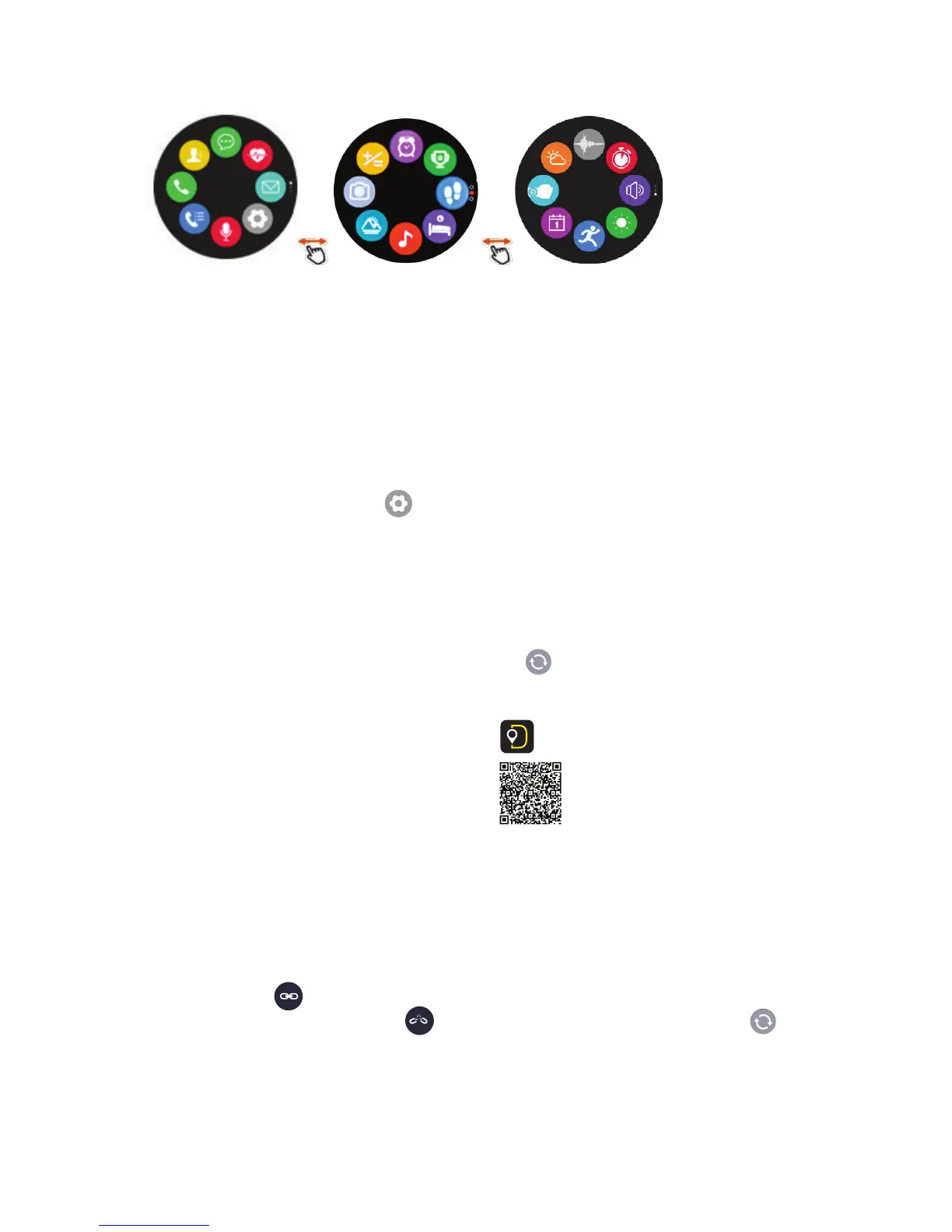
1.3.5.1 Whenever in any sub screen, tap on icon to access options, receive
information and personalize where appropriate.
Mode screen1 Mode screen2 Mode screen3
2. Pairing your Smartwatch with the DoFit GPS App
2.1.1 Ensure your Smartwatch’s Bluetooth is activated: to activate:
2.1.1.1 Enter Mode Screen 1 (see 1.3.5 above).
2.1.1.2 Tap settings icon
2.1.1.3 Tap Bluetooth icon and ensure that Bluetooth is set to “on”.
2.2.1 Install and open DoFit GPS App and fill in your personal information
including targets.
2.2.2 App will search for the Smartwatch within 10m.
2.2.3 When DoFit 2 appears, tap “binding” (if DoFit 2 is not found, tap refresh button).
2.2.4 Select OK to connect.
2.2.5 A Passkey confirmation will be required to pair: press OK.
2.2.6 Allow the device to have access to your contacts and call log.
2.2.
7 Allow a few minutes for Smartwatch to be connected to DoFit GPS App.
2.2.8 When appears in top left-hand corner of app home page,
you are connected. If appears, then press refresh button to
reconnect to phone (follow prompts).
2.1.2 Ensure your Smartphone’s Bluetooth is on.
2.1.3 Note that only after the app is installed will the Smartwatch be synced to
your Smartphone, otherwise Sync Failure will occur.
2.1.4 If at any time your Smartwatch Bluetooth connection fails, enter home
screen of app and tap refresh button : follow the prompts as directed.
1.3.5 Mode Screen Submenus
Android APP


 To Next Page
 Loading...