2928
Applying Stimulation on the Receiver
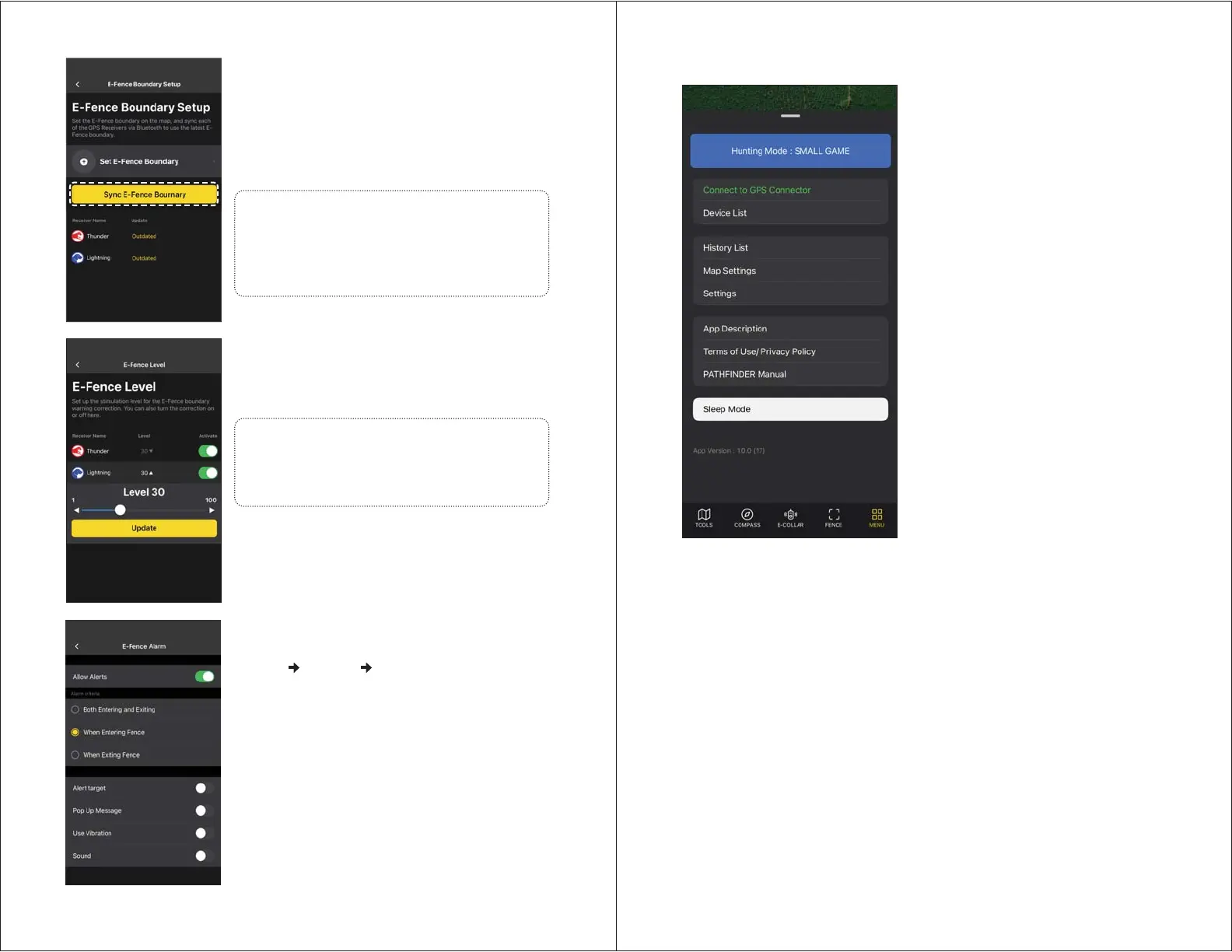
1) Press the
▼
button for the receiver on the menu.
2) Set the stimulation level.
3) Press update.
E-Fence Settings
- Set the E-Fence settings by going to
MENU
SETTING E-FENCE.
- You can create an alarm for both exiting and
entering the E-Fence.
- You can select different alarm types.
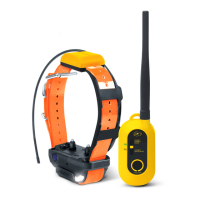
Bluetooth Connection:
View the smartphone and GPS connector
Bluetooth connection. If the devices are
not paired, turn both the GPS connector
and smartphone’s Bluetooth off and then
back on.
Device List:
Find detailed device information and set
individual settings.
History List:
Play recorded history files. Convert files
to GFX and KML files to share.
Map Settings:
Manage Offline Maps and select the size
and information of the marker.
Settings:
Manage settings for different map
features.
App Description:
Describes basic contents.
1. Initial setup describes GPS connector
and receiver pairing.
2. Main function will describe each tab.
4-6. MENU
Terms of Use/Privacy Policy:
Check Terms of Use and Privacy Policy before use.
Manual:
Quickly browse the manual.
Sleep Mode:
Puts the receiver to sleep to preserve battery life. In sleep mode, the GPS signal
for the receiver is turned off and will reset when turned back on.
Notes:
• After changing the E-Fence boundary, you
must sync it again.
• Each receiver must be synced individually in
order for the E-Fence to operate.
Notes:
Go to E-Fence Settings to press the Activate
button to turn the E-Fence operation on or off
for each receiver.
Syncing E-Fence Boundary to the Receiver
In order to operate the E-Fence, the receiver must
be synced.
1) Turn the receiver on near the smartphone.
2) Press the Sync E-Fence Boundary button.
3) Look at the list to make sure the receiver is
synced.


 To Next Page