Update of Diagnostic
Software
The Internet update function of DFPV Diag.
provides user with a convenient and quick way
to download the software from our website for
update.
LAUNCH put the latest version of software
to
www. X431. com
Hardware Requirement
and display the massage
on the news page. User can use computer to
visit the Website in any part of the world. After
registration, the latest version of software can
be downloaded. Then user can update his
DFPV Diag. by unzipping and installing the
software.
Necessary hardware:
1. A computer that can access the Internet.
2. A CF card reader/writer and a CF card that
need to be updated.
See Figure 3-01 for hardware connection.
Figure 3-01
1-CF card reader/writer 2-USB cable
3-USB Port 4-Computer 5-CF card
Insert the CF card into the CF card
reader/writer.
Connect one end of the USB cable② to
the port of the CF card reader/writer①,
and the other end to the USB port of the
computer.
User Registration
Log on www.X431.com
. Select the favorite
language on the pull-down menu at the upper
left of the interface to enter the homepage.
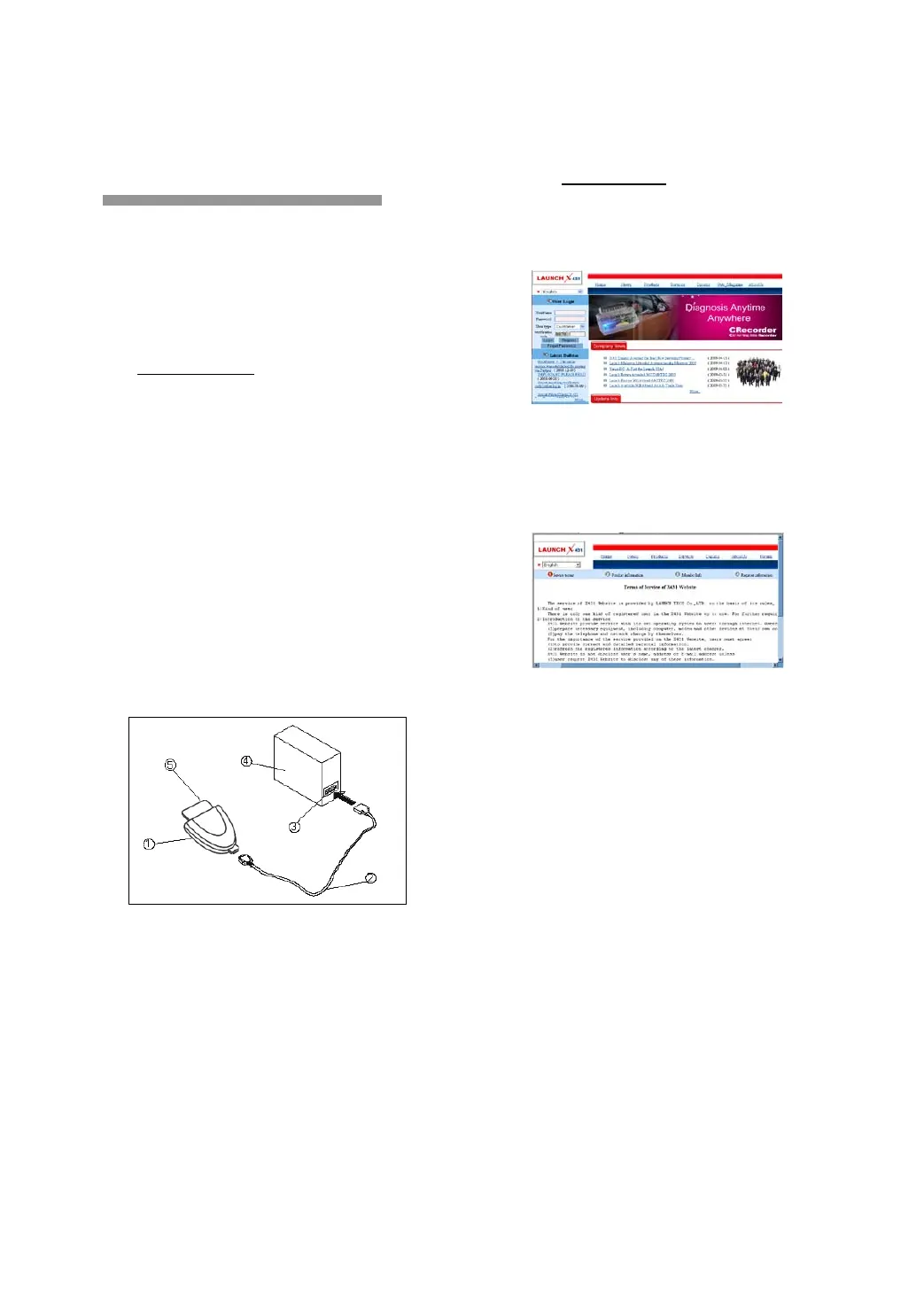
See Figure 3-02.
Figure 3-02
Click “Register” in the interface as shown in
Figure 3-02 to open the window as shown in
Figure 3-03.
Figure 3-03
Note:
When the member purchases one or more
products after registration, he should log
onto the member area, and then click
“product control” to register the newly
purchased product. Refer to the section
“Member login”.
The terms of service is shown in the screen.
After reading and fully understand it, click “I
accept” button to enter the interface as shown
in Figure 3-04.
Fill in Product Information
Fill in the serial No. of DFPV Diag. smartbox,
registration No. and dealer code in the
interface as shown in Figure 3-04.


 To Next Page
 Loading...