Figure 3-04
The serial No. is marked on the back of
smartbox. The registration No. is in an
envelope delivered with the product (the
number must be kept confidential). The dealer
code is attached on the last page of the user’s
manual.
After the information is filled, click “Next step”
to enter the next interface as shown in Figure
3-05.
Note:
1. When a product is sold, the dealer will
log onto
www. X431. com
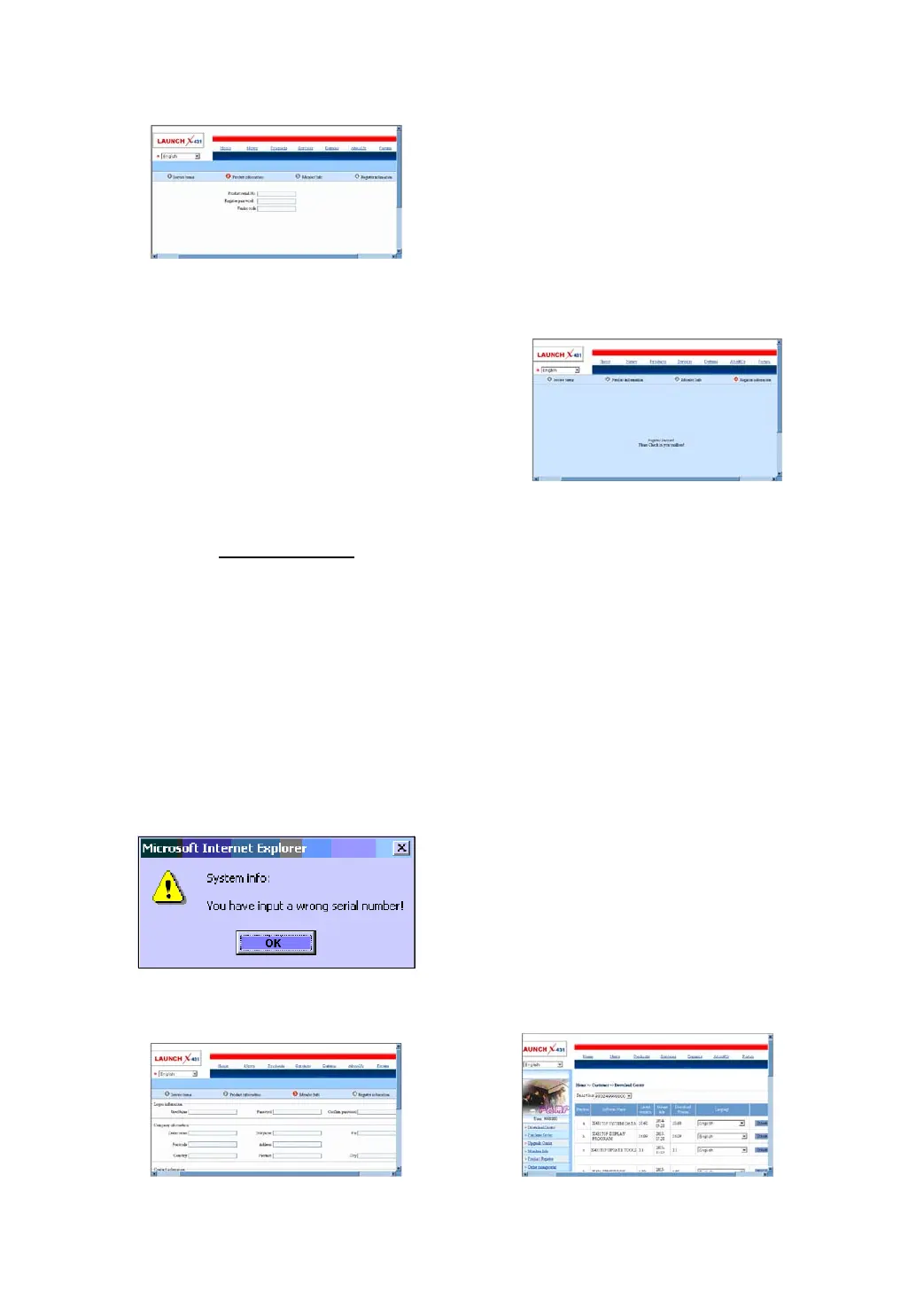
2. If the filled serial No. or registration
No. is invalid, the screen will display
the message as shown in Figure
below. Click “OK” button to return to
the previous interface to re-fill the
correct numbers.
and enter
the dealer code in the “Dealer
administration” area so that the user
can do effective registration later.
User should contact the dealer if
registration can not be done
effectively.
Fill User Information
Figure 3-05
After information is filled in the interface shown
in Figure 3-05(The red textbox must be filled.
After registration, we will send the confidential
information to your registered e-mail, so
please make sure that your e-mail is valid.),
click “Next step”, and then the screen will
display the interface shown as Figure 3-06.
Click “OK’ then the registration is completed.
Figure 3-06
Note:
Only the registered user can download and
update the software.
Software Update
Member Login
The user becomes the registered member
after registration. Member can log in the
website by filling username, password and
user type in the interface as shown in Figure
3-02.
Note: when choosing the user type, the
common users may choose the customer.
If the dealer and the branch want to log in
the website, please use the user
information given by LAUNCH head office.
After log successfully, the screen will display the
interface as shown in Figure 3-07(The default
interface is download center interface).
Figure 3-07


 To Next Page
 Loading...