Input
Note: To input data, please activate Soft
Keyboard with stylus and use the stylus in
the subsequent operations.
Using the Soft Keyboard
Activate and Hide
You can click Soft Keyboard icon on the bottom
of the touch screen to activate the soft
keyboard, and click again to hide it.
Input by Soft Keyboard
You have two ways to choose. One is to input
by Soft Keyboard just like normal keyboard, but
with stylus instead of finger. The other is to
input by writing board.
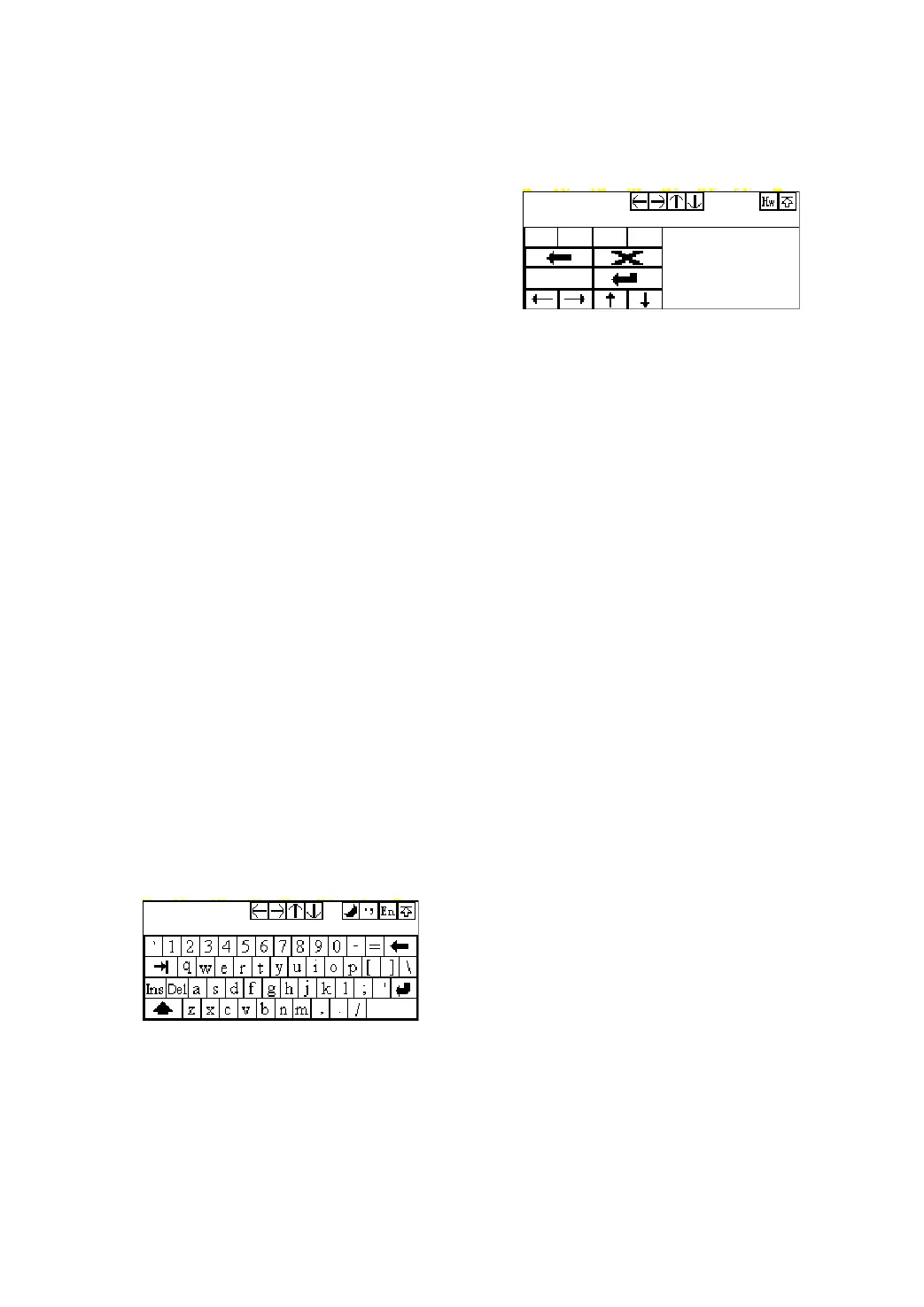
Click [En] button, it will switch from normal
keyboard to writing board [Hw]. And click [Hw]
button, it will switch back.
The
Function Key
There are four function keys on the upper-right
of the Soft Keyboard. SBC/DBC case,
punctuations, Keyboard/Writing board, and the
Soft Keyboard position can be determined by
clicking one of the four keys for each of the
functions from left to right. (Refer to Figure
4-02)
The four function keys at the upper-middle
position are for moving the cursor leftward,
rightward, upward or downward.
Figure 4-02
In keyboard mode, the key at the bottom left of
the keyboard is [Shift] key. Click it to change the
lowercase letter into the uppercase letter, and
the numeral key into special symbol (same as
the special characters corresponding to the
numeral keys in normal keyboard). The white
key at the bottom right of the Soft Keyboard is
space key.
Figure 4-03
In writing board mode (refer to Figure 4-03),
there are eight function keys at the lower left of
the soft keyboard. The four ones on the bottom
implement the function: to move the cursor
leftward, rightward, upward or downward. The
other four functions are (from left to right): to
delete the first character before the current
cursor, clear the hand-writing section, space
and return.
Input by Keyboard
1) Open an interface, such as User
information.
2) Click Soft Keyboard Icon in the tool bar to
activate Soft Keyboard.
3) Click the characters on Soft Keyboard to
enter data. (Refer to Figure 4-04)
Input by Writing Board
1) Open an interface, such as Memo.
2) Click [New] button.
3) Click the function key to switch to Writing
Board. (Refer to the section “Use for Soft
Keyboard”).
4) Write on the white board to the right of the
Soft Keyboard. Enter the information by
function key operation.


 To Next Page
 Loading...