Figure 4-04
Control of App
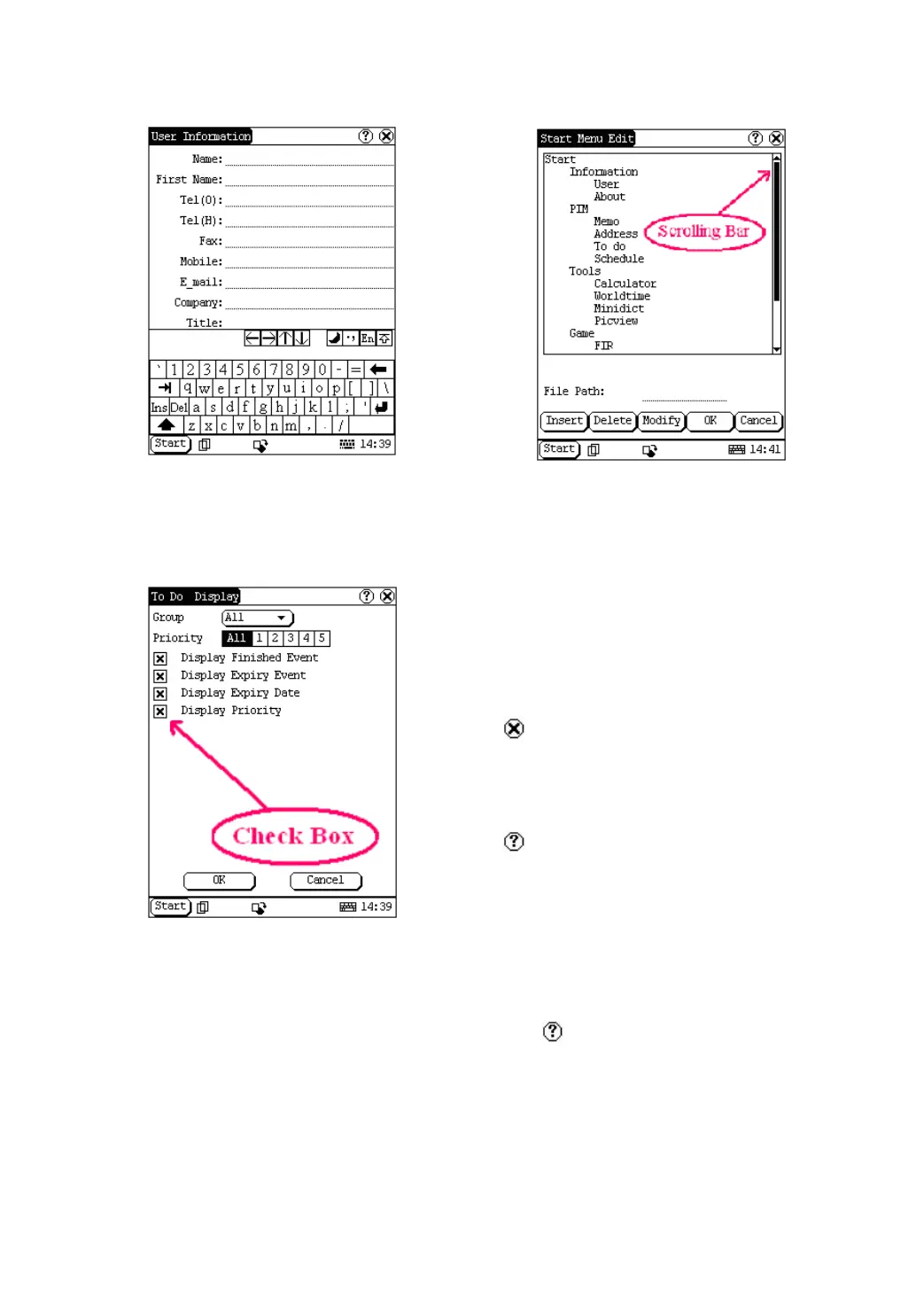
Check Box
Figure 4-05
Click the check box to select the function. When
the function is selected, 'X ' will be marked in
the check box and the function description will
be displayed on the right of the check box. You
can select several functions at the same time.
(Refer to Figure 4-05)
Figure 4-06
Scrolling Bar
Scrolling Bar is usually at the right side of the
touch screen. You can click or drag it to operate.
If the content can’t be displayed completely in
one page, moving the Scrolling Bar can turn to
next page. (Refer to Figure 4-06)
Common Button
[
] Button at top right corner of the interface:
After clicking it, current interface will be closed.
When editing is being done, clicking of the
button will be treated as quitting the editing.
[
] Button at top right corner of the interface:
After clicking it, the help information will be
shown.
[Cancel] Button in the interface: After clicking it,
current interface will be closed.
Help
Click [
] button at the top right corner of the
interface to get helpful tips for current interface.


 To Next Page
 Loading...