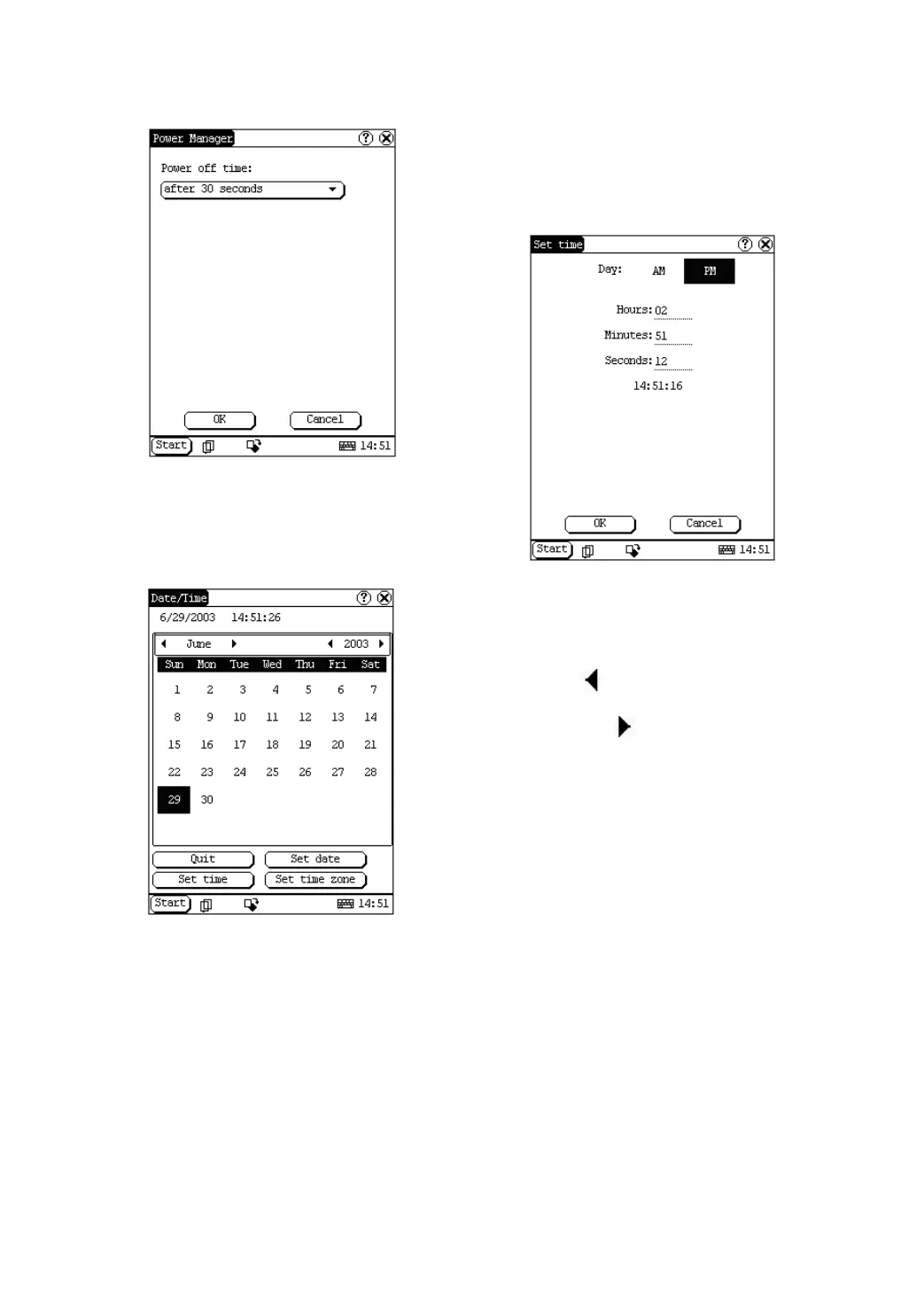
Figure 4-40
Clock
User can set the time and the time zone of the
system.
Figure 4-41
Set Time:
1) In the Control Panel interface, click ‘Clock’
icon to open the Date/Time interface as
shown in Figure 4-41.
2) In the Date/Time interface, click [Set Time]
button to open the Set Time interface as
shown in Figure 4-42.
3) Click the characters to the right of ‘Day’ to
set AM and PM, the selected one will be
highlighted.
4) Activate Soft Keyboard, and then you can
set ‘Hours’, ‘Minutes’ and ‘Seconds’
directly.
5) Click [OK] button to save and close the
Set Time interface.
Figure 4-42
Set Date:
1) In the Date/Time interface, you can set
date directly.
2) Click [
] icon to the left of the month or
year to select the previous month or year.
3) Click the [
] icon to the right of the
month or year to select the next month or
year. (See Figure 4-41)
4) Click the date in the current month. It will
be highlighted when it is selected.
5) Click [Set Time] button to save the setting.
6) Click [Quit] button to exit.
Set Time Zone
1) In the Date/Time interface, click [Set Time
zone] button to open the Set Zone
interface as shown in Figure 4-43.
2) Click Scrolling Bar to turn to next page of
the list, and select your zone. It will be
highlighted when it is selected.
3) Click [OK] button to save and close the
Set Zone interface.


 To Next Page
 Loading...