16
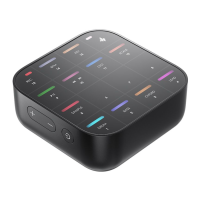
MEDO can connect to other devices via Bluetooth. This means you can connect MEDO to
Bluetooth devices such as smartphones, tablets, or computers. The main use cases are as
follows:
You can connect to the Medo companion app for sound switching, visual
creation, and more.
You can use Medo to wirelessly interact with music production software,
using Medo as a controller or MIDI device that outputs MIDI signals. This allows you to
easily integrate Medo into your music production workflow, using it to play virtual
instruments, trigger notes, record music, and more.
3. Bluetooth Audio: After connecting, Medo can receive audio information from external
devices and play it through Medo's speakers.
Note: When using Bluetooth MIDI, Bluetooth audio will be automatically disconnected. To
ensure stable transmission between Bluetooth and the app, Bluetooth MIDI has the highest
priority.Factory ResetPerforming a factory reset will erase all user data and restore the
instrument to its initial state, allowing you to start fresh with setup and configuration. To
perform a factory reset, follow these steps:
1. In the playing interface, press and hold the +PAD7 button simultaneously.
2. After the light flashes for 3 seconds, the device will enter factory reset mode.
3. Wait a moment for the process to complete, and the device will return to its factory state.
Firmware Upgrade
Upgrading the firmware is an important step to ensure your instrument product maintains the
latest features and performance. We regularly provide firmware updates to bring you the
newest features and improvements. To perform a firmware upgrade, follow these steps:
1. Download and install DONNER PLAY. Once the installation is complete, open DONNER
PLAY.
2. Connect the device: Use the provided data cable to connect your device to a computer or
mobile device. Ensure the connection is stable and uninterrupted.
3. In the settings page, check the current version number. If a new version is available, click
the upgrade button and wait for the firmware to update.
4. After the upgrade is complete, restart the device to enter the latest firmware version.
Power Indicator
After powering on, the light on PAD16 will indicate the current battery level. The power
indicator works as follows:
- When MEDO battery is 0-20%, the PAD16 light will flash red.
- When MEDO battery is 20-30%, the PAD16 light will be solid red.
- When MEDO battery is 30-80%, the PAD16 light will be solid yellow.
- When MEDO battery is 80-100%, the PAD16 light will be solid green.
When charging, the indicator works as follows:
- After connecting to a power source, the PAD16 light will be solid white.
- Once fully charged, the PAD16 light will be solid green.
ENGLISH
THE WIRELESS BLUETOOTH


 To Next Page
 Loading...