The Donner Podcard is a multi-effects console with a built-in audio interface, designed for live streaming. It offers compatibility with various devices and systems, including smartphones, tablets, and computers running Android, iOS, Windows, and macOS. The device features a built-in battery and DSP, enabling users to stream from various locations and enhance their live streams with improved sound effects.
Function Description:
The Podcard serves as a comprehensive podcast workstation, allowing users to manage audio inputs, outputs, and effects for live streaming. It provides independent control over accompaniment and microphone volumes, with a loopback design that allows users to choose whether to send the accompaniment input to the stream. The device includes three live ports for multi-platform live streaming and a USB-C interface for both power charging and data transmission.
Important Technical Specifications:
- Frequency Response: 20Hz-20kHz
- THD: <0.15% at 1kHz
- Headset Output: 35mW, 32Ω (1KHD+N=0.15%)
- Wireless Connection: Bluetooth 5.1
- Data Transmission: USB-C
- Sample Rate: 44.1kHz/16bit
- Battery Type: Li-Polymer
- Battery Capacity: 650mAh
- Charge Parameter: 5V/1A USB INPUT
- Charge Time: Approximately 2 hours
- Battery Life: Approximately 6 hours
- Dimension: L22.73cm x W12.7cm x H3.75cm (button included)
- Weight: XXXXXXXXXXXX (specific weight not provided in the document)
Usage Features:
The Podcard offers a range of features to enhance the user's streaming experience:
- Microphone Level Control: A large knob allows users to adjust the microphone input level.
- Output Level Control: Another large knob controls the overall output level.
- Input Level Display: An indicator shows the input signal level.
- Main Out and Headset Level Display: Real-time indicators for L&R output levels.
- EQ Control Fader: Adjusts input for deep bass, sweet midrange, and clear treble. The EQ is flat when the fader is in the middle.
- Reverb Level Control Fader: Increases the reverb level (reverb function must be on).
- Music Level Control Fader: Increases the level of Bluetooth, AUX, USB-C, and sampling inputs.
- Auto-tune: Short press to turn on/off, long press to turn off. Short pressing again changes keynotes (C, C#, D, D#, E, F, F#, G, G#, A, A#, B).
- Noise Gate: Short press to turn on/off, automatically canceling environment noise.
- Sharper Function: Short press to turn on the voice sharper function, which automatically lowers music input level when the user is talking.
- Reverb On/Off and Selecting: On by default, long press to turn off. Short press changes reverb types: Hall (red light), Room (blue light), Plate (purple light).
- Loopback Function: Short press to turn on/off, controlling whether background music from USB-C is transmitted to the live stream when playing music on a computer.
- Mute Function: Short press to turn on or off the mute function.
- Original Sample: Short press to trigger pre-loaded samples like laughter or clapping.
- Customize Sample: Long press to record a sample, then short press to play. The button indicator stays on when a sample is recorded. Short press for 1 second clears the sample.
Connection Methods:
- Live Port Connection:
- Insert microphone/music instrument into Input 1/Input 2.
- Connect headphones to the headset port using a 3.5mm TRS cable.
- Connect mobile phone/tablet/computer to the live port using a 3.5mm TRRS audio cable.
- Long press the power button for 1.5s to power on/off.
- Connect music player/mobile phone/tablet/computer to AUX IN for music/accompaniment.
- Charge the Podcard with a USB-C cable.
- USB-C Streaming:
7. Insert microphone/music instrument into Input 1/Input 2.
8. Insert headphones into the headset port.
9. Connect the computer to the USB-C port using a USB-A to USB-C cable.
- Other Connections:
- Bluetooth: On by default. Search "Podcard" on a mobile phone to send music/accompaniment. The "BT" indicator flickers when waiting for connection and is solid when connected. Short press switches play/pause when music is playing (flickers) or paused (solid). The console automatically connects to the previous device. Long press disconnects the current device.
- Monitor Speaker: Connect to the out port using a "Y" type 3.5mm TRS audio cable.
- Note: For mobile phones without 3.5mm mini jacks, a USB-C/Lightning to 3.5mm audio adapter is required. Not all live ports need to be connected if not needed.
Maintenance Features:
- Cleaning: Remove cables before cleaning. Use only a dry cloth and avoid aerosol cleaners.
- Placement: Do not place near heat sources or in locations with poor air circulation. Avoid placing heavy objects on the device.
- USB Main Plug: The USB main plug is considered the disconnect device and should remain readily operable.
- Power Off: Unplug the product during lightning storms or when unused for long periods.
- Accessories: Use only manufacturer-specified attachments/accessories to prevent fire, electric shock, or other hazards.
Troubleshooting:
- Unable to Boot: Check battery level (red power light and flashing auto-tune button indicate low power; charge immediately). Long press the power button for more than 1.5 seconds.
- No Sound from Input: Check if the "mute" function is on (button will light up). Ensure Microphone level control knob is rotated clockwise and Music level control fader is pushed. Check if the output level control knob is rotated clockwise. Verify microphone or music instrument is perfectly inserted into the input port.
- No Music to Live Stream: Check if the "loopback" function is on (button will light up). Verify the music player device is working properly.
- Low Microphone Level (with other microphones): Use the bundled microphone for better sound. Ensure the bundled microphone's front side points at the sound source.
- Charging: The device can be used while charging.
Package Includes:
- Donner Podcard
- USB-A to USB-C Cable
- 3.5mm TRRS Audio Cable
- User Manual

 Need help?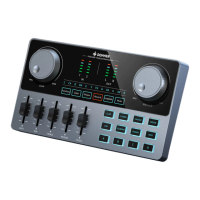

 To Next Page
 General