69
68
CONTENTS
Banknote counter DORS 820 Banknote counter DORS 820
Among the advantages of DORS 820 there is the remote way of firmware
(FW) update via Internet. If a customer has Internet connection, there is no
need to call technician for the update. Your machine will be updated with new
counterfeit and authentic notes detection as well as with other improvements
automatically. We recommend checking for new update every two weeks.
The computer, to which the counter would be connected for firmware
update, should match the following requirements:
– OS WinXP or higher;
– Display resolution 800x600 or higher;
– Internet connection;
– Drivers «Drivers_CP210x_VCP_Win_XP_S2K3_Vista_7.exe» and
«BVS Update» utility installed (can be downloaded from the site:
http://dors.com/oe/service/download/;
– USB socket to connect USB cable from counter delivery set.
FIRMWARE UPDATE
FW upgrading procedure:
• Connect USB port of DORS 820 (pos. 16 in Fig. 2) to your PC by USB
cable. Warning: don’t try connecting USB cable to the external display
connector (pos. 17 in Fig. 2), it may cause its damage!
• Switch the counter o n.
• Launch BVS Update
application on
your PC, the icon with
logo appears in the
taskbar.
Click this icon to open
program main window.
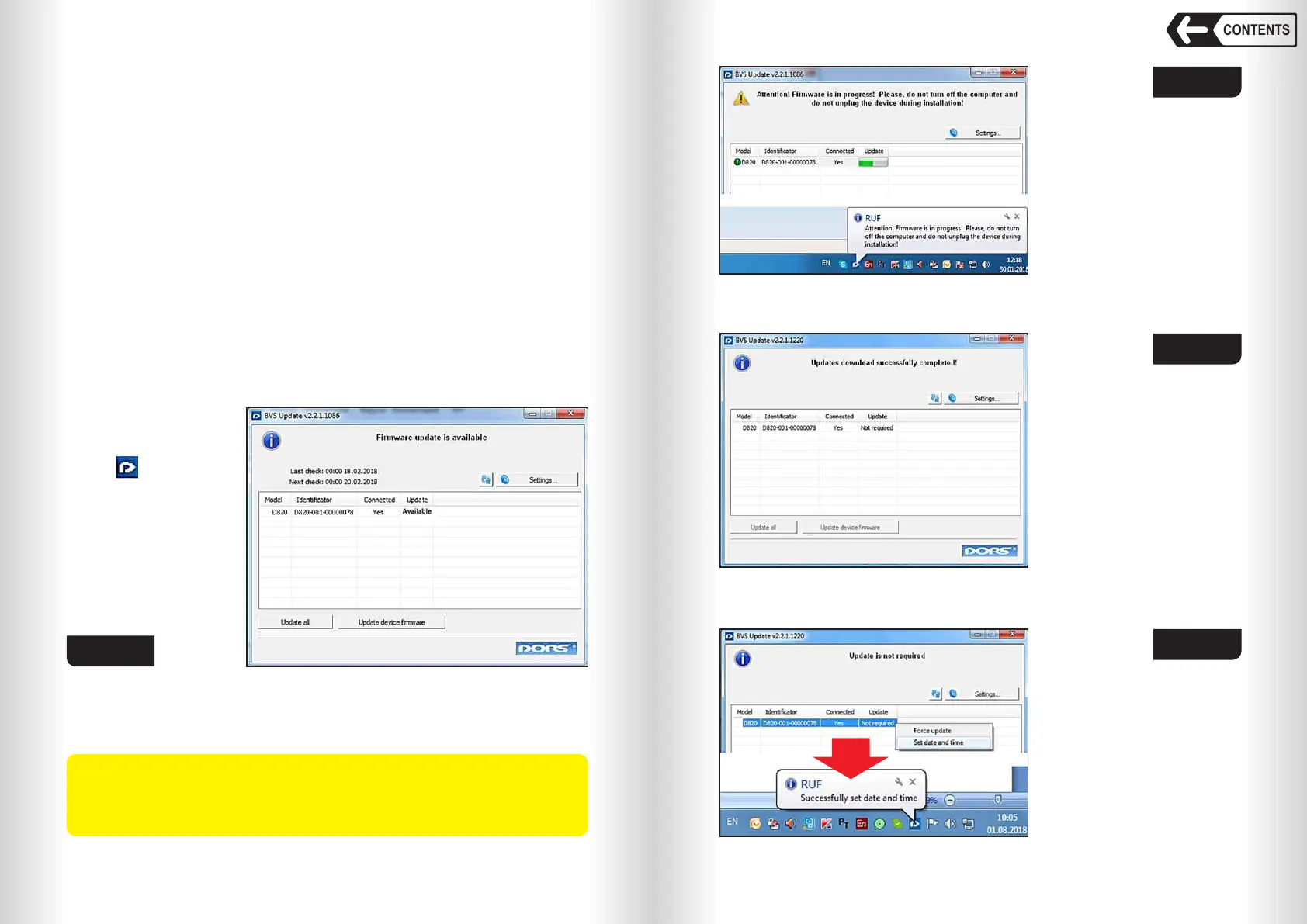
Fig. 106
• Select the counter by clicking its line, then click «Update device firmware»
(Fig. 106). Firmware update will start and a progress bar will appear in
Update column (Fig. 107). A progress bar will also appear on the counter's
display.
WARNING: D on’t disconnect USB cable; don’t turn off the counter or
the computer, don’t unplug the power cords from AC mains while firm-
ware update is in progress.
This may lead to counter failure; service maintenance will be requi-
red.
• Wait until a message
«Updates download
successfully completed!»
appears in the program
window. The counter will
run self-test (see
OPERATION, p. 2). The
utility will check available
updates and report that
update is not required
(Fig. 108);
• Adjust counter system time
shown in the upper right
corner of the display.
Right-click the line with the
counter in the utility
window, then click Set date
and time. Check the
computer reports that date
and time are set (Fig. 109).
• Close BVS Update utility;
• Wait until the counter
passes self-test and turn it
off by the mains switch;
• Disconnect USB cable;
• Switch on the counter and
wait until the counter
passes self-test. Now the
counter is ready for
operation.
Fig. 107
Fig. 108
Fig. 109


 To Previous Page
 Loading...