Quick Installation Guide
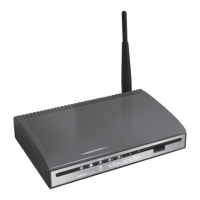
With the Dovado router you can access the Internet
wirelessly. In addition to the router you need a computer.
The product can be set up using a common web browser.
Hardware Installation
Before continuing, you will need to install the necessary hardware;
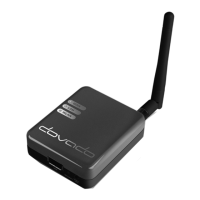
1. Insert the USB Modem into the router or connect the USB modem
via the supplied USB extension cable to the router. It is recommended
to use the USB extension cable and to have at least 50 cm distance
between the router and the USB modem for best performance.
2. Connect the power supply to a wall socket and to the PWR connector.
3. Please note that the USB modem should not be replaced during
operation. If you need to replace the modem, power off the router first.
Accessing the router
Once you have connected a computer with either an
Ethernet cable or by Wireless LAN, open your web
browser and access the following website:
Address: http://192.168.0.1/
Username: admin
Password: password
After clicking on
Login, you will be taken to the Home page, which
will display all the information about your router.
Wizard Configuration
Go to Home and then click on Start Wizard link to start the setup
wizard. It will be opened in a new window. Follow the steps below to
finish the installation.
The welcome screen presents the steps that you will be guided through.
Click on Next to continue.
Set Password
It is recommended that you now change the default password for the
router configuration pages.Type in the new password and confirm it,
then click on Next to continue.
Here is a space to write down your new password:
1
2
3
4
EN
1


 To Next Page