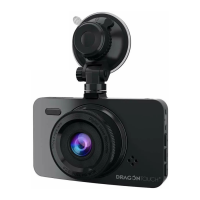
Upon turning on the camera, press the “OK” button to stop recording.
1. Menu : Enter and exist menu.
• Press the button one time to enter to recording mode settings.
• Press twice times to enter to system settings.
• Press third times to back to the main interface.
2. UP : Choose the option above.
3. Down : Choose the option below.
• Press the button to turn on / off the MIC.
4. OK: Confirm the option
• When in system settings, press it confirm the option.
• When in recording mode, press it to start or stop recording.
5. Mode “M” : Playback
• Press the button one time to enter to playback.
• Press twice times to back to the main interface.
6. Lock : Lock the video manually.
7. Power : Short press it to turn on / off the screen, long press it to turn
on / off the camera.
3
4
1
2
3
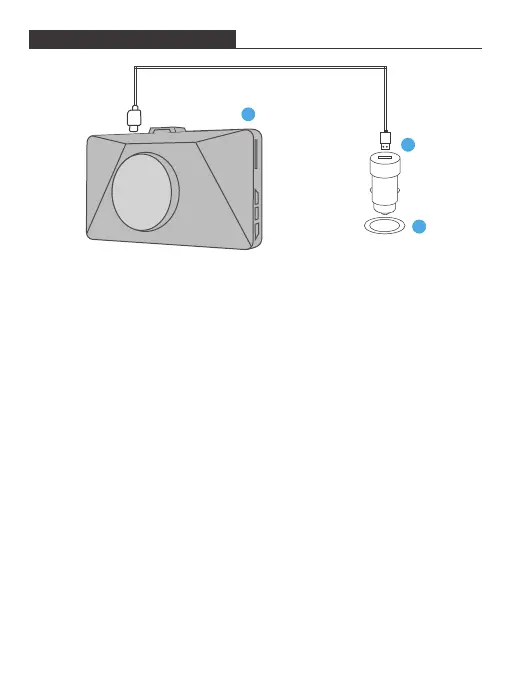
① Insert the USB car charger into your car’s cigarette lighter socket.
② Insert the USB end of the USB power cord into the USB car charger.
③ Insert the Micro USB into the dash cam USB port
(Charger Specification: In: DC 12-24V, Out: DC 5V 2A)
PLEASE NOTE:
1. The battery takes about two hours to be charged fully.
2. When the battery is charging, the indicator light on the top left of the screen will be
stayed red; When it charged fully, the light goes off.
3. To avoid damage to the device, please do not charge the battery via the USB data
cable with other adapters.
CHARGING THE BATTERY
BUTTONS INTRODUCTION


 To Next Page
 Loading...