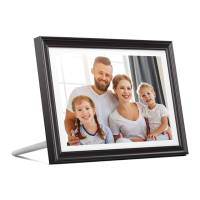
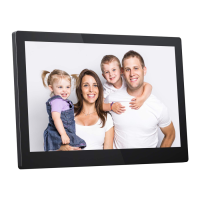
Need help?
Do you have a question about the Dragon Touch Modern 10 and is the answer not in the manual?
Lists all items included with the Dragon Touch Modern 10 Digital Photo Frame.
Details the physical components and ports of the photo frame.
Instructions for powering up the digital photo frame.
Guidance on the first-time system setup process.
Steps to connect the photo frame to a Wi-Fi network.
Information on locating and using the frame's unique identification number.
Instructions for obtaining and installing the companion mobile application.
Guide to signing up for an account and logging into the app.
Steps for the frame owner to link their account to the device using the app.
Instructions for non-owners to link their account to the frame with owner approval.
Method to link an email account to the frame for photo sharing.
Guide to transferring photos and videos using the OurPhoto mobile app.
Instructions for sending photos to the frame via email.
Steps to transfer files to the frame using a computer via FTP.
Process for importing photos and videos from a USB drive.
Process for importing photos and videos from an SD card.
How to remove individual photos or videos from the frame's storage.
Method for deleting media directly while viewing a slideshow.
Option to delete all photos stored in the internal memory.
View Frame ID and application-related information.
Manage user accounts, requests, and permissions for the frame.
Configure and use the PC control feature for file transfers.
Options for selecting and connecting to Wi-Fi networks.
Customize slideshow behavior, display, and transition effects.
Adjust system-level options like sound and display.
Adjust screen brightness, suspended ball, and auto-rotate functionality.
Configure the date and time settings for the frame.
Select the preferred system language from available options.
Schedule automatic power on and off times for the frame.
Instructions for resetting the frame to its default factory settings.
Clarifies whether the frame must remain plugged in.
Explains the necessity of Wi-Fi for setup and features.
Troubleshooting steps for problems connecting to Wi-Fi.
Information on whether the frame can be hung on a wall.
Guidance on placing the frame in portrait or landscape mode.
Location of the unique Frame ID within the device settings.
Troubleshooting tips for problems binding the frame via the app.
Instructions on how to remove a bound email or app account.
Information on sharing media to the frame, including limitations.
Details on transferring files from a computer, noting OS limitations.
Explanation of where media is stored and data retention policies.
Steps to delete media files from the frame.
How to export media to an SD card or USB drive.
Clarifies the limitations of managing content remotely.
Customizing slideshow transitions, speed, and interval.
Setting the frame to automatically turn on and off.
Information on whether photos and videos can play in the same slideshow.
 General
| Brand | Dragon Touch |
|---|---|
| Model | Modern 10 |
| Category | Digital Photo Frame |
| Language | English |

 To Next Page