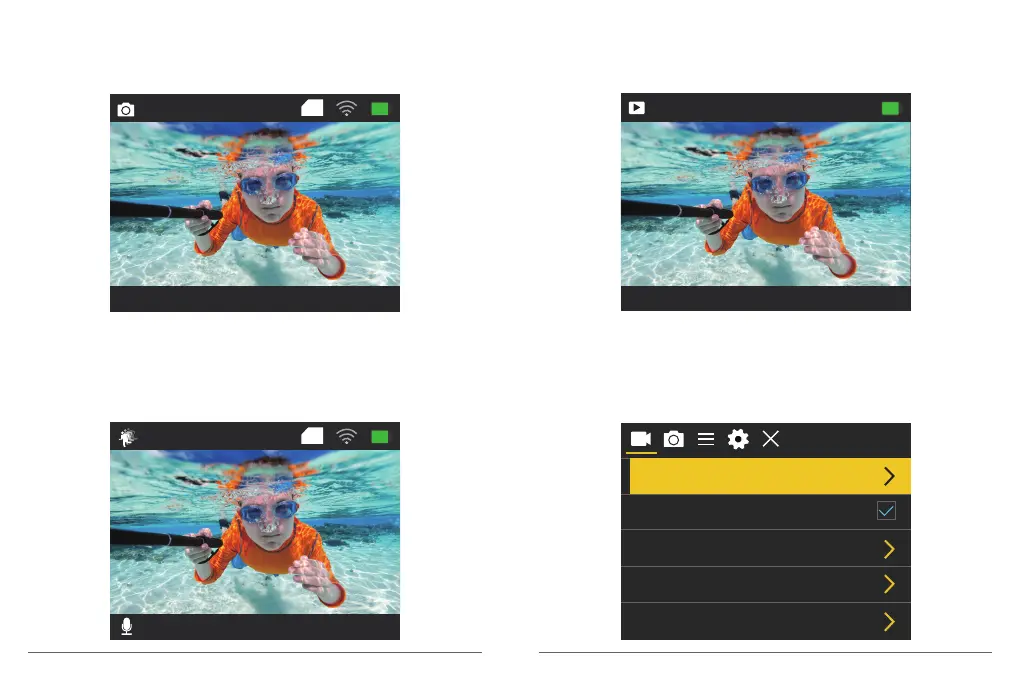
Photo Mode
Press Mode button once to switch to Photo Mode after you turn on camera.
In Photo Mode, press OK button, the camera takes a photo.
Slow Motion Mode
Press Mode button twice to switch to Slow Motion Mode after you turn on camera.
In Slow Motion Mode, press OK button, the camera starts recording slow motion video.
Press OK button to stop recording slow motion video.
16M 4373
2018/10/01 10:11:23
TF
720P120FPS 14.4G
2018/10/01 10:13:23
TF
Playback Mode
Press Mode button several times to switch to Playback Mode.
In Playback Mode, press the Up/ Down button to scroll through video or photo files.
Video Setting Mode
Press Mode button several times to switch to Video Setting Mode. You can change camera
settings in this mode.
00001 /04372
2018/10/01 10:11:23
Video Resolution
Recording Sound
Time-lapse Close
Close
720P 120FPS
Loop Recording
Slow Motion
4K 30FPS
05
06


 To Next Page