3
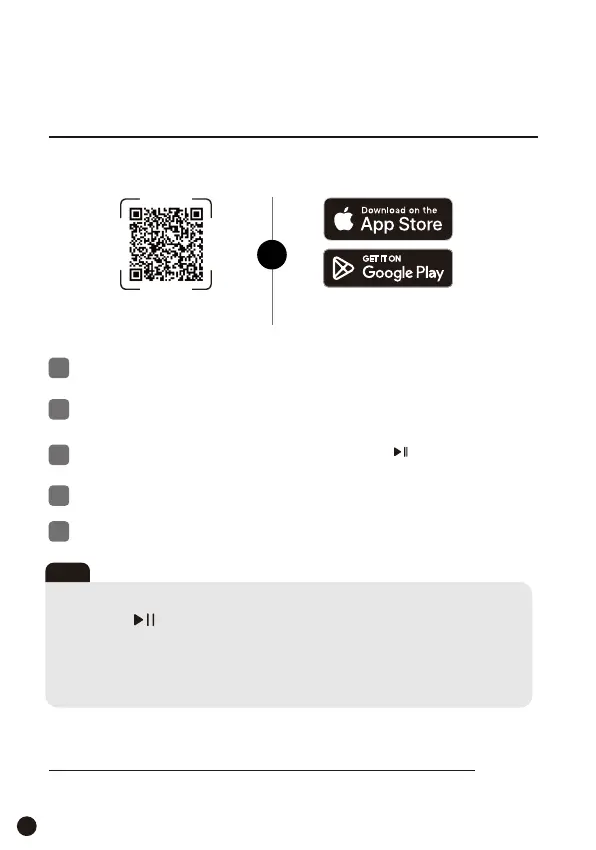
Download the Dreo app to get the most out of your appliance!
Scan the QR code to
download the Dreo app.
Search "Dreo" on
Google Player on App Store.
OR
Google, Google Play, YouTube and Google Home are trademarks of Google LLC.
Apple App Store is a trademark of Apple Inc.
There may be OTA updates available the first time you connect your
appliance. If so, please follow the steps on the Dreo app to continue.
CONNECTING TO
YOUR APPLIANCE
13
Tips
To reset Wi-Fi settings, on your appliance go to Settings>WLAN and
long press for 2 seconds.
(Once reset, display will show "waiting for pairing")
To restore factory settings, on your appliance go to Settings>System
Settings>Reset> Press and hold Confirm for 5s.
Launch the Dreo app and sign in or create account by following
the in-app instructions.
1
Tap Add Device in the Dreo app and select the appliance you
want to link.
2
On your appliance go to Settings>WLAN> Press .
Make sure the display shows “Waiting for pairing"
3
You're now ready to control the appliance on your app.
5
Connect to your preferred Wi-Fi network through the Dreo app.
4


 To Next Page