drobo.com | Getting Started Guide for Your Drobo / Pro / S |
10
drobo.com | Getting Started Guide for Your Drobo / Pro / S |
3. A dialog box may appear, asking you to select your language from the drop-down list.
After doing so, click the OK button.
Note: If the User Account Control dialog box appears in Windows, click the Yes
button to continue.
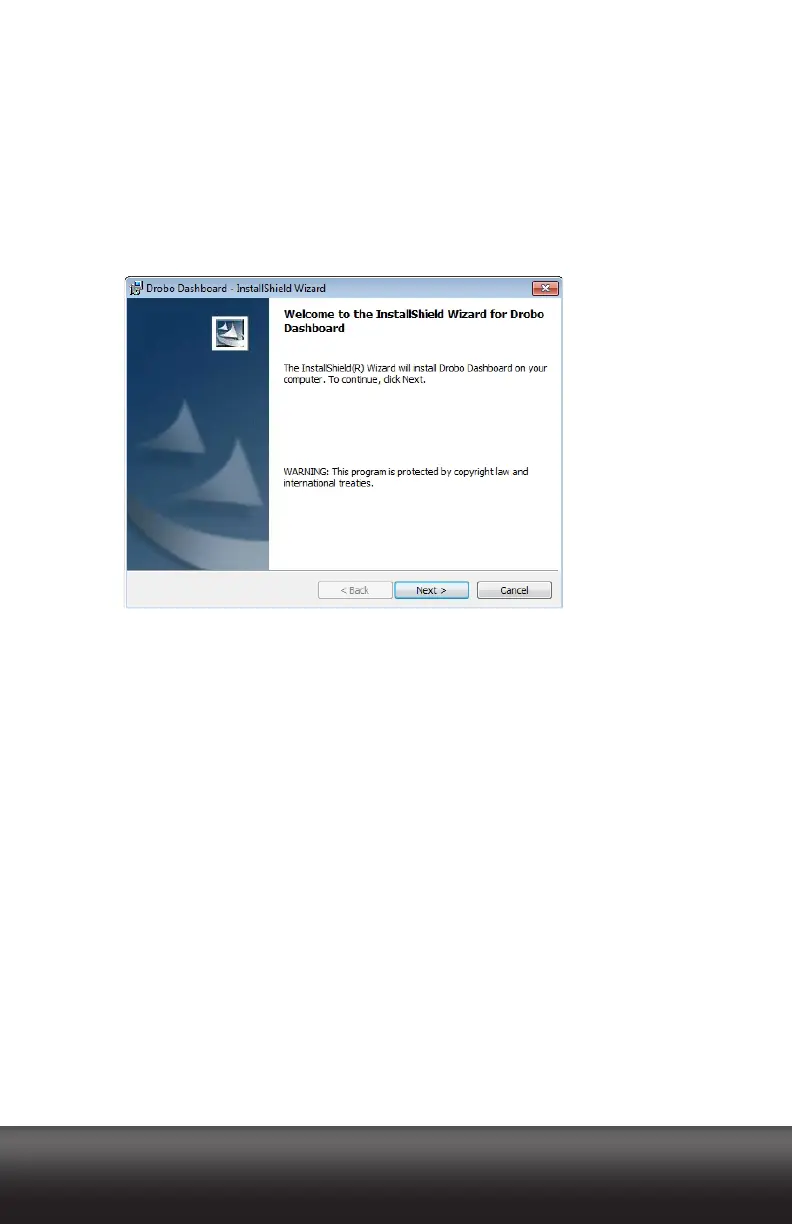
The Drobo Dashboard Installation Wizard appears (in Windows or in Macintosh),
preparing to install.
4. Click the Next button (Windows) or the Continue button (Macintosh), as appropriate.
Note: If the Microsoft iSCSI Initiator window appears and you have a DroboPro and
plan to use its iSCSI connection, click the Yes button. Follow the instructions to install
the Microsoft iSCSI Initiator, clicking the Next button as needed. When finished, you
are returned to the InstallShield Wizard to continue installation.
5. Follow the directions of the Installation Wizard, clicking the Next or Continue button
after each page, as appropriate.
6. When you reach the ready to install page, click the Install button.



 To Next Page