drobo.com | Getting Started Guide for Your Drobo / Pro / S |
14
drobo.com | Getting Started Guide for Your Drobo / Pro / S |
4. Slide the hard drive into the data bay, release the drive lock and push the drive into
place until you feel it connect.
The drive lock will snap behind the drive, securing it into place.
5. Insert additional drives in the same manner, following steps 2 through 4.
6. When finished, replace the faceplate right side up, so that when your Drobo device
is turned on, you will be able to see the indicator lights.
You are now ready to connect cables and power on your Drobo device.
Connecting the Cables
After installing Drobo Dashboard and inserting the hard drives into your Drobo/Pro/S, you
are ready to connect the cables on your Drobo device. This section applies to:
t $POOFDUJOHZPVS%SPCPPS%SPCP4VTJOHBOZPGUIFJOUFSGBDFDPOOFDUJPOTBWBJMBCMF
(USB 2.0, USB 3.0, FireWire 800, eSATA).
t $POOFDUJOHZPVS%SPCP1SPVTJOHUIF64#PS'JSF8JSFDPOOFDUJPO
If you would like to connect your DroboPro via its iSCSI (Ethernet) connection, see
“Setting Up Your DroboPro with iSCSI” on page 22 for additional information and
steps.
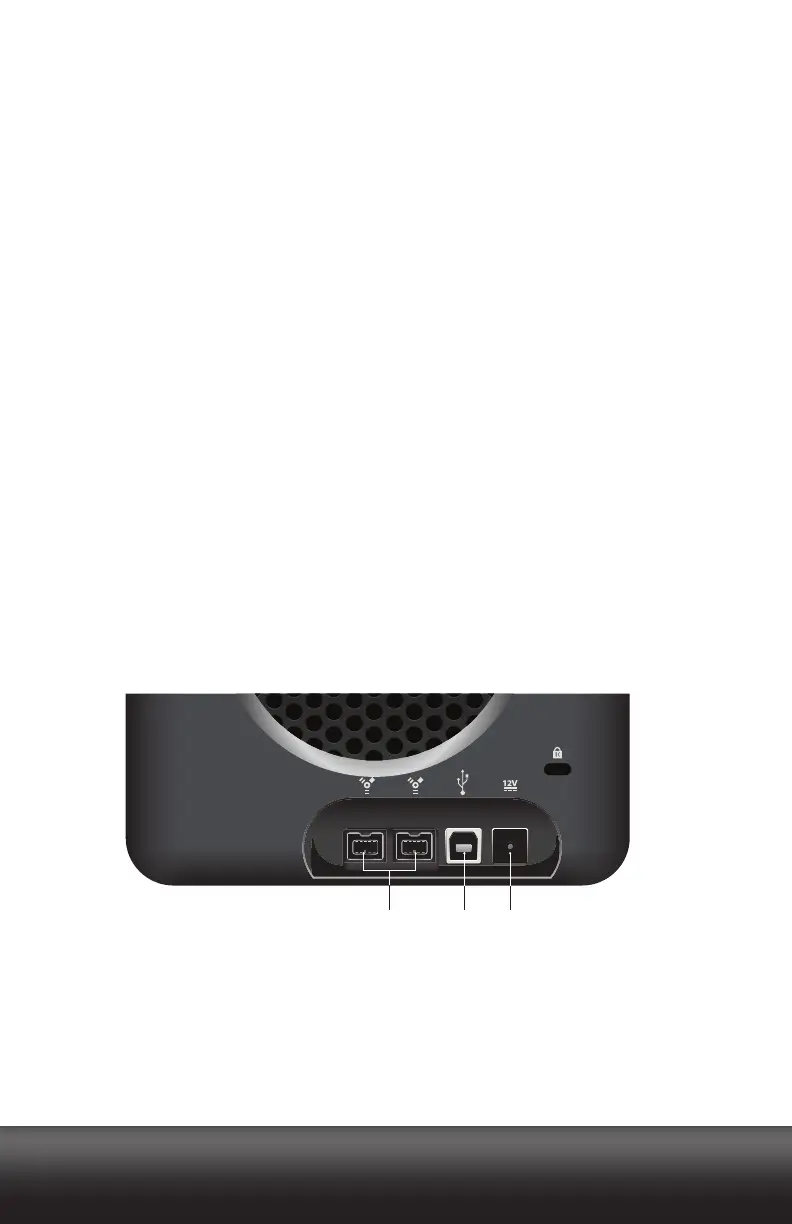
As you follow the steps, refer to Figures 3, 4 and 5.
Figure 3: The back of your Drobo.
PowerUSB 2.0
FireWire 800



 To Next Page