7
runs. Subsequently, only new and updated files will be copied to the
destination folder. (Updated files will replace older files.)
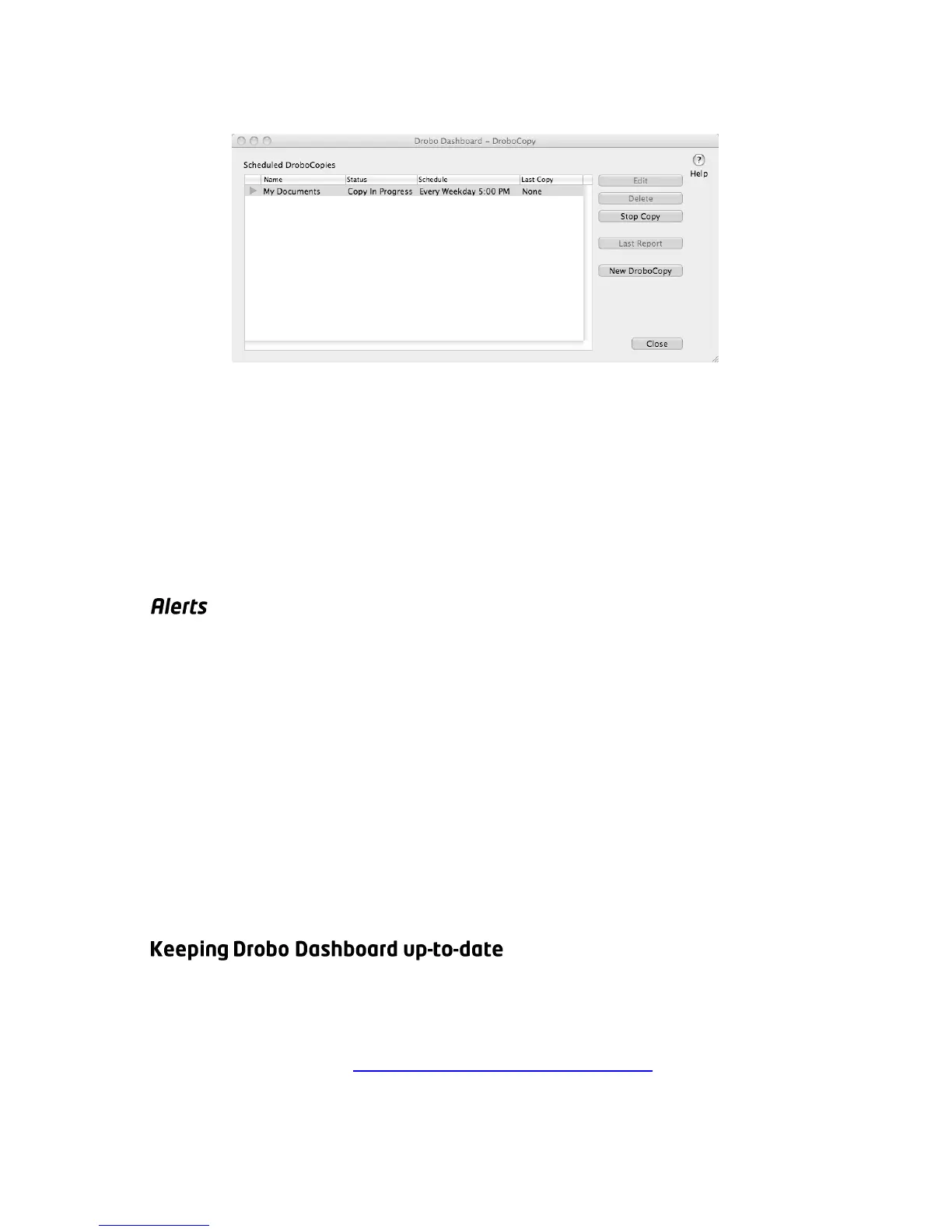
To start using DroboCopy on a PC, launch Drobo Dashboard and right-
click the Drobo Dashboard icon (pie chart) in the System Tray and select
“DroboCopy Settings…”. On a Mac, launch Drobo Dashboard and go to
the Drobo Dashboard menu and select “DroboCopy Settings…” In the
DroboCopy window click “New DroboCopy” and pick the folders you
would like to use for your DroboCopy.
Note: Drobo Dashboard must be running for the scheduled backups to work.
Drobo Dashboard will display specific Drobo alerts locally on your
computer. For individual Drobo alert settings, the desired alert level can
be set in Drobo Dashboard within the Advanced Controls > Tools tab.
Drobo Dashboard can also send e-mail alerts based on a selected alert
level for all Drobos attached to your computer (including any
DroboShares on your network). To access this option on a PC, launch
Drobo Dashboard and right-click the System Tray Drobo Dashboard icon
and select “E-mail Alert Settings”. On a Mac, launch Drobo Dashboard
and go to the Drobo Dashboard menu and select “E-mail Settings…”
Note: Drobo Dashboard must be running for alerts to work.
Drobo Dashboard is included on the Drobo Resource CD that comes
with your product. After it is installed, you will be notified when a new
version is available (unless you uncheck “Check for updates
automatically”). Go to http://www.drobo.com/support/ for more
information.



 To Next Page