13
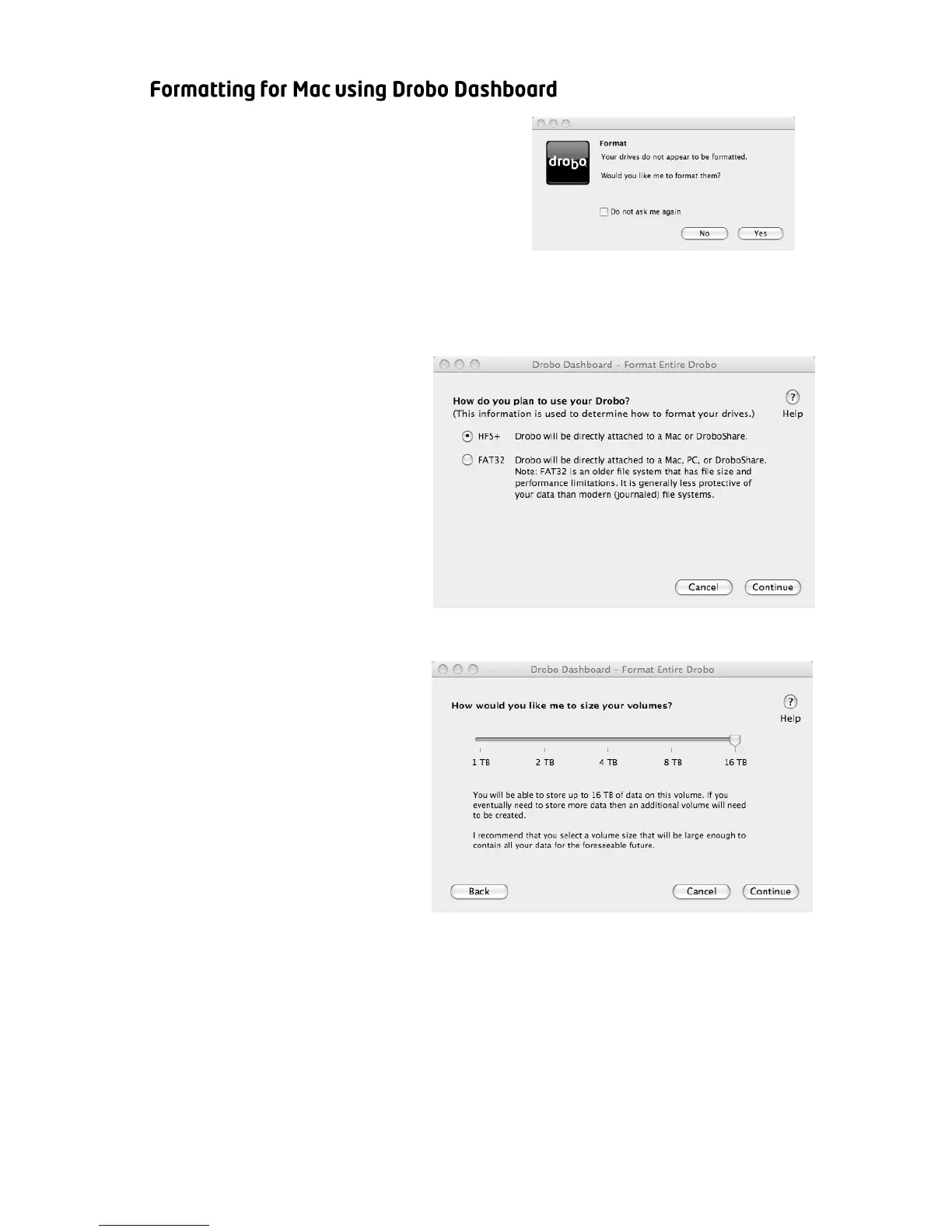
1. Once Drobo has finished starting
up, Drobo Dashboard will
automatically discover it and show
the message to the right. Click
“Yes”.
Note: Mac OS X will also offer to format the Drobo storage. We
recommend that you click “Ignore” and use Drobo Dashboard to format.
2. You will be shown the
message to the right
asking you to select
Drobo’s file system
format. You have the
choice between HFS+
and FAT32. Only use
FAT32 if you must
connect the Drobo to a
Windows-based
computer. Click “Continue”.
3. You will be shown the
message to the right
asking you to select a
volume size. The
available sizes are based
on which file system
type you picked and the
capabilities of your
operating system. We
recommend that you
pick the volume size that
will be able to store all of your files for the foreseeable future. Click
“Continue”.



 To Next Page