14
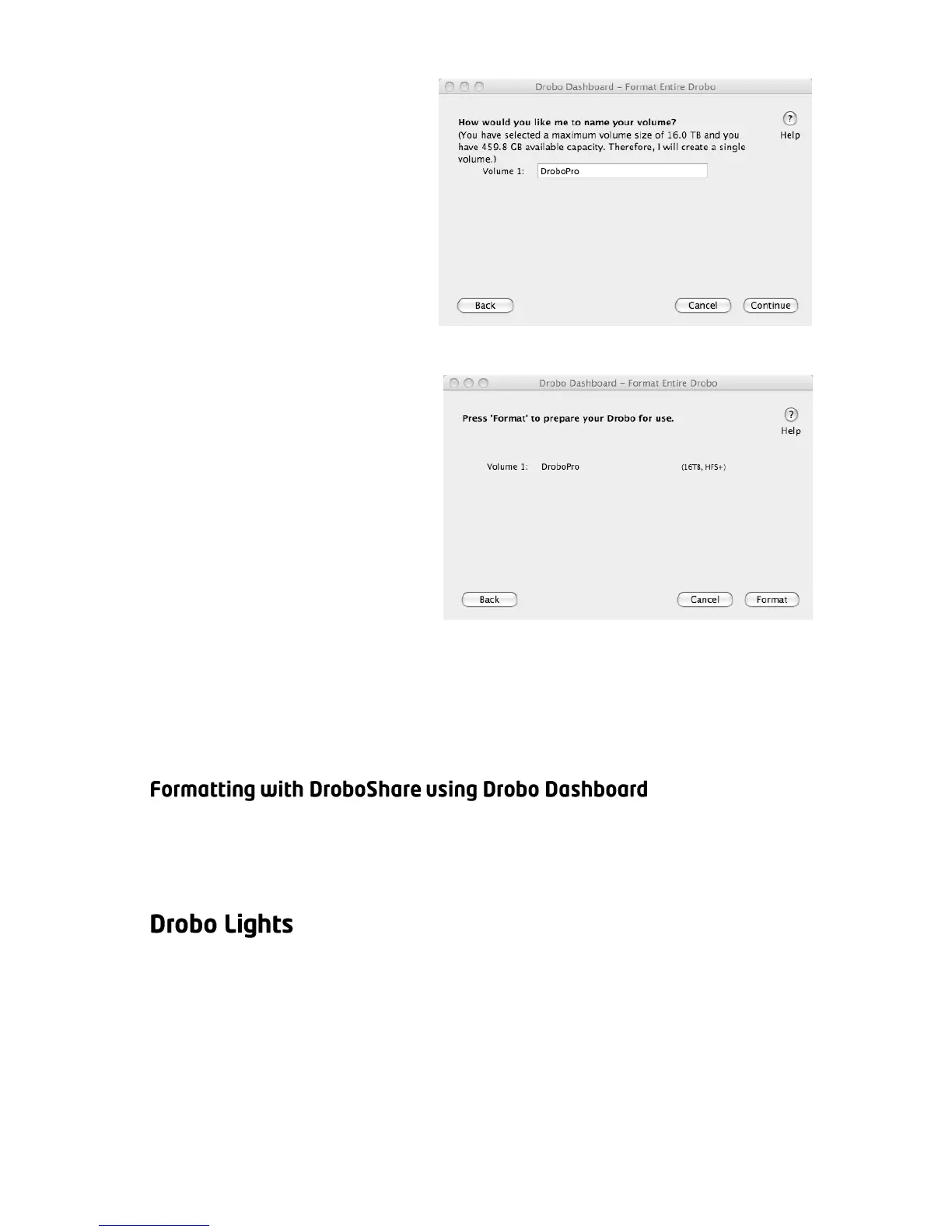
4. Depending on your
volume selection and the
total capacity of the
drives in your Drobo, you
will be presented with
the opportunity to select
a custom name for your
volume(s). Click
“Continue”.
5. You will be shown a
summary of your
selections. Now click
“Format”. This process
should take a few minutes
and could cause your
Drobo to restart.
When formatting is complete, Drobo is ready to be used. You will be
able to access it like any other drive connected to your computer.
Tip: You can determine actual disk space usage by opening Drobo Dashboard or
checking Drobo’s blue capacity lights.
If you are connecting your Drobo to a network via DroboShare, you can
format your Drobo using Drobo Dashboard. For detailed information,
see page 18.
One of Drobo’s many benefits is a series of lights that tell you
everything you need to know, without your having to launch any
application software on your computer. Remember, Drobo is designed
to actively monitor and protect your data at all times. Drobo will
automatically take any necessary actions and display them using the
following lights:



 To Next Page