Need help?
Do you have a question about the DT Research DT590BU and is the answer not in the manual?
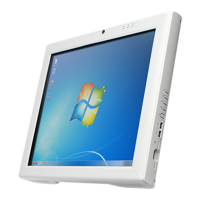
The DT Research Medical Cart Computer is a versatile and robust device designed to enhance workflow and service in point-of-care environments. Available with 19-inch, 22-inch, or 24-inch TFT displays, and powered by Intel® Celeron® or Core™ i7 processors, it offers an optimal balance of performance and power efficiency. Its fully-integrated modules are housed within an elegant, space-saving design, making it an ideal solution for various medical settings.
The Medical Cart Computer serves as a comprehensive point-of-care solution, integrating a high-performance system with a bright display, USB ports, and optional features like capacitive touch and a smart card reader. It is designed to be ready for use out of the box, operating in its default configuration when connected to the provided power source. The device supports both AC-DC power and hot-swappable Li-ion battery packs, ensuring continuous operation and mobility.
For connectivity, the device includes a comprehensive set of I/O ports located along its lower rear edge. These ports include side panel function buttons, multiple USB 2.0 ports, an Ethernet port (RJ45), audio jacks, a COM port, and an HDMI (1.4a) port. An optional smart card reader further expands its functionality for secure access and data management.
Wireless networking capabilities are provided through an embedded 802.11ac WLAN adapter with a hidden custom antenna, allowing the computer to detect and connect to 802.11 access points. For secure connections, users can configure SSID and WEP/WPA/WPA2 encryption. Additionally, a built-in Bluetooth adapter, operating on the Microsoft Windows Bluetooth protocol, enables connectivity with various Bluetooth peripherals.
To power on the Medical Cart Computer, users simply push and quickly release the Power Button; the display will activate within seconds. For extended storage, the device should be safely powered off using the "shuts down computer" function within the operating system. To conserve power during temporary idleness, a quick push and release of the Power Button will put the device into "Standby" mode, from which it can be woken up within seconds by pressing the same button. It is important to avoid using the "hold 4+ seconds" feature of the Power Button for normal shutdown, as this is intended for recovery from device lockups.
Battery management is a key feature for mobile use. If the device comes with battery packs, they should be inserted one by one after opening the battery slot caps. For initial setup, it is recommended to use the AC-DC adapter to fully charge the battery packs, especially if they are low on power. The battery packs can be charged while attached to the computer or with an optional battery charger kit. The Battery LED provides clear status indicators: a solid blue light signifies 25% to 100% charge, blinking blue indicates charging, orange means 11% to 25% charge, and blinking orange indicates below 10% charge. If the AC-DC adapter does not trigger the blinking activity when plugged in, and the LED remains dark, it may indicate a substantially drained battery, requiring unplugging and replugging the adapter a few times to initiate the charging process.
For external display connectivity, if an external monitor is connected via the HDMI-out port, the computer must be powered with the AC-DC adapter.
Maintaining the cleanliness of the Medical Cart Computer is straightforward, with specific recommendations for both the screen and the anti-microbial enclosure.
For cleaning the screen, a non-alcohol and non-abrasive screen cleaning solution should be used. It is recommended to apply the solution onto a micro-fiber cloth and then gently clean the touch screen. This method helps prevent damage to the display surface.
The anti-microbial enclosure should be cleaned with a soft, non-abrasive cloth moistened with water. If a cleaner is desired, an alcohol-free and oxide-free cleaning liquid is recommended. To preserve the anti-microbial coating and prevent scratching, users should wipe gently.
Users are advised to always exercise care when operating and handling the Medical Cart Computer. Disassembling any portion of the enclosure will void the product warranty. Only the AC-DC adapter provided by the manufacturer or a replacement acquired from them should be used. In the unlikely event of smoke, abnormal noise, or strange odors, the device should be immediately powered down, disconnected from all power sources, and the problem reported to the device provider.
 General
| Category | Medical Equipment |
|---|---|
| Model | DT590BU |
| Operating System | Windows 10 IoT Enterprise |
| Touchscreen | Yes |
| Ethernet | Gigabit Ethernet |
| Power Supply | AC Adapter |
| Battery Life | Up to 8 hours |
| Memory | 8GB DDR4 |
| Wireless | Wi-Fi 802.11ac |
| Bluetooth | Bluetooth 4.2 |
| I/O Ports | HDMI |
| Certification | CE, FCC |

 To Next Page