h
WNE
mde
t)ler~
m
6
funtidm
Jays
see [Fig.
2
par
4.1
1.
CUW
Key:
Pressing this key, the display shows "SELECT
mh&TION
SCENE,"
select through the
ls'i
2
keys the destination of the
For
the successive
scenes use P& key
Note:
After have pressed
COW
key, the same becomes
GRAB
key.
WE?
Key:
Press this key to store, the scene; you can then paste
it
in an empty scene of the same
program or in a diferent program. The key becomes
PASTE.
PASTE
Key:
Pressing this key the scene previously stored could be pasted to an any empty scene of
any
program.
ERASE
Key:
Prsss this key to the erase active scene, select through the
1+12
keys
[for
the succes-
sive
scenes use
PAGf
key]
the scene that must be erased, then press the ERASE
key.
The scene will erased in a permanent way,
it
is not possible recover it.
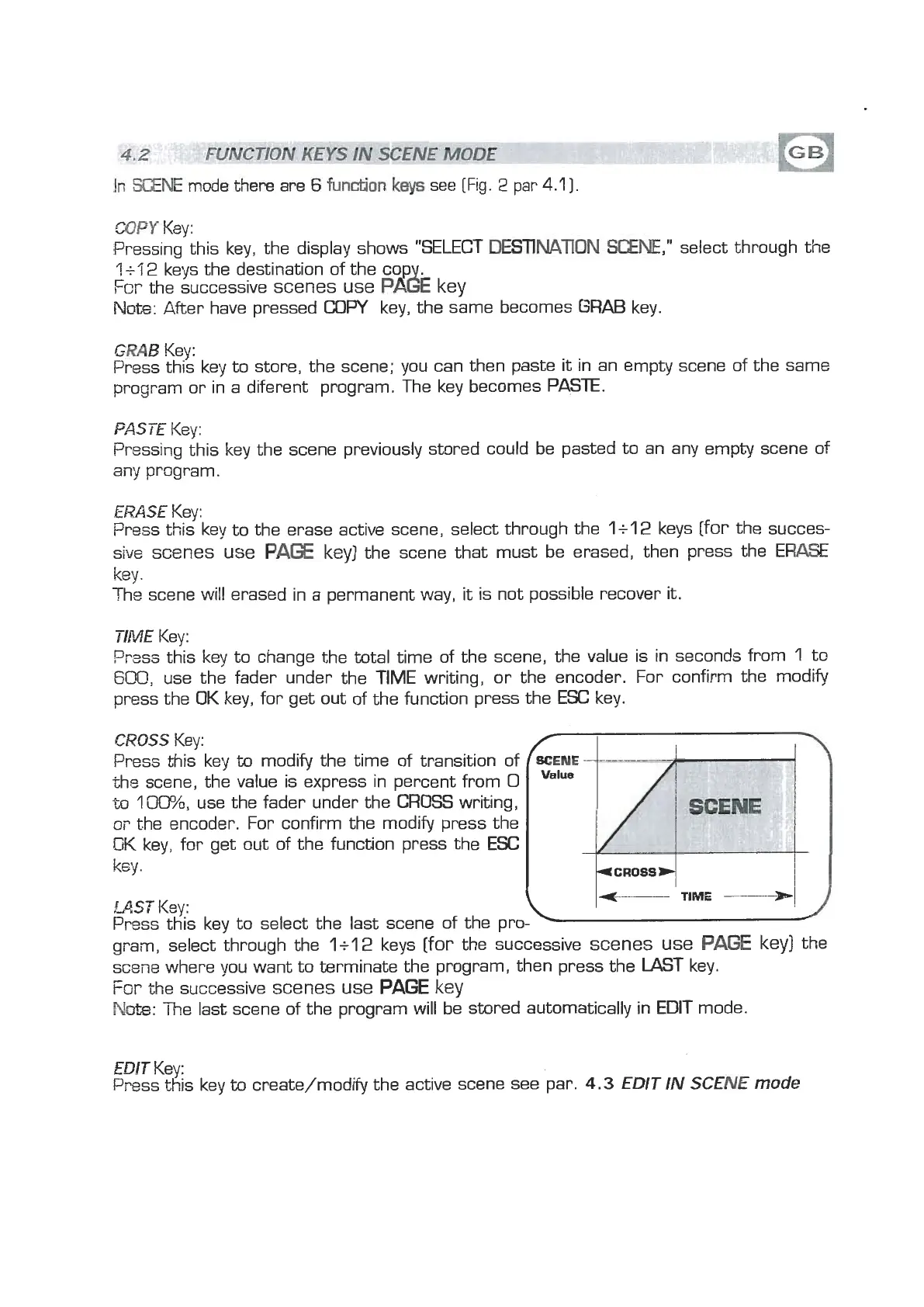
TIME
Key:
Prsss this key to change the total time of the scene, the value is in seconds from
1
to
6@@,
use the fader under the TIME writing, or the encoder. For confirm the modify
press the
OK
key, for get out of the function press the
ESC
key.
CROSS
Key:
Press this key
to
modify the time of transition of
the
scene, the value is express in percent from
0
m
1
[30%,
use the fader under the
CROSS
writing,
oi.
the encoder. For confirm the modify press the
OK
key, for get out of the function press the
ESC
key.
MST
Ksy;
Prsss th~s key to select the last scene of the pro-
gram, select through the
1+12
keys
[for
the successive
scenes use
PA(3E
key]
the
scene where you want to terminate the program, then press the LAST key.
For
the successive
scenes use
PAGE
kev
The last scene of the program will bi stored automatically in EDIT mode.
EDIT
Key:
Press this key
to
create/modify the active scene see par.
4.3
EDIT
IN
SCENE
mode


 To Next Page
 Loading...