Need help?
Do you have a question about the e-con Systems See3CAM CU135 and is the answer not in the manual?
Wizard welcome screen for See3CAM_DFU application setup.
Option to select installation directory for See3CAM_DFU application.
Confirmation screen before commencing See3CAM_DFU installation.
Instruction to connect the See3CAM device to the PC.
Selecting the See3CAM device from the available list in the updater.
Browsing and selecting the firmware image file for the update.
Initiating the firmware update by clicking the F/W UPDATE button.
Confirmation of successful firmware download and device reset.
Handling and identifying firmware download failure scenarios.
Troubleshooting steps for a corrupted firmware issue with the device.
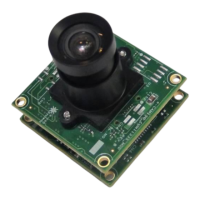
The See3CAM_CU135 Camera is a device designed for various applications, and this manual provides comprehensive instructions for its firmware update and general usage. At its core, the See3CAM_CU135 is a camera device that relies on embedded firmware for its proper functioning, controlling all its features.
The primary function of the See3CAM_CU135 is to capture images and potentially video, enabled by its internal firmware. This firmware is a crucial program embedded within the device, ensuring that all camera functionalities operate as intended. As e-con Systems continuously develops and enhances its products, new firmware versions are released. These updates often include additional features, performance improvements, and bug fixes, making firmware management a key aspect of maintaining and extending the camera's capabilities.
The device is supported by a dedicated DFU (Device Firmware Update) application, which is the central tool for managing firmware updates. This application facilitates the process of installing new firmware binaries onto the See3CAM_CU135, allowing users to leverage the latest advancements and ensure optimal performance. The DFU application guides the user through a structured update process, from device selection to the final confirmation of a successful update.
The See3CAM_CU135 is designed to be versatile, supporting various operating systems including Windows 7, 8, 8.1, and 10, as well as Linux Ubuntu 12.04, 14.04, and 16.04. This broad compatibility ensures that the camera can be integrated into a wide range of development and application environments.
The usage of the See3CAM_CU135 involves both its operational capabilities as a camera and the maintenance procedures for its firmware.
The process of installing and updating the firmware is straightforward, guided by the See3CAM_DFU application.
While the manual focuses on firmware, the underlying usage of the camera involves streaming and image capture. The device supports multiple resolutions and frame rates, with options to adjust these settings for stability, especially when connecting multiple cameras or using less powerful embedded boards. For instance, in UYVY mode, lower frame rates can improve stability, while in MJPEG mode, reducing the Q-factor can help.
The See3CAM_CU135 also supports an external trigger option, which is detailed in a separate application note (See3CAM_CU135_Trigger_Mode_Application_Note_Rev_1_0.pdf). This feature allows for synchronized image capture, which is critical in specific industrial or scientific applications.
e-con Systems provides sample applications to demonstrate the camera's capabilities. For Windows, e-CAMView is available, and for Linux, QtCAM is provided. These applications help users quickly get started with testing and integrating the camera into their projects.
Maintenance of the See3CAM_CU135 primarily revolves around firmware management and troubleshooting.
Regular firmware updates are a key maintenance feature. As e-con Systems releases new firmware binaries, updating the device ensures access to the latest features, performance enhancements, and bug fixes. This proactive approach helps maintain the camera's optimal functionality and extends its lifespan in various applications.
The manual addresses common issues and provides troubleshooting steps:
e-con Systems offers comprehensive support for the See3CAM_CU135.
For applications requiring fixed focus custom lenses, users can contact e-con Systems sales to discuss Non-Recurring Engineering (NRE) charges, which cover the costs of research, design, development, and testing for custom product enhancements.
In summary, the See3CAM_CU135 is a robust camera device with a strong emphasis on firmware-driven functionality. Its usage is supported by a dedicated DFU application for easy firmware updates, and comprehensive maintenance and support resources are available to ensure reliable operation and address any potential issues.
 General
| Sensor | 1/3.2" CMOS |
|---|---|
| Interface | USB 3.0 |
| Max Frame Rate | 60 fps |
| Lens Mount | M12 |
| Operating System Compatibility | Windows, Linux |
| Power Consumption | 1.5 W |
| Weight | 50 g |
| Output Format | YUV |
| Resolution | 1280 x 960 |
| Dimensions | 30mm x 30mm x 30mm |

 To Next Page