6
3. Tap button A to save and to advance to the next alarm.
4. Repeat steps 1-3 until all your alarms are set.
5. Exit the Alarm Setting Mode: Tap button A until the current time is
shown. This occurs after Alarm 9 and indicated by “:” blinking. When the
“:” is blinking, the number next to the alarm clock indicates how many
alarms have been set.
6. Voice Pro will confirm with “Alarm Setup Successfully.”
Alarms - Deleting an alarm
1. Tap button A until you see the alarm you wish to delete.
2. Tap button B until --:-- is displayed (occurs after 11:00 p.m. or 23:00).
3. Exit the Alarm Setting Mode by tapping button A repeatedly until the
current time is show (occurs after Alarm 9).
4. Voice Pro will confirm with “Alarm Setup Successfully.”
Alarms – Setting the Alarm Volume
3 alarm volumes: Silent (0), Medium Volume (1), Loud Volume (2).
1. With the current time shown, tap button C to enter the settings menu.
2. Tap button B to switch between the volume levels: 0, 1 and 2.
3. Tap button A to save.
4. You will be confirmed with “Pill Dispenser Settings Updated.”
Set 1 of 2 Complete
Move to Setup - Step 2: Filling the Tray.
SETUP – STEP 2
Filling the Tray
1. Remove the clear tray that is inside the dispenser. This makes filling the
tray easier. Important: Never force the tray to rotate.
2. e-pill Voice Pro comes with 9 different dosage templates. Place the
dosage template that is designed for the number of alarms you have set
into the tray’s template slot.
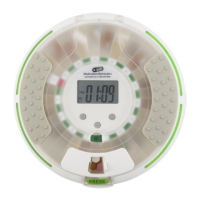
3. With the tray’s e-pill sticker at 6 o’clock, fill the tray counter-clockwise.
The first dose goes into the compartment immediately to the right of the
tray’s e-pill sticker.
4. Fill compartments (up to 28 are available) with pills using the dosage
template as a guide.


 To Next Page