EN
6
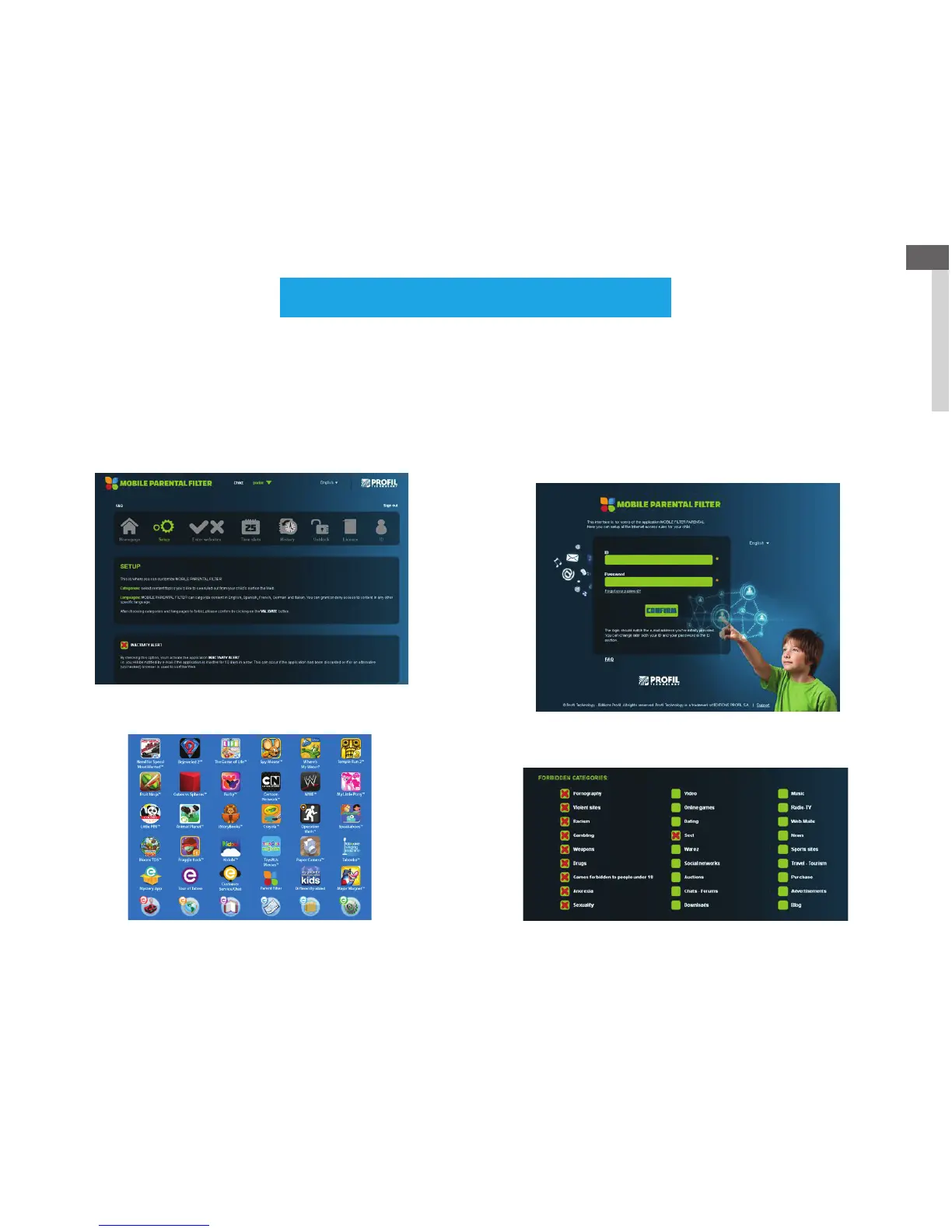
In addition to child-friendly features, Tabeo
™
offers cutting edge parental controls. We know the safety of your child is your
utmost concern, and we’re here to help you keep your child safe online in few easy steps.
Now let’s set up your Parental Controls. This account will allow you to customize and control the content your child
can access. We recommend keeping your password safe and not sharing it with your child so that you can change
your preferences and settings at any time.
Start-Up Guide – Parental Controls
Step 1 - Set up Parental Controls
Step 2 - Verify the account
(so we know you are the parent or legal guardian of the child who’ll be using this Tabeo
™
.)
Step 3 - Unlock all the FREE pre-loaded apps
Step 4 - Customize the settings
(to ensure your child has as little – or as much – access to the internet as you choose.)
For more details on the Parental Controls, please go to tabeo.com



 To Next Page