Note: When you add a contact, you will be prompted to add a contact to your phone/SIM
card. After you select it, follow the menu in the contact add list, enter the corresponding
contact information, and press “Done” to save the contact. When the contact is stored to the
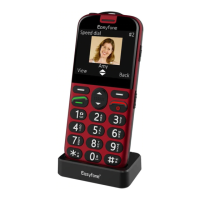
phone, the contact caller avatar can be set to make it easier to view the identity of the caller.
Quickly search for contacts
In the contact list, you can enter the first letter of the contact you want
to find. If there are many contacts in the first letter, you can continue to
enter the second letter, and so on, you will quickly find the contact
person you want to search.
Contact options
In the contact list, use the UP/DOWN keys to select a contact and set it
up.
Options:
1) View- You can view current contact phone number.
2) Call- You can dial the currently selected contact.
3) Send contact- You can send the current contact information via
SMS/MMS/Bluetooth.
4) Write message- You can edit and send SMS/MMS to your current
contacts.
5) Add to blacklist- You can add the current contact to the blacklist.
6) Edit- You can edit contact information.
7) Delete-You can delete the current contact information. (The data will
not be restored after deletion, please choose carefully)
8) Copy- You can select one or more contacts in the phonebook to copy
and move, copy the contacts from SIM card to phone / copy the
contacts from phone to SIM card.
15


 To Next Page