26 – DX8
Use a control group to adjust the volume of two or
more channels at the same time. All faders that are
assigned to a control group will have their gain
settings modified by the amount the control group
fader is increased or decreased. For example, a
control group might be used to adjust the overall
volume for all the choir mics in a church by configuring
a Level Remote Control to adjust the volume on a
control group to which all the choir mics are assigned.
Note: Control Groups are controlled by Level
Remote Control only.
Force-on:
Assign a Force-on level to each input,
from OFF to +10 dB. The Force-on setting can be
set to either absolute or relative. In absolute mode,
the fader level is set to the exact setting defined by
the Force-on function. In relative mode, the current
fader level is modified by the amount specified by
the Force-on function.
Force-off:
Assign a Force-off level to each input,
from OFF to +10 dB. The Force-off setting can be
set to either absolute or relative. In absolute mode,
the fader level is set to the exact setting defined by
the Force-off function. In relative mode, the current
fader level is modified by the amount specified by
the Force-off function.
Force-on Priority:
Assign a priority level from 1
(highest) to 8 (lowest) for each channel’s Force-on
function. The default setting is None. Higher priority
Force-on commands override lower priority Force-on
commands. For example, if Input 4 is assigned a Force-
on priority of 4, which is activated, and Input 1 is
assigned a Force-on priority of 1 and is activated, the
Force-on command is removed from Input 4, and it is
forced-off, along with all other lower-priority inputs
(note that inputs with no priority assigned are not
affected). If the Force-on command for Input 1 is
removed, and the Force-on command for Input 4 is
still present, Input 4 Force-on command is activated.
If Input 1 and Input 4 are both assigned a priority
of 4, neither input overrides the other and Force-on
commands can be active concurrently.
This rule implies that inputs are never forced-off
by inputs with equal or lower priorities. It also implies
that if force-on functions are active for several inputs
with equal priorities, and there are no higher priorities
active, then they are all forced-on. Inputs that do
not have an assigned priority have no effect on, and
are not affected by, the priority rule.
The Force-off function is not affected by priority.
The priority rule is applied continuously to all active
Force-on functions, i.e., at any time the active Force-
on functions actually having an effect are those that
are applied to inputs with the highest or no priority.
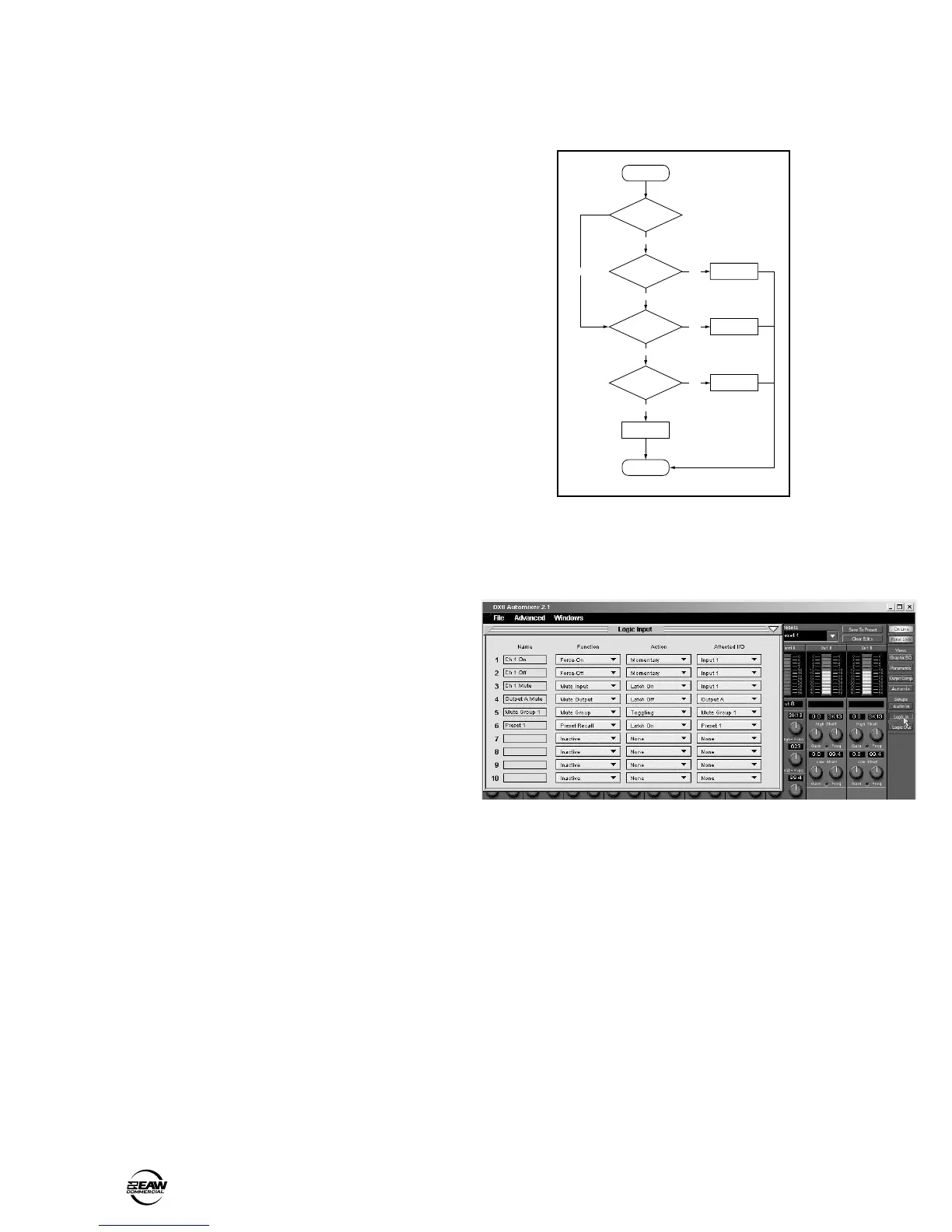
The following flow chart demonstrates the
Force-on/off operation for any particular input:
START
Is priority
assigned?
Is higher priority
Force-on active?
Force-on active?
Force-off active?
Yes
No
No
No
Yes
Force this OFF
Yes
Force this ON
Yes
No
Force this OFF
No Force
END
FORCE-ON/FORCE-OFF FLOW CHART
Logic In
Click this button to open the Logic Input window.
Make the following settings and assignments in the
Logic Input window:
Name:
Enter a name for each Logic Input, up to
32 characters.
Function:
Select one of 7 different functions in
this drop-down box, including Inactive, Force-on,
Force-off, Mute Input, Mute Output, Mute Group,
and Preset Recall.
Action:
Select whether the particular function
selected is momentary, latch on, latch off, or
toggling. The selections will vary depending on the
function selected for the Logic Input.
Affected I/O:
Select which Input or Output is
affected by the Logic function. The selections will
vary depending on the function and action selected
for the Logic Input.
See Appendix A for a chart of the Logic Input
functional combinations available.



 To Next Page