JPEG
KH 6777
preset “Folder Normal” mode has then been selected
(see t 2).
If there are no folders:
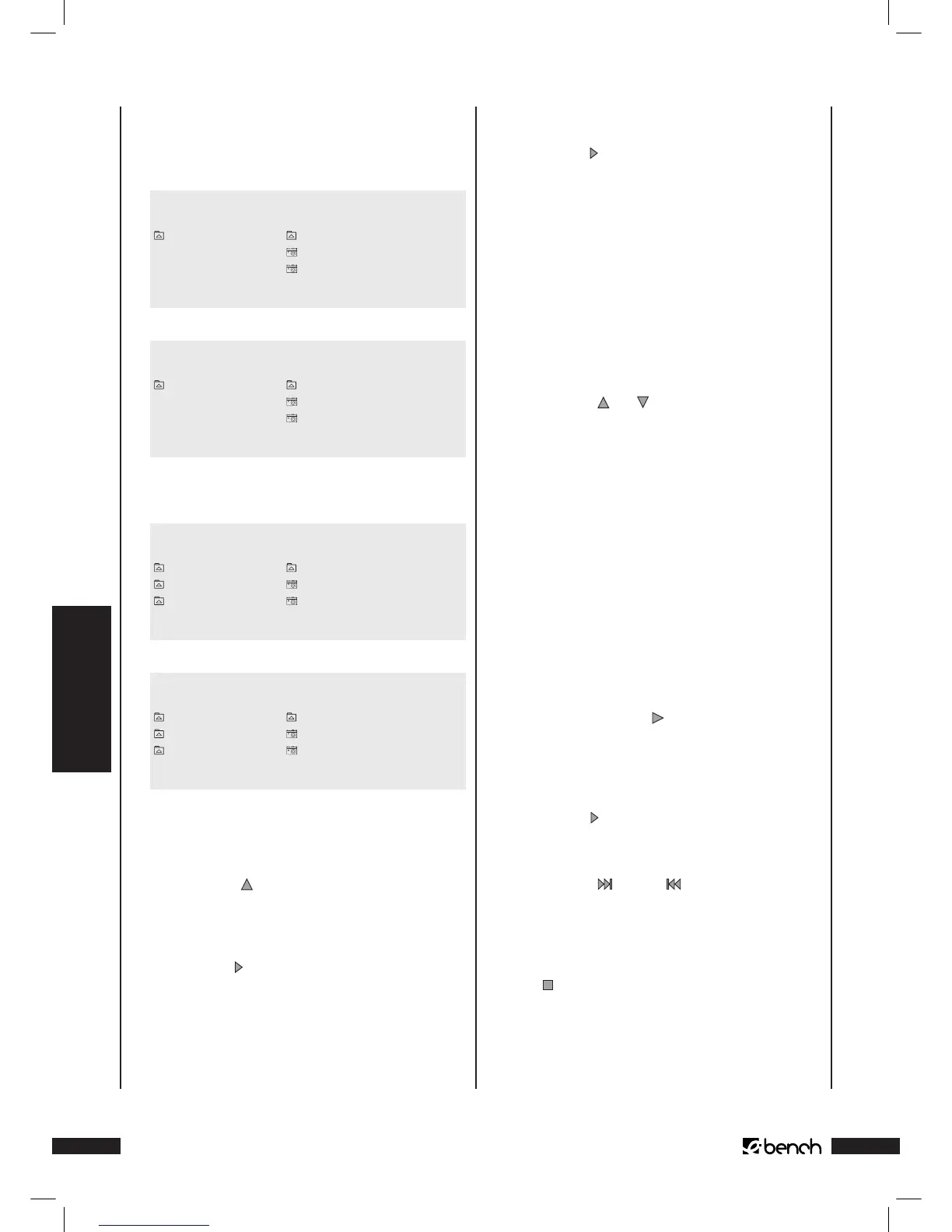
CD-R MENU
ROOT ROOT 0
Picture 1 1
Picture 2 2
Mode Folder Normal
Fig. 1
CD-R MENU
ROOT ROOT 0
Picture 1 1
Picture 2 2
Mode Folder Normal
Fig. 2
If there are folders:
CD-R MENU
ROOT 0 .. 0
Folder 1 1 Picture 1 1
Folder 2 2
Picture 2 2
Mode Folder Normal
Fig. 1
CD-R MENU
ROOT 0 .. 0
Folder 1 1 Picture 1 1
Folder 2 2
Picture 2 2
Mode Folder Normal
Fig. 2
3 One of the modes is displayed with each depression of
the “OK” button. When the required display mode is dis-
played, then leave the mode select bar by pressing the
control button
once. The mark is then once again in
the picture list.
4 If there are no folders:
• Press the “Play” button once to start picture display with
the rst picture on the CD-R/CD-RW
or
• Press the “OK” button once to start picture display at the
currently displayed picture.
If there are folders:
• Press the “Play” button once to start picture display with
the rst picture in the current sub-folder
or
• Press the “OK” button once to start picture display with
the currently selected picture in the current sub-folder.
Programmed picture display (Program)
If you have set “Program Start” mode to select several pictures
for programmed picture display:
1 The “Program _:_” eld is faded in above the CD-R menu.
Select the rst picture that is to be programmed with the
control buttons and on the remote control.
If there are folders: Only one picture at a time from the
current sub-folder can be selected for programmed pic-
ture display. Pictures from dierent sub-folders cannot
be selected for programmed picture display.
2 Conrm selection by pressing the “OK” button on the
remote control once.
3 The selected picture is then displayed in the faded-in
eld above the CD-R menu as the rst stored picture for
programmed picture display, e.g. “Program 1:05” if the
fth picture of the current sub-folder has been selected
as the rst picture for programmed picture display.
4 Repeat steps 1 and 2 until you have selected all required
pictures for programmed picture display.
5 Press the control button once to change the mode
select bar.
6 Press the “OK” button once; the “Program End” mode is
then displayed in the mode select bar.
7 Press the “Play” button on the front of the DVD Player or
on the remote control once to start programmed picture
display.
8 Press the “Skip” or “Skip” buttons on the front of
the DVD Player within the programmed pictures to jump
forward to the next picture or back to the previous pic-
ture.
9 To cancel programmed picture, press during display the
“Stop” button on the front of the DVD Player or on the
remote control twice.



 To Next Page