September 2012 IPV6818
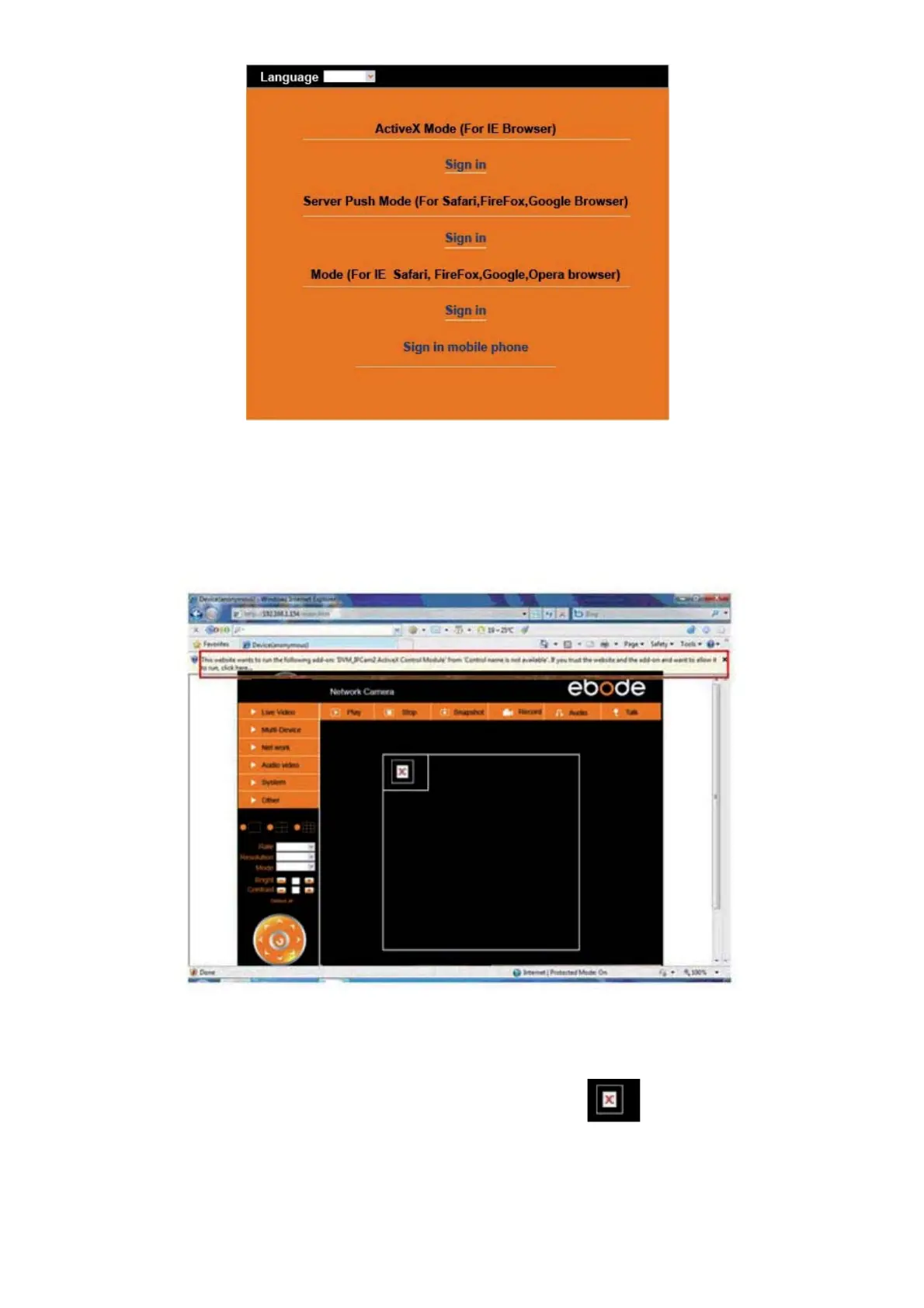
Figure 2.8
The first time you login to the camera, you might get an ActiveX prompt as in the picture above, please click
the prompt and choose Run Add-on, refresh and login to the camera again, then will see live video, as
below:
Figure 2.9
Figure 3.0
Note: If there is still no live video after you run ActiveX, and a red cross
shows in the center of the
screen, or even just a black screen, please try to enable the ActiveX options of IE security settings.
(Did you install the ActiveX App from step 4 in chapter 1.6, Figure 1.5?)


 To Next Page