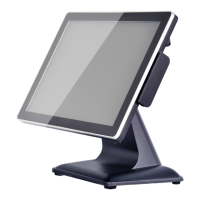
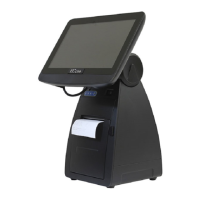
This document serves as the user manual for the EC-1200 All-in-one Touch POS Terminal, providing comprehensive guidance for its installation, operation, and troubleshooting. It is designed to help users maximize the benefits of their EC Line All-in-One touch POS device, emphasizing product quality and after-sales service. The manual is structured into several chapters to facilitate easy navigation and focus on key topics, making it accessible even for users without prior point-of-sale knowledge.
Function Description
The EC-1200 is an all-in-one touch POS terminal, designed for various point-of-sale applications. It integrates essential components into a single unit, streamlining operations and reducing clutter. The device features a touch screen interface, which is central to its operation, allowing for intuitive interaction. It supports connections for a range of external devices through its rear panel I/O interfaces, including power, parallel connector (LPT), serial sockets (COM), and USB interfaces. This connectivity enables the integration of peripherals such as mice, keyboards, printers, fax machines, and other communication equipment.
The terminal's core functionality is supported by a motherboard with a BIOS (Basic Input Output System) chip, which performs a self-test upon startup to ensure all main components are functioning correctly. While the BIOS settings are pre-configured at the factory for optimal performance, the manual provides instructions for accessing and modifying these settings if necessary, particularly in cases of system errors or when customizing default settings based on specific customer characteristics.
Network connectivity is a key feature, with two RJ-45 connectors (LAN1 and LAN2) supporting 100M/bps and 1000M/bps LAN interfaces, respectively, to enable internet connection. Audio output (LINE out) and microphone input (MIC IN) ports are also available for multimedia functionalities. The device is powered by a 12V DC input, with an additional 12V DC output for powering other external devices.
The EC-1530 series, mentioned in the context of the manual, highlights a design feature that allows for manual handle adjustment within a 0 to 90-degree range, enhancing ergonomic flexibility. While the EC-1200 specifically is the subject, this suggests a focus on user-friendly design across the product line.
Usage Features
The EC-1200 is designed for ease of use, with a focus on touch interaction and straightforward peripheral integration.
- Installation and Setup: The manual provides a detailed installation guide, including a visual representation of the EC-1200's appearances and a comprehensive description of its rear panel I/O ports. It walks users through the process of connecting external devices and understanding the function of each port.
- BIOS Configuration: For advanced users or specific scenarios, the manual outlines how to access and navigate the BIOS setup program. It details the control keys for menu navigation and selection, and explains how to load default settings, save changes, and exit. This allows for fine-tuning system parameters, although it advises against unnecessary changes to avoid system exceptions.
- Touch Screen Driver Installation: A significant portion of the manual is dedicated to the installation of the touch screen driver. It provides a step-by-step guide, complete with screenshots, for installing the eGalaxTouch driver. This includes:
- Locating and running the
setup.exe file from the installer directory.
- Proceeding through the installation wizard by clicking "Next."
- Selecting specific driver types, such as "install PS / 2 interface driver" or "install RS232 interface driver," depending on the touch interface.
- Choosing calibration options, with "NONE" being the recommended selection during initial setup.
- Connecting the USB controller and USB cable when installing USB touch functionality.
- Enabling "Support multi-monitor system" if multiple touch screens are used.
- Selecting the destination folder for the driver installation.
- Creating a desktop shortcut icon for the eGalaxTouch Utility.
- Touch Screen Calibration and Settings: After driver installation, the manual guides users through various touch screen settings, including:
- Related touch function setting: This section likely covers general touch behavior and responsiveness.
- Touch calibration: Instructions for performing 4-point or 9-point calibration to match the display and improve accuracy. It also includes options for clearing linearization parameters and performing a draw test to verify touch accuracy.
- Touch device line test: A visual test to ensure the touch screen registers input correctly across its surface.
- Touch screen setting (Display mapping): This feature allows users to map the touchscreen to a specific display monitor, especially useful in multi-monitor setups. It includes options for full screen, lower screen, left screen, upper screen, and right screen operation modes.
- Touch device edge correction setting: Parameters for adjusting touch sensitivity and accuracy along the edges of the screen, with options for top, left, bottom, and right edge adjustments, as well as X and Y axis offsets.
- Touch device hardware information display: Provides details about the touch controller, such as ETR4000/4200 hardware settings, constant touch settings (enable/disable, X/Y sensitivity), and overall sensitivity adjustments.
Maintenance Features
The manual includes a dedicated chapter on "Common Faults and exclusion," which serves as a valuable resource for maintaining the device and troubleshooting common issues.
- Safety Information: Before delving into troubleshooting, the manual emphasizes critical safety information, including compliance with national IT equipment security standards (GB/4943-2001). It advises users to ensure correct power supply, proper grounding, and to unplug cables during lightning storms to prevent damage and ensure personal safety. It also warns against opening the chassis, leaving items or liquids in the product, or obstructing ventilation holes.
- Environmental Considerations: The manual provides guidelines for environmental storage and operation, particularly regarding temperature. It advises against operating the device below 10 °C and recommends allowing the machine to acclimate to room temperature (10-35 °C) for at least two hours after storage in cold conditions to prevent condensation and electrical damage.
- General Usage Practices: To extend the life of the POS machine, users are advised to turn it off after use and to avoid using sharp objects on the touch screen.
- Troubleshooting Guide: The "Common Faults and exclusion" section systematically addresses various problems users might encounter:
- POS device does not boot: Provides steps to check power adapter connection, power light status, power outlet voltage, and to address automatic shutdowns due to high temperature or sudden power failures. It also advises contacting service if the adapter light blinks or goes off.
- No display after start up: Suggests checking if the LCD switch is on, assuming the BIOS beeping and theme sound are heard.
- Automatic restart (or shutdown): Guides users to check power supply connections, AC voltage stability, and to consider virus infections or recent hardware changes as potential causes. Reinstalling the operating system is suggested if other steps fail.
- No internet access or slow response: Instructs users to verify network cable connection, check the green and orange lights on the internet port, confirm network card driver installation, and verify IP address settings. It also suggests cleaning viruses if network speed is slow.
- Mouse or keyboard not working: Recommends restarting the device, checking if the mouse and keyboard are damaged, and verifying driver installation.
- Touch screen does not respond: Provides a detailed troubleshooting sequence, including removing and reinstalling the touch driver, checking COM port functionality, inspecting the touch flat 5P cable, and considering replacement of defective touch panel or control board components.
- Cursor pulse in a fixed position: Advises checking for physical obstructions on the touch screen, ensuring the device is away from high-voltage equipment, and performing a 25-point calibration after driver installation.
- Touch screen is not accurate: Recommends running a 25-point recalibration, especially after changing monitor resolution or refresh rate.
- Cursor moves opposite to touch movement: Suggests running 4/9/25 point calibration and reinstalling the driver if necessary.
- Cursor fixed at the edge of LCD or pulse in a fixed position: Instructs users to check for anything suppressing the touch region or squeezing the front frame.
- POS display is not clear or water ripples appear: Recommends resetting display properties, setting optimal screen resolution (1024 * 768), and maintaining distance from high-frequency devices.
- Cannot connect to the printer: Guides users to check printer functionality, connections, driver installation, and to re-check printer hardware in device properties. Reinstalling the operating system is a last resort.
- USB external device cannot be used: Advises checking the external USB device, ensuring BIOS USB2.0J is enabled, using appropriate cable lengths, and reinstalling the USB driver.
The manual underscores the importance of strict compliance with electrical appliance standards and safe voltage ranges (100V ~ 240V & 50Hz/60Hz). It also emphasizes keeping the device clean, dry, and away from dust, moisture, and direct sunlight, and avoiding sharing power outlets with high-power electrical appliances or placing it near high-level magnetic interference. Non-professional personnel are explicitly warned against opening the machine.

 Need help?
 General

 To Next Page