Camera App
1.
Make sure the PC Camera is turned on by using the Fn + F10 key combination (or
Control Center button).
2. Run
the
Camera
app
from
the
Start
menu
by
clicking
on
the
Camera
app
icon
(you can type “camera” into the search box to find the Camera app).
3.
The interface displays two buttons on the right of the screen; one for photo and
one for video.
Photo Video
4.
Simply click on the appropriate button to switch to either photo or video modes.
5.
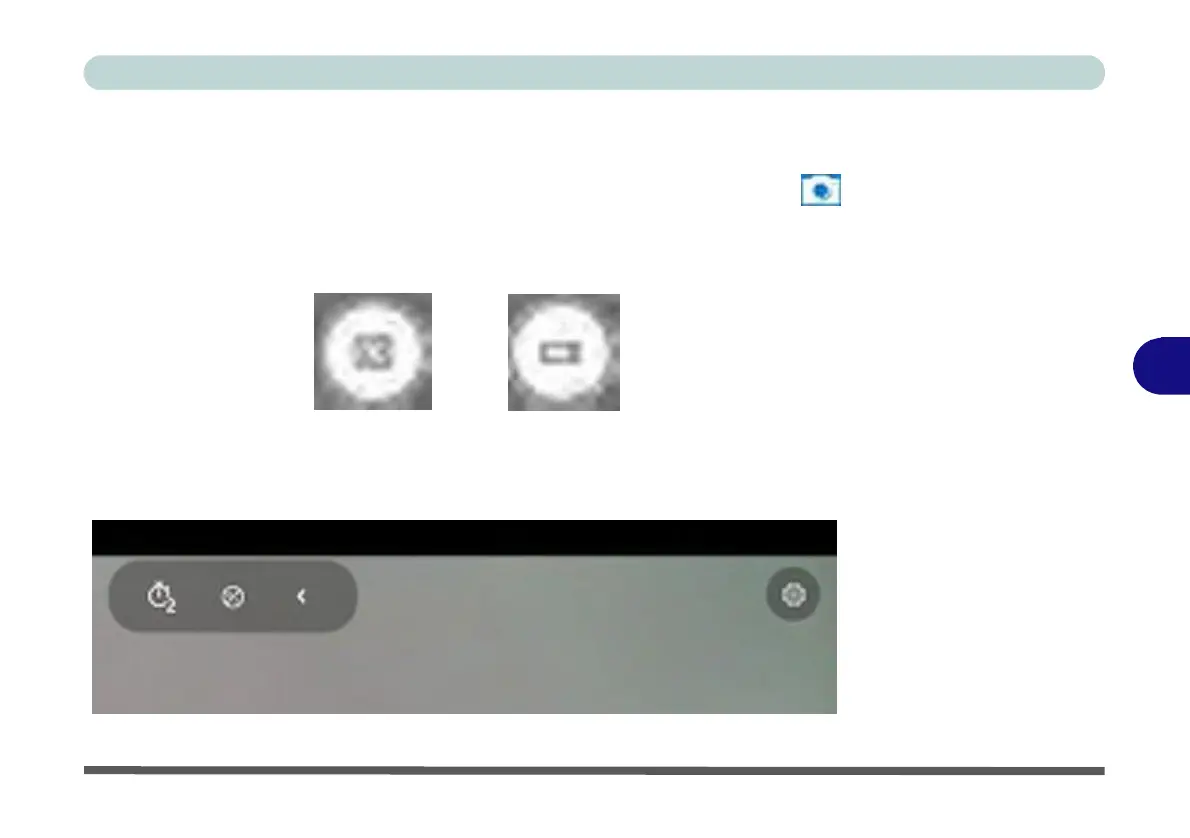
You can use the buttons at the top of the screen to access the Settings and Auto/
Pro menus (for Self Timer or Exposure compensation).
Figure 6 - 9
6
Camera App
Mode
Icons
Figure 6 - 10
Camera
Menu
Buttons


 To Next Page
 Loading...