6
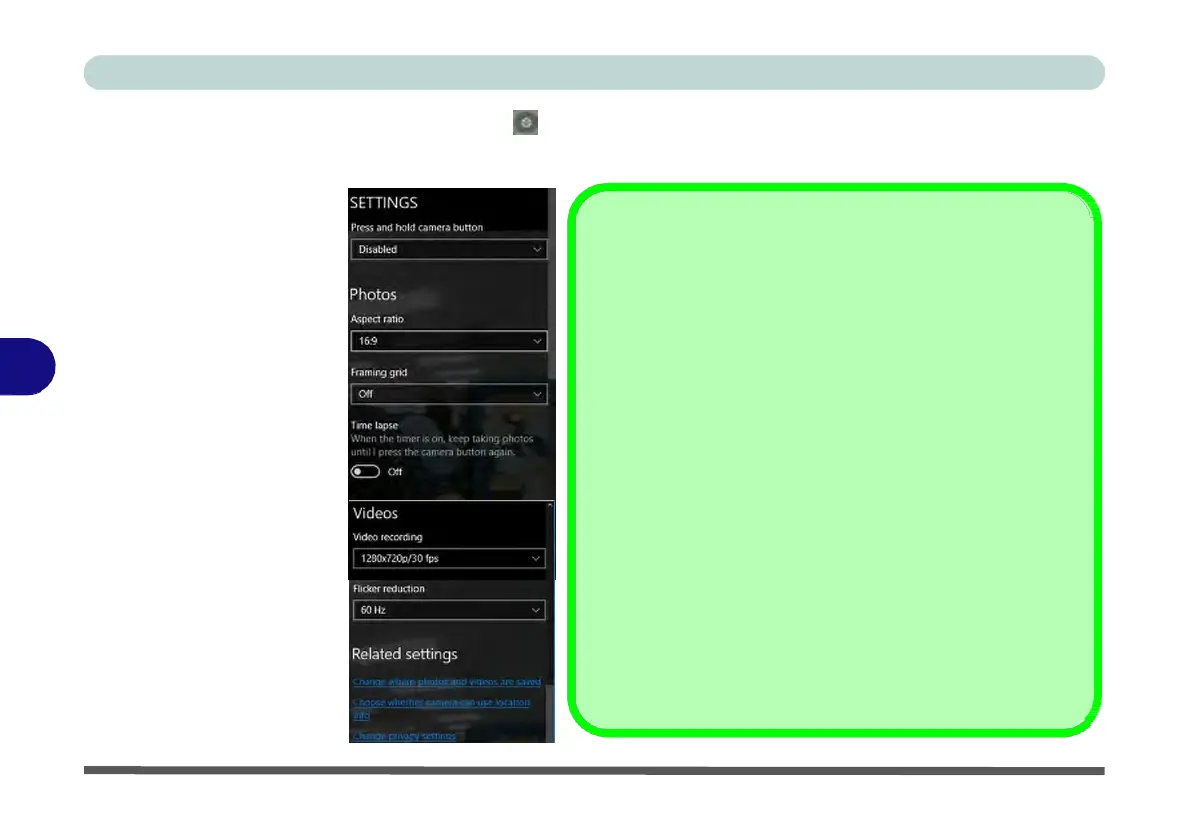
Figure 6 - 11
Camera Settings
6.
Click Settings to access the camera settings menu to make adjustments for
Camera press and hold button, photo Aspect ratio, Framing grid, Time lapse,
video recording frame rates and Flicker reduction.
Camera Settings
The
Self Timer
can
be
set
to
take Photos after
2, 5 or 10
seconds
and can also be set to
continue
taking
pictures
until the
camera
button
is
pressed again (
Photo
Burst).
The
Aspect Ratio
can be changed
to
those the system supports.
You can use a
Framing
grid to help you line up
pictures.
Time lapse
can be set
to
keep taking photos until the camera
but-
ton is
pressed
again.
The
Video recording
resolution and frame rate can
be set to any
supported
by the
system. Note
that
capturing
high
resolution
vid-
eo files
requires
a
substantial amount
of disk
space
for each file.
After
recording video, check
the
video
file size
(right-click
the file
and select Properties) and
the
remaining free space
on
your
hard
disk (go
to
File Explorer, right-click the hard disk, and select
Prop-
erties).
If
necessary
you can
remove
the
recorded
video file to a
removable medium
e.g. CD,
DVD
or
USB Flash
drive.
If you need to reduce any screen flicker, change the settings in
Flicker reduction
to
either
e.g.
50Hz
or
60Hz.


 To Next Page
 Loading...